Tool bar |
Description |
New |
Adds a new line to tag the items. |
Transfer Order Print option dialog opens where the transfer order print can be generated |
|
Save |
Saves the changes done on the Transfer Order. |
Delete |
Deletes a line in the order |
Find |
The Find icon opens the Find window from which you can conduct a search for items within the order |
Cut |
|
Copy |
|
Paste |
|
Expand/Collapse |
To view and hide items included in a kit. |
Expand all |
|
Comments |
Lets you enter and save comments for the highlighted item line. |
Refresh |
Refreshes the data shown to reflect the changes made since the window is opened. |
Availability |
Opens the Availability window for the selected line. |
Asset Search |
Opens the 'Assets' window where all assets for the order can be viewed. |
Show all Orders |
Displays the 'Contracts' window where all orders to which the transfer order is linked will be displayed. Double-clicking on any order line in this window will display that order in Read-Only mode. |
Freight PO |
Opens the purchase order of the Type Misc created for the transfer order. |
Cancel Transfer Order |
Cancels the Transfer order. Know more? |
Cancel Line |
Cancels the selected item. Know more? |
Close Transfer Order |
Closes the Transfer Order. |
Activity |
Opens the window to create tasks and make appointments and send mails. |
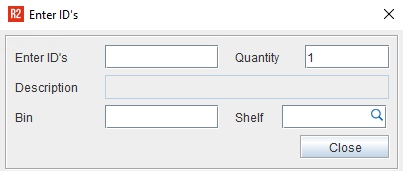
Enter Items |
Opens the Enter Id's dialog wherein you can enter a non searchable Product ID and on clicking on Enter Key will add the item to the order. |
Items |
|
Fill Items |
Fills the items on the Transfer order |
Fill all |
Fills all the items on the Transfer order |
Ship |
Dispatches the items on the Transfer order. This icon is enabled only in T-Out orders. |
Ship all |
Dispatches all filled items on the order. This icon is enabled only in T-Out orders. |
Detail view |
Displays the Transfer Detail Window. Know more? |
Show Order |
Displays a contract window where details about the order to which the transfer order is linked will be displayed. |
View exceptions |
Opens the 'Exception Detail' window where exceptions generated earlier while scanning an item in Fill Order, Return Order, Transfer Order and Ship Orders. |
Transfer Order History |
Displays the 'Change History' window where the history of the order and the corresponding warehouse activities will be displayed. |
Exit |
Closes the Transfer Order window. |
Fields |
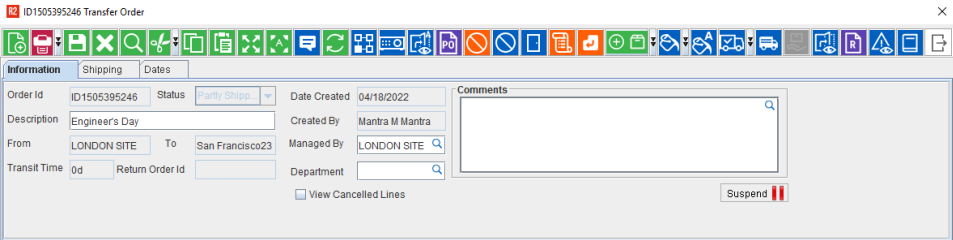
Description |
Order ID |
Unique identification number of the Transfer Order |
Description |
Description of the Transfer Order |
Status |
Status of the Transfer Order. Types of status are — Open, Shipped, Partly Received, Partly filled etc., |
From |
The site from which the Items are transferred |
To |
The site to which the Items are transferred |
Transit Time |
Shipping time of the items |
Return Order ID |
Unique identification number of the Return Transfer Order. |
Date created |
Transfer order created date. |
Managed by |
The site in which the warehouse schedules for the transfer order will be created |
Created by |
The name of the user who created the Transfer Order |
Comments |
Selecting on the Import button of the Comments field, system will display the Comments window, wherein on entering any comments will display the Comments in the comments field. |
Department |
The department tagged for the Transfer Order, which can be tagged either by Keying In the department or by clicking on the Import button of the Department field, system will display the Department Group window, wherein on selecting the Department and clicking on the OK button will tag the department in the Department field. More.. |
View cancelled lines |
Selecting the 'View Cancelled lines' check box and then selecting on the Refresh button will display the cancelled lines of the Transfer Order. |
Suspend lines |
|
Fields |
Description |
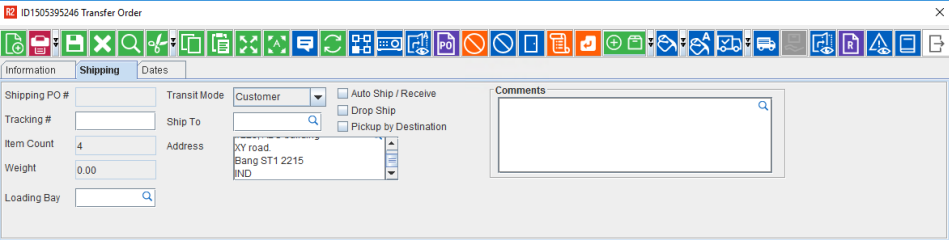
Shipping PO# |
|
Tracking# |
|
Item Count |
Displays total count of the items added on the Transfer Order |
Weight |
Displays the total weight of the items |
Loading Bay |
Click import button to select the loading bay |
Transit mode |
The mode of Transportation |
Ship To |
Selecting the Import button of the 'Ship To' field opens the 'Location' window, where you will be able to search and select a location where the items on the transfer Order will be directly shipped. The 'Ship To' field will be enable only on selecting the 'Drop-Ship' option. |
Address |
Displays the shipping Address |
Auto Ship/Receive |
Select this checkbox if you want to receive the items that are T-Reserved |
Drop Ship |
Select this check box if you want to ship items on the transfer order directly to the customer place. More... |
Pick up by Destination |
|
Comments |
|
The Dates tab is used to establish the Transfer order's processing time-frame and all the fields here are non-editable.
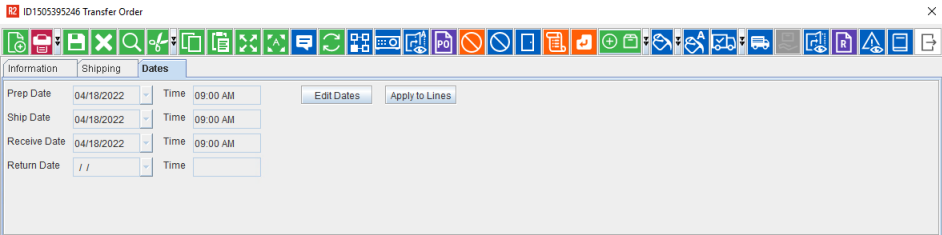
When Main Transfer Order is opened from the:
To Site: Prep-Date/Time, Ship-Date/Time, Receive-Date/Time and Ship-Back- Date/Time will be displayed. Prep and ship dates are same by default. You can change this any time and this will affect availability accordingly.
From Site: Prep-Date/Time, Ship-Date/Time, Receive-Date/Time and Shipped-Back Date/Time will be displayed.
When Return Transfer Order is opened from the:
From Site, Prep-Date/Time, Ship-Back-Date/Time and Receive-Back-Date/Time will be displayed.
To Site, Prep-Date/Time, Shipped-Back-Date/Time and Receive-Back-Date/Time will be displayed.
To track availability accurately, enter correct Dates and Time here.
Fields |
Description |
Prep Date/Time |
The date and time for preparing the items to fill on the Transfer Order |
Ship Date/time |
The date and time on which the items are shipped on a Transfer Order |
Receive Date/Time |
The date and time on which the items are received on a Transfer Order. |
Return Date/Time |
The return date and time of the items on the Return Transfer Order. |
Edit Dates |
Opens the Edit Dates window, where you will be able to edit the dates of the Order. |
Apply to lines |
|
To know more about the actions that can be performed in a Transfer Order. see Actions in a Transfer Order

Fields |
Description |
C |
This check-box will be selected if line level comments have been given for the item in the transfer order. This can be done by selecting the line and clicking the Comments icon in the transfer order tool bar. |
Status |
Displays the ID of the item. |
Product ID |
|
Description |
Displays the item description. |
Ship Date |
The date on which the item will be shipped |
Return Date |
The date on which the item will be returned |
Quantity |
Total item quantity required on the order. |
Short |
The quantity of items that are not available. |
Filled |
The quantity of items that are filled |
Shipped |
The quantity of items that are shipped to the destination site. |
Department |
The Department tagged to the Item or the Order. |
Container ID |
Displays the container ID on which the items are loaded. |
Shelf |
Displays the Shelf number |
Bin |
Displays the Bin number |