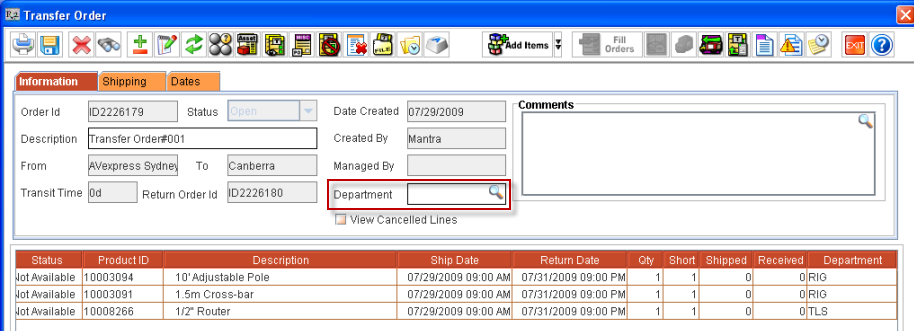
Support has been now provided to define departments for Transfer Orders which will allow the user to update the departments of lines based on the department in the Transfer Order Header or the Item definition
-
On creating an independent Transfer Order with or without Return Transfer Order and adding items/kits/Non serial Kits to this Transfer Order, system will set the department for the lines on the Main Transfer Order lines as given below:
-
If department is defined for the item in the item edit window, then system will set department for the item in the Transfer Order line from item edit window.
-
If the Department is not defined for the item in item edit window, then system will set the department for the item in the Transfer Order lines from the Transfer Order header.
-
If Kits/Non serial Kits are added to the Transfer Order, system will set the department for the kit and the child items from the respective Edit window and if the kit or the child items does not have any department defined in its respective edit window, then system will set the department for the kit or the child items from the header level department.
-
On adding items to a Transfer Order having Return Transfer Order, the department that is set for the Main Transfer Order lines will also be set to the Return Transfer Order. In this case, on adding lines to the Return Transfer Order only, then the department of the lines will be taken from the header of the Return Transfer Order or Item definition based on conditions mentioned above.
-
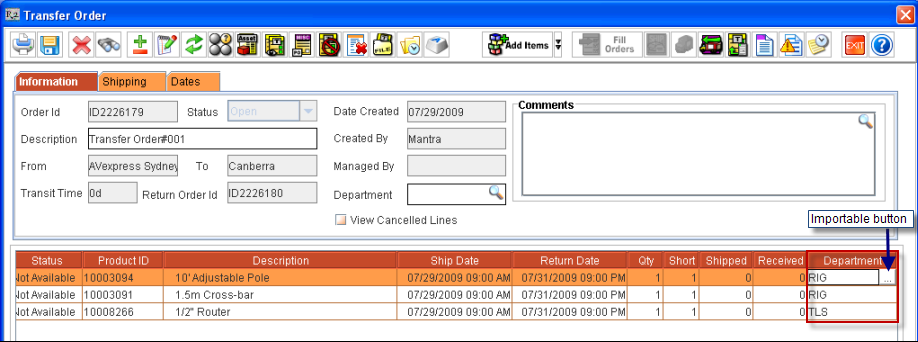
In the Transfer Order and Return Transfer Order, the user will be able to edit the line level and header level department.
-
In the Transfer Order having Return Transfer Order, on editing the line level department of the department column, system will prompt a message "Do you want to update Return Order lines?" with the options 'Yes' and 'No'. On selecting 'Yes' system will update the same line level department to the Return Transfer Order lines. On selecting 'No' will not update the Return Transfer Order it will update only the Main Transfer Order Lines.
-
In the Transfer Order having Return Transfer Order, on editing the header level department, system will prompt a message "Do you want to update all lines?" with a 'Update Return Order' check box and the options' Yes' and 'No'. By selecting the Update Return Order checkbox and then on selecting 'Yes' system will update all the lines along with the Header level department on the Main Transfer Order as well Return Transfer Order lines and header level Department . Without selecting the Update Return Order checkbox and then on selecting 'Yes' system will update only the lines on the Main Transfer Order.
-
In a Transfer Order which has no Return Transfer Order or in a Return Transfer Order, on editing the header level department, system will prompt a message "Do you want to update all lines?" with the options Yes and No and the Update Return Order checkbox will be disabled.
-
Changing the department in the Return Transfer Order lines will not prompt any message and will updated the department only in the selected line of the Return Transfer Order.
-
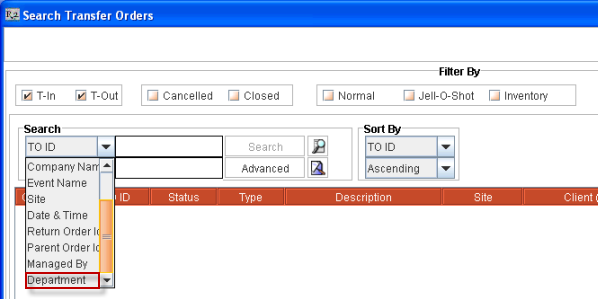
In the Search Transfer Order window, 'Department' is provided as a Search Criteria, using which Transfer Order/ Return Transfer Orders can be searched based on the Transfer Order Header Department.
-
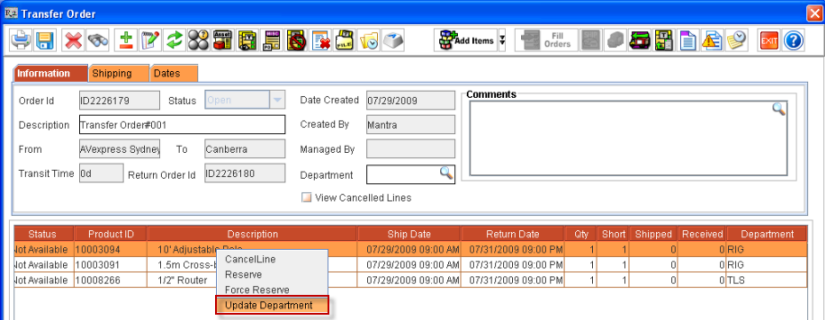
In the Transfer Order having Return Transfer Order, on the option 'Update Department' from the right click options of the selected line (selecting single line/multiple line), system will prompt a message "Do you want to Update Return Order lines?" with 'Yes'/'No' options. On selecting 'Yes' system will update the department from the Main Transfer Order header to the selected lines as well as the Return Transfer Order lines. On selecting 'No' it will only update the department of the selected lines in the main Transfer Order.
-
If all the lines in the Transfer Order has to be updated, then on clicking Alt+A in the Keypad, the user will be able to update all the lines based on the Transfer Order header department.
-
While transfer assigning the lines of a Rental Order using the options 'Use Existing Transfer' or 'Create New Transfer', system will default the department set for the order lines to respective Main Transfer Order and Return Transfer Order lines.
-
On changing the department of the Order lines which has linked to Transfer Orders, system will update the same department to the linked Main Transfer Order lines as well as Return Transfer Order Lines.
-
In an Order, when the department is updated by selecting Actions g Update Department g All Lines or by selecting Actions g Update Department g Selected Lines , system will update the department of the items in the Main Order as well as in the Linked Transfer Order.
-
While updating Department to selected lines, if the selected line is a Kit header, then the department will be updated for the Kit header and the child items. However, if the selected line is a child item, then department will be applied only to the child item.
-
Updating department would automatically save the order with the changes.