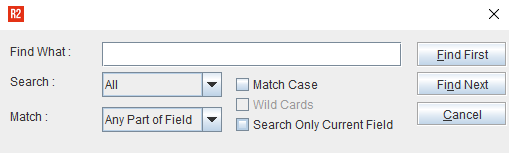
By using Find option, you can quickly search for every occurrence of a specific word or phrase.
Field |
Description |
Find What |
In the Find what box, enter the text that you want to search for. |
Search Direction |
|
Match |
Example: Enter search Value as 414 and select Any part of field, the search results will display all records which has the numbers 414 in it.
Example: Enter search Value as 414 and select Start of field, the search results will display only the records which starts of with 414.
|
Match Case |
On selecting this option the search performed is for case-sensitive occurrences of a word or phrase. This limits the search so it only locates text that matches the upper and lowercase characters you enter. |
Search Only Current field |
Search is performed only within the selected field. |
Find First |
Searches for the first occurrence of a word or phrase entered in the Find What field. |
Find Next |
Searches for the next occurrence of the search value. |
Cancel |
Ends the search command and close the dialog. |