In rental businesses, to save time and transportation charges, you might want to ship items on a purchase order or a transfer order directly to the customer place without receiving it into the inventory.
The users also have the option of having the required minimum information of the transaction for future references. If user selects the Drop Ship checkbox in the Purchase order, R2 considers the item as having been shipped directly from the vendor to the customer.
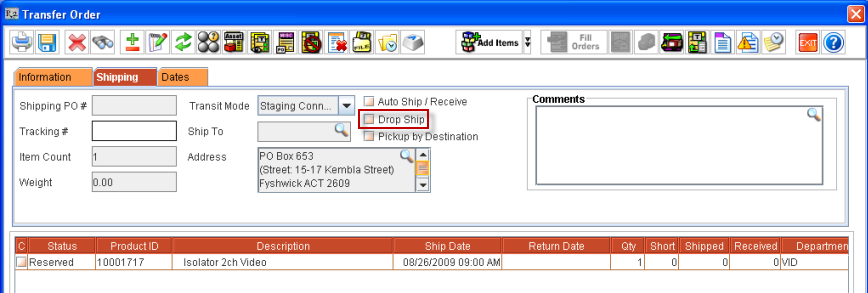
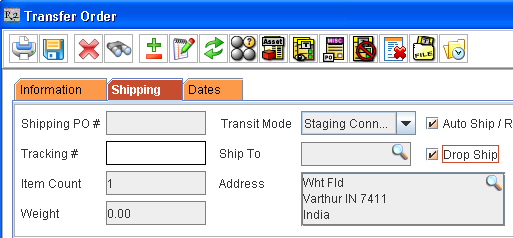
Open a Transfer Order linked to an Order.
Click on the Shipping tab of the Transfer Order.
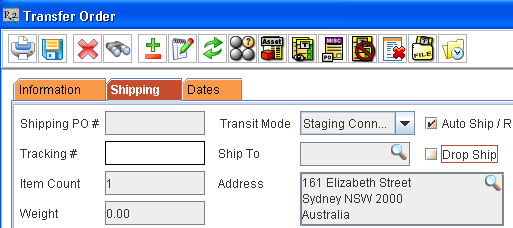
Select the Drop ship Checkbox.
The Address in the Shipping tab changes to the Customer address.
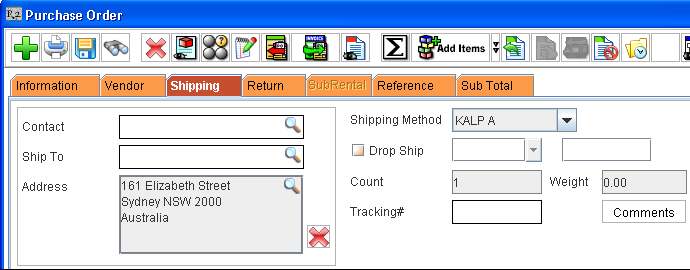
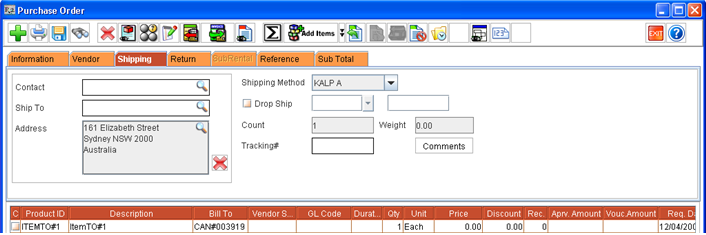
Open a Purchase Order linked to an Order.
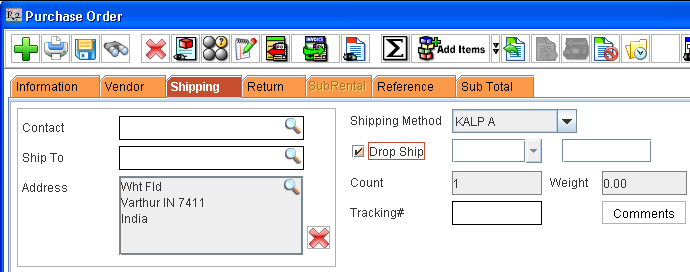
Click on the Shipping Tab of the Purchase Order.
Select the Drop ship Check box.
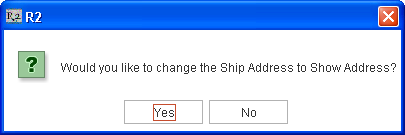
System displays a prompt to change the Shipping address to Customers location. Select 'Yes'.
The Address in the Shipping Tab changes to the Customer address.