In the Warehouse module, many options have been provided to enable you to make alterations to transfer orders. You can remove lines from existing transfer orders or cancel the transaction and delete the transfer order record itself, mark assets as missing and view Transfer Order History.
In the Transfer Order window, select the line that you want to cancel.
Click the Cancel Line icon.
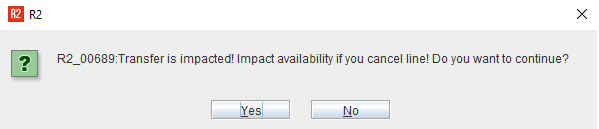
The transfer impacted prompt message is displayed.
Select Yes to continue with cancelling lines.
The line will be cancelled.
Search and select the transfer order line that you want to cancel
Click the Cancel Transfer Order icon.
The transfer impacted prompt message is displayed.
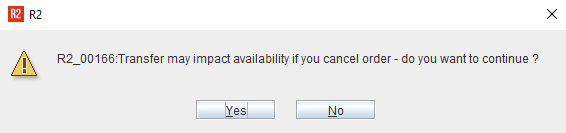
Select Yes to continue with cancelling lines.
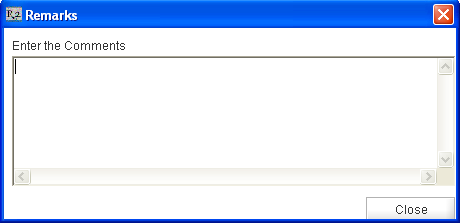
The Remarks window is displayed. Here you can enter remarks or comments about cancelling the order.
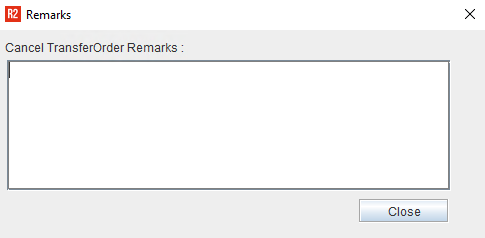
Click close after entering the remarks.
The transfer order will be deleted from the line.
Search and open the transfer order that you want to cancel.
Click the Cancel Transfer Order icon in the tool bar.
If Return Transfer Order is present, then you will see the prompt message as below.
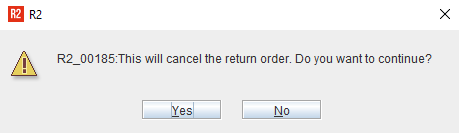
If Return Transfer Order is not present the 'Cancel Transfer Order' prompt is displayed.
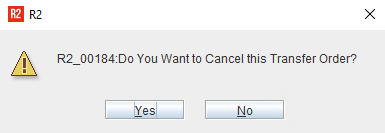
Select Yes to continue with cancelling lines.
The 'Remarks' window is displayed. Here you can enter remarks or comments about cancelling the order.
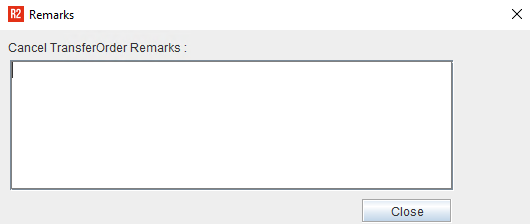
Click Close after entering the remarks.
The transfer order will be deleted from the line.
The cancelled orders can be viewed by selecting the Cancelled check-box in Transfers window search and performing a search. The Transfer Order window will be displayed in Read-Only mode.
To learn about the Transfer Order History, Click here
In the Transfer Order Detail a missing icon is present (as shown below) which allows the user for marking item as missing from the detail view of Transfer order type 'T-In'.
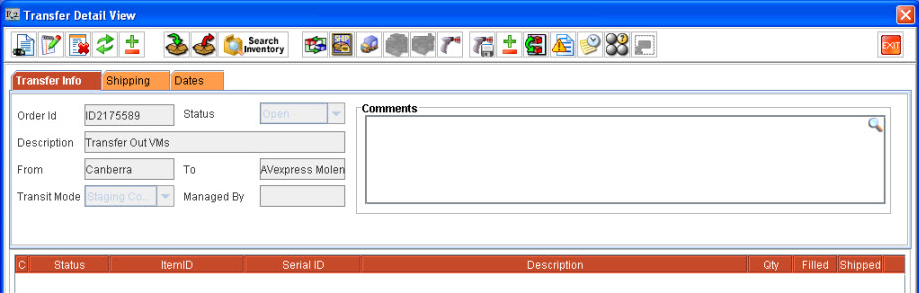
The user can mark Serial and Non-Serial items as missing either in Transfer From site or in Transfer To site from the Transfer Order Detail view.
Access Transfer Order Detail Window
Highlight any item of status Shipped which has to be marked as Missing
Click on Missing icon
R2 will display Mark as Missing in dialog box wherein the you can select the Transfer Site in which the item should be marked as missing, select an option accordingly.
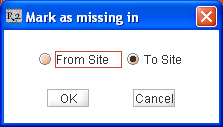
For Non-Serial items, R2 will display Missing dialog box where in the user has to enter the quantity of items which has to be marked as Missing.
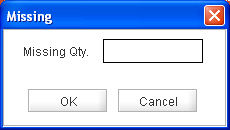
Click OK to display the 'Remarks' dialog box wherein you can enter comments for marking assets as missing. Click Close to close the remarks dialog box.
If the option To Site is selected , the transfer line status for the asset will be updated as received and status of the asset will be marked as missing and If the option From Site is selected , then the asset status will marked as missing and transfer line status will also be updated as missing.
You can also mark assets as missing from Batch Return. Accordingly the availability/locked quantity/asset status will be reverted back in the corresponding current site of the asset.