Content was last updated in 06.22.07-00
In R2, system allows you to create customized fields to take input from users on values which were not part of the entity like Order, site etc.,These fields are called 'User Defined' fields or UDFs.
A UDF can be defined for an entity and will exist only for that particular entity.
Example: If you create a UDF named 'Time-Zone' for the 'Site' entity. Then the 'Time-Zone' field displays in the 'Site edit' window. Also, the system allows you to perform search on 'Sites' based on the 'Time-Zone' UDF value.
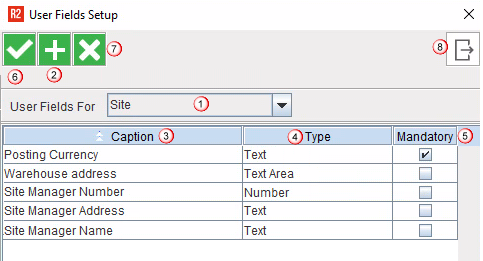
User Fields for: Select the entity from the dropdown. By Default, 'Site' entity is displayed and the grid presents the existing user fields defined for the Site entity.
Add: To create new user fields for the selected entity.
Caption: Displays the field name.
Type: Displays the value type.
Mandatory: Displays whether the field is mandatory to fill or not.
Save: To save and exit from the window.
Delete: To delete the defined user field from the entity.
Exit: To exit from the window.
The sample workflow is explained for Event entity. The same steps can be followed to create new fields for any other entity.
Open 'User Fields Setup' window.
In the 'User Fields for' option, select the entity for which you want to add a new user field.
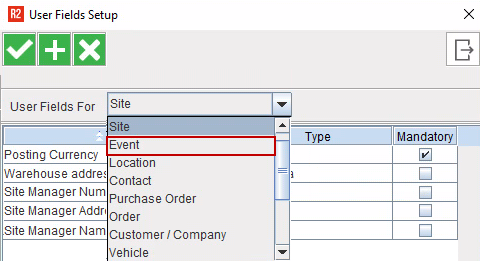
Click Add icon to open 'User Field' pop-up.
Fill the values for the following fields:
SN |
Field |
Description |
1 |
Position |
Determines the position of a field in the entity over a collection of fields. R2 automatically generates the position value which can be altered. This is mandatory field to fill. |
2 |
Caption |
Define the user field name. This is mandatory field to fill. |
3 |
Multi-language |
To define the field name in multi-language. |
4 |
Type |
Select the value type for the defined field name. Possible options are Text, Number, date, boolean, Choice, R2entity, and Text area. |
5 |
Mandatory |
To specify whether the filed is mandatory to fill or not. |
6 |
Entities |
This field is enabled only when the type selected is R2entity where you want the user to select an employee, site, company from the dropdown. |
7 |
Save |
To save the data. |
8 |
Exit |
To exit the pop-up. |

The created new field displays in the grid. Then, click OK to save the data.
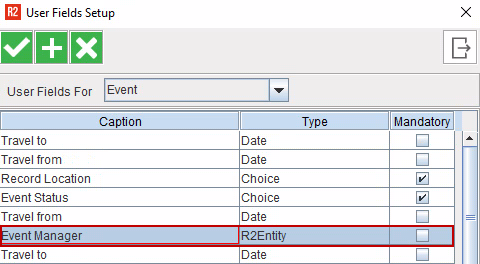
Now open 'Events' window, click User Fields and the defined field is displayed.
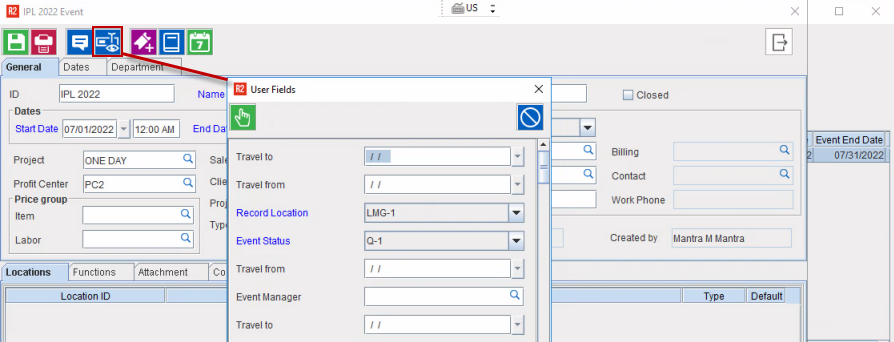
Open 'User Fields Setup' window and select the entity for which you want to add a new user field.
Click Add icon and key in the Position and Caption.
Next, select the 'Type' as Choice. A 'Choice Values' section displays as shown below.
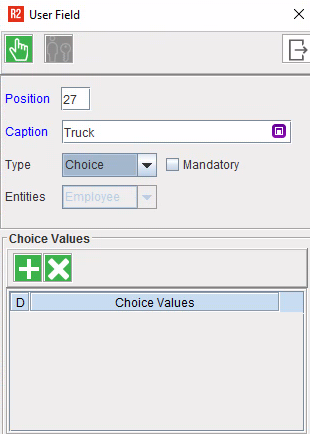
Click Add button.
In the 'Choice Values' section,
D means default choice. If 'D' is not selected for any value. the drop-down shows default value as blank.
Enter the multiple values. Values in dropdown choices are listed in same sequence as they are defined. But after defining they can be re-arranged.
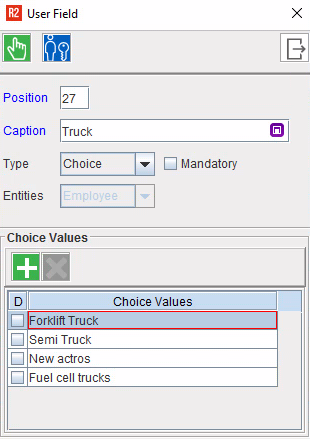
Save the data.
Now open the UDF window of the entity and you will see the user field with choice values.
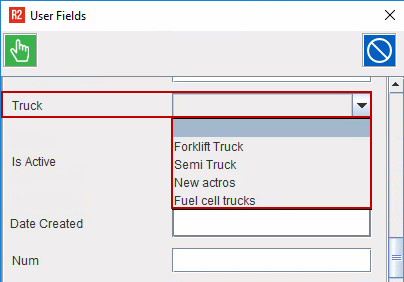
The sample search flow is explained for Event entity. The same steps can be followed to search in all other entities.
To search using 'User Field search' option, ensure atleast a single user field is created for the entity.
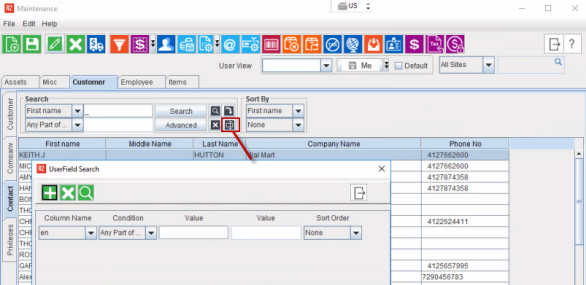
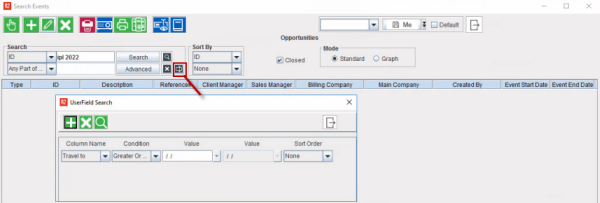
Tap User Field search icon.
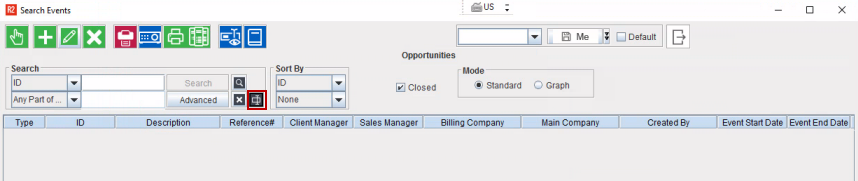
In the 'User Field search' pop-up,
Select the Column name i.e, User Field name on which you want to search the item.
Select the condition.
Enter the value.
Set the sort order if required.
 |
Click Add icon to add a new line to provide the multiple user field name for search. System looks for both the lines and get the results. |
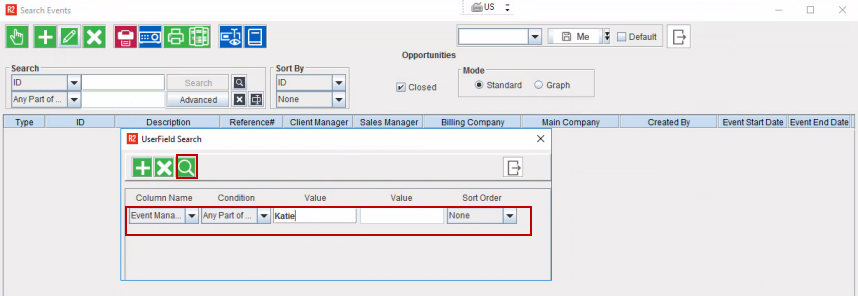
Click the Search icon.
You will see the search results based on the UDF values.
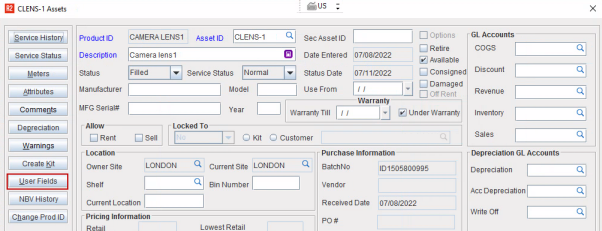
Accessible through 'Asset edit' window by clicking the User Fields button.
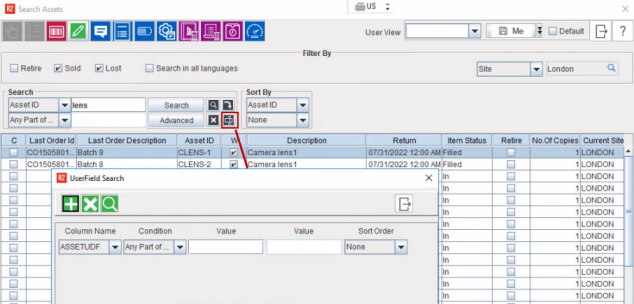
Asset search can be performed using the user field value in the 'Search Asset' window.
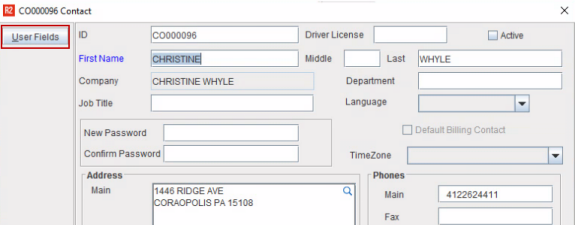
Accessible through 'Contact edit' window by clicking the User Fields button.
Contact search can be performed using the user field value in the 'Search Contact ' window.
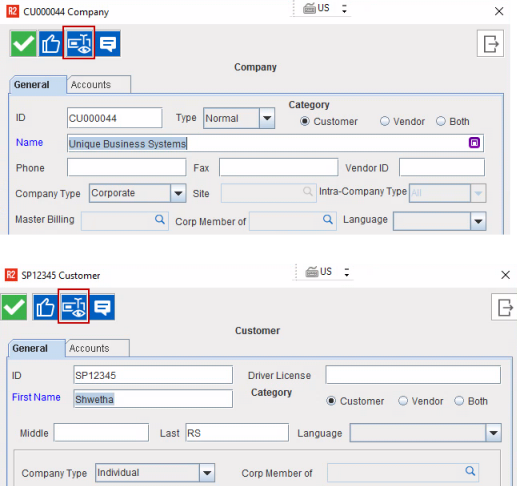
The User fields created for Customer/ Company entity is displayed in both 'Customer edit' window and 'Company edit' window by clicking the User Fields button.
Search can be performed using the user field value in the 'Search Customer/ Company' windows.
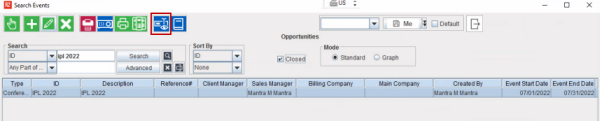
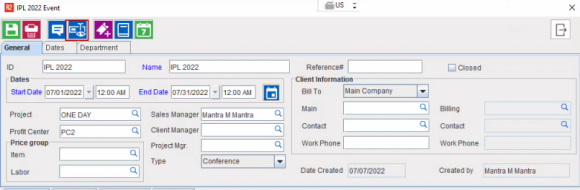
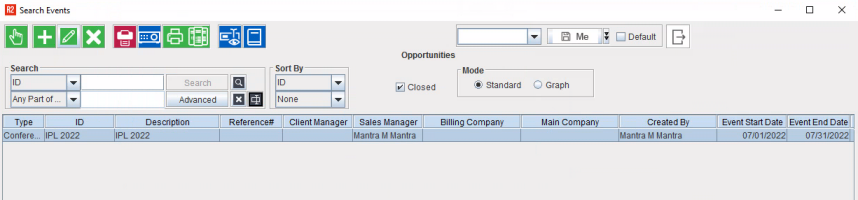
User Fields button for Event entity is available 'Event' window and also in 'Search Event' window.
Event search can be performed using the user field value in the 'Search Event' window.
Additionally, you can default Event UDF values to its Event Orders. Want to Know more?
User fields defined for Inventory in Maintenance User fields is listed in the Attribute list dialog of an item. If user makes any changes to the Attribute list the same will be reflected in the User Fields dialog of Maintenance module.
Supported in following windows:
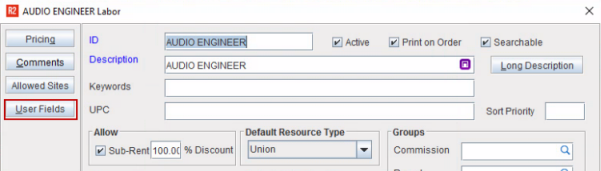
User Fields button is available in 'Labor edit' window.
Supported in 'Location Details' window.
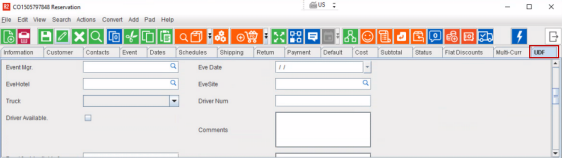
UDF fields are available in the User Defined Fields tab in the 'Order' window.
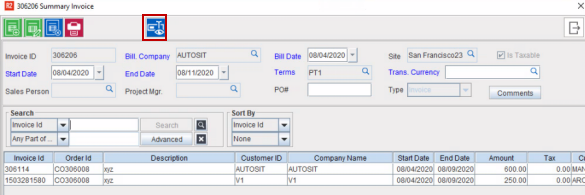
You can see the 'User Fields' button in the following places.
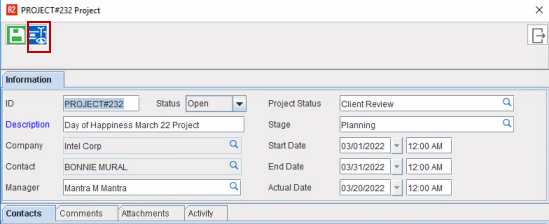
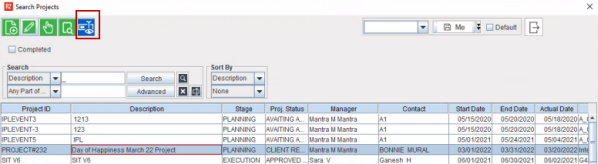
Projects can be search based on the UDF value in 'Search Projects' window. More details
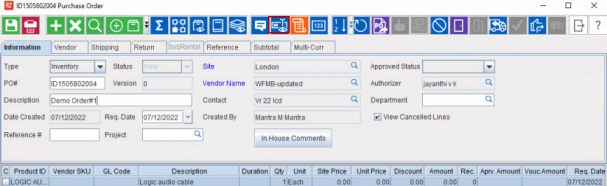
Accessible through 'Purchase Order' window by clicking the User Fields icon.
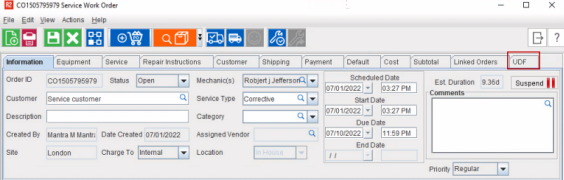
Supported in 'Service work Order' window.
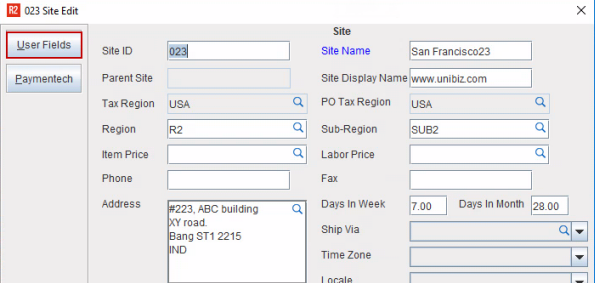
Accessible through 'Site edit' window by clicking the User Fields icon.
Site can be search based on the UDF value in Search Site window.
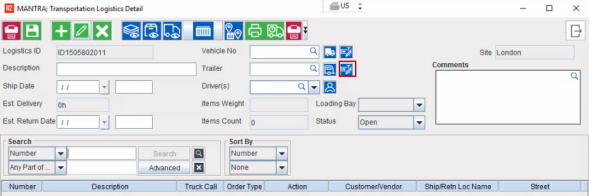
Supported in Transportation Logistics window.
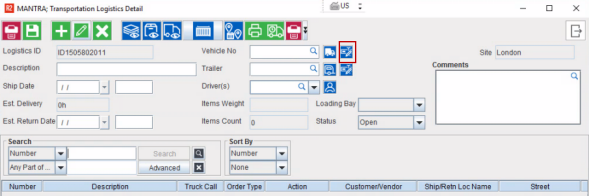
Supported in Transportation Logistics window.
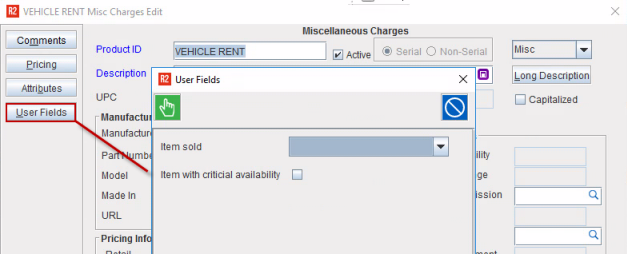
User Fields is accessible through Item, Kit, and Misc edit window. How to create User Fields?
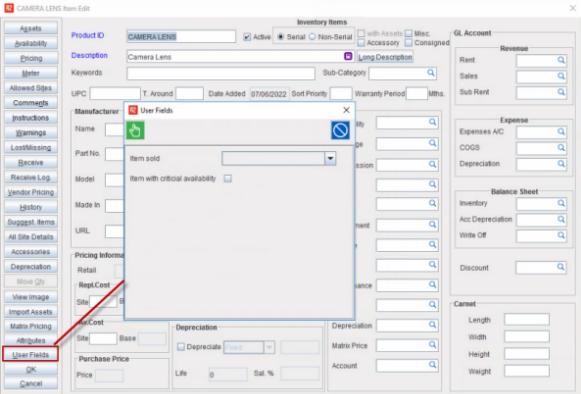
Item/ Kit/ Misc can be searched based on the UDF value in their respective search windows. UDF search is also supported in 'Search Inventory' window. How to search?