
Reference No: R2-15623
Version No: 06.01.08-00
R2 now carry the values from Event UDFs to the corresponding Event Order UDFs.
This functionality supported in the following actions:
Note: Previously, option was available to default only Event Dates, now it is enhanced to default Event UDFs also.
When an Event is tagged to an Order
Whenever an event is tagged to an Order, Default from Event option dialog box displays asking whether to copy the Event UDF values to the Order or not.
Define the Event UDF and Order UDF in Maintenance module> User Fields Setup.
The UDF caption and type should be same in both Order UDF and Event UDF.
Create an Order and add item lines to the Order.
Key in different values for the Order UDF and Event UDF.

Tag the Event [Rockstart] to Order.
Default from Event pop-up displays to carry the Event UDF values and Dates to the Order.
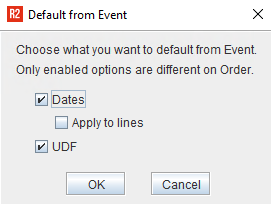
When Dates and UDF are same, the Default from Event pop-up does not display.
When Dates or UDF are different, the respective checkboxes are enabled and selected. Clear the checkbox if not required to default.
The Event UDF values are carried to the Order as shown below. Similarly Dates related checkboxes function as earlier.

When Orders are created using Generate Event Orders
Whenever orders are created using the Generate Event Orders option, the Event UDF values defaults to the event orders generated.
See Pre-requisites
Create an Event and fill the required details.
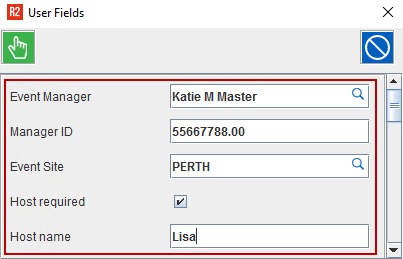
Key in the values for Event UDF.
Click Department tab and select the department from the list.
Click Generate Event Orders button. A success message display.
Now go to the Accounts window, open the created event in events tab.
All the Generated Order displays.
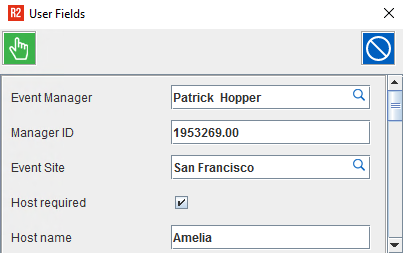
Open the Order, click UDF tab and all the Event UDF values is carried to the Order.

When an Event order is created from Accounts> Event tab
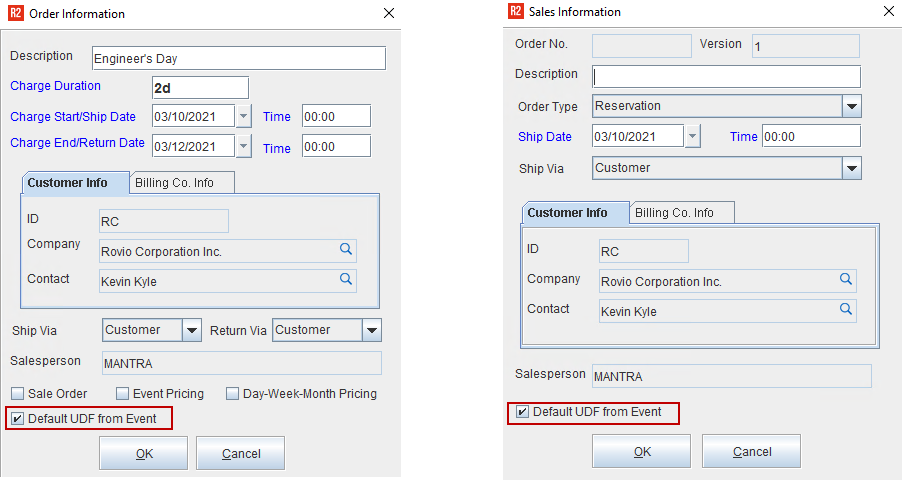
Whenever Quote/Reservation/Sale Order is created from Event tab with Event tagged, system displays Default UDF from Event checkbox. By default, the checkbox will be selected, you can clear it if not required.
Also, when you create a Sub Order, the Order Info dialog box displays Default UDF from Event checkbox when the Default MainOrder Info to SubOrders checkbox is False on the Main Order.
See Pre-requisites
Enter the Event UDF values.
In Accounts, click Event tab.
Tag an Event.
Click Quote/Reservation/Sale Order icon.
Default UDF from Event checkbox displays in Order Information dialog box. Clear it, if not required and click OK.
Quote/Reservation/Sale Order is created and Event UDFs are defaulted to the Order.
