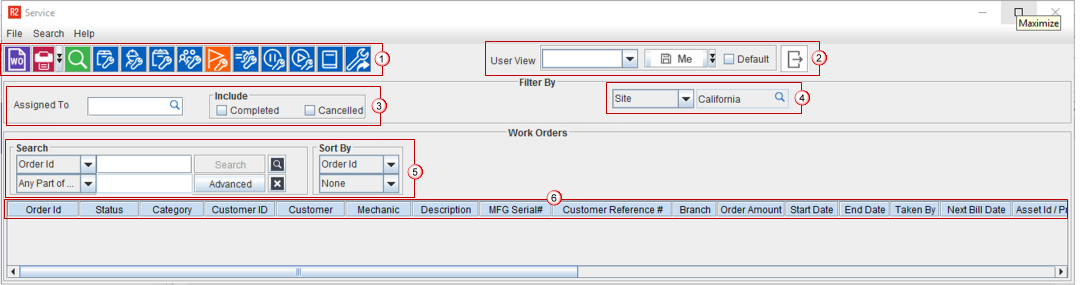
Figure 1.0: Service module main window
Content was last updated in 06.22.06-00
Service window is the playhouse and dashboard for the Servicing Department as it gives up to date information of the Assets and Items that are being serviced. Through this module you can create Service Work Orders, which intimates the users about the details of the Service that needs to be done and the Cost incurred.
Icon |
Description |
 |
|
 |
Print icon to Print the Work Order. |
 |
Search icon to find a specific Work order. |
 |
Select an Item required for Service. |
 |
Select a Labor Personel to do Service |
 |
Select a Service Package. |
 |
Select a Service Group. |
 |
Generate Needs Service. |
 |
Select a Quick Service Type. More.. |
 |
Suspend an On-going Service. |
 |
Resume a service, which is in Suspended stage. |
 |
View Invoicing History for service tickets. |
 |
Re-Open a closed Service Ticket. This button is disabled until the SWO is closed/invoiced. |
The User view feature on this window is consistent across R2 and works in the default way.
Almost 90% of Core
screens in R2, have a feature to customize the screen view.
The view can be customized either 'Only' for the logged-in user or for
any user in general.
One user can have multiple user view's configured. And one of these pre-configured
views can be tagged as 'Default'.
Search for the name of person in the 'Assigned To' field, and then select either or both 'Cancelled' and 'Completed' type of SWO.
Use the Site dropdown and/or Site search field to select the site filter.
Searching for records is done through a standard search dialog. The search dialog functions the same regardless of record type. However, you will be able to search and sort by fields specific to the type of record you are working with.
The Search dialog contains two areas labeled Search and Sort By. You will use the fields, buttons and icons within these areas to configure your search.
The Search determines what record field and what part of that field you are searching. This is also where you will enter the characters you are searching for and tell R2 to perform your search. The Advanced window lets you narrow your search and use multiple search Criteria. The Sort By area lets you choose the display format for your search results.
This is conventional search based on one single field as the parameter. Based on the number of records in your system, this may displays a long lost of records.
Click on the  button
for the first Search field.
button
for the first Search field.
This brings up a drop-down menu listing the available search fields.The list of fields available are the same as fields in SWO List Grid
Select the field using which you wish to search SWO.
Click on the
button for the second Search field.
Select one of the follwing parameters to decide, what part of the field to look at when conducting searches
Any Part of Field - Searches any part of the selected field type for your search criteria. This allows you to search record fields for a character sequence without knowing the exact field name, or the field's starting character.
Start of Field - Searches the first characters of the selected field type for a match to your search criteria. In simple words, the first character of the field must match the first character in your search criteria.
Whole Field - Searches for an exact field match. The information in the corresponding record field must be identical to your search criteria.
Click on the Search button.
You Use this to
further refine your search, from the results of Basic Search. To open
Refine Search box, click the  icon.
icon.
This search box has following parameters.
Find What: The word or the string of words to be searched.
Search: Choose one of the following pattersn on basis of which search will progress:
All: Search is done on all the records displayed from the basic search.
Up: Search is done on all the records Before the currently highlighted line from displayed from the basic search.
Down: Search is done on all the records After the currently highlighted line from displayed from the basic search.
Match: Select one of the follwing parameters to decide, what part of the field to look at when conducting searches
Any Part of Field - Searches any part of the selected field type for your search criteria. This allows you to search record fields for a character sequence without knowing the exact field name, or the field's starting character.
Start of Field - Searches the first characters of the selected field type for a match to your search criteria. In simple words, the first character of the field must match the first character in your search criteria.
Whole Field - Searches for an exact field match. The information in the corresponding record field must be identical to your search criteria.
Match Case: Select this checkbox if you want the search to take alphabet capitalization into consideration.
Search Only Current Field: This will restrict the search of given word/words as parameter only to the field chosen in Basic search.
Find First: Takes you to the first record from the list that matches the search parameters.
First Next: Takes you to the Next record from the list that matches the search parameters.
The Advanced button on the Search window opens the Advanced Search window. it allows you to widen or narrow a search based on criteria that you input.
The Advance Search window consists of five columns.
Column Name: Lists all the column names based on what types a data you are looking for.
Condition: A a drop down field from which you can select a search condition. The search conditions are as follows:
Any Part of Field: Searches any part of the selected column name for the value input into the Value column.
Start of Field: Searches only the beginning of the field.
Whole Field: Searches the entire field for matching criteria. When using this option the information in the record must exactly match the search criteria.
Value: These columns are where you enter values on which the search conditions are applied. Only the Between condition uses both Value columns.
Sort Order: The Sort By area lets you choose the display format for your search results.
The Sort By area lets you choose the display format for your search results. The first Sort By field lists possible record fields. Your search results will appear in alphanumeric order. The second Sort By field determines the order in which your search results are displayed: Ascending, Descending or None
Ascending sorts: Displays the records from lowest value to highest value. Example: A, B, C, D, E . . .
Descending sorts: Displays the records from highest value to lowest value. Example: Z, Y, X, W, V. . .
None: Displays unsorted data. This means you will see records in the order in which they were entered.
Field |
Description |
OrderID |
Displays the Service Work Order ID |
Status |
Displays the current status of the Service work Order. |
Category |
Displays the category the service belongs to. |
Customer ID |
Displays the Customer ID |
Customer |
Displays the Customer description. |
Mechanic: |
Displays the mechanic assigned to service. |
Description |
Displays the SWO description. |
MFG serial# |
Displays tagged product manufactured serial number. |
Customer reference # |
Serial number of the Item under service, if it has come from an external source. |
Branch |
Displays the availability site |
Order amount |
Total amount on the Service Ticket, that is Cost incurred for Servicing. |
Start Date |
Start Date of the service |
End Date |
End Date of the service |
Taken By |
|
Next Bill date |
|
Asset ID/ Product ID |
Asset ID /Product ID tagged for service. |
Suspended |
Displays a checkbox if the SWO is suspended. |
Service Type |
The type of service ticket: Preventive / Corrective / Manufacturer Recall. |
Date |
The Date on which the Service Work Order created. |
Product Description |
Displays the product description tagged for service. |
Est Duration |
The Estimated time of the Service to complete. |
Times Rented |
Count of times the Asset tagged to the SWO has been rented before being assigned for servicing.. |
Duration Rented |
The Total Duration for which the asset / non-serial item has been rented until now. |
Location |
The Location where the asset / non-serial item is being serviced, In-House or On-Site. |
Site Name |
Displays the site name in which the Service Work Order is created. |
Completed Date |
The Date on which the Service Work Order was marked as Completed. |
Priority |
This defines the 'Priority' at which the SWO should be attended. This can be Regular or High. |