Content was last updated in 06.22.07-00
Assume a significantly large number of assets and products required on an event and are ready to fill in truck from the Warehouse.
Instead of filling each and every individual asset/product in R2, the Warehouse Manager scans the assets and products. The scanner loads the asset and product details such as Asset / Product ID along with its quantity.
The scanner converts these product details into a CSV file and transfer to a computer. Now, the Warehouse Manager can open the CSV file and update the container ID against the product/ asset.
To update the same details in our application, we have a Read File feature. This feature is supported for both Orders and Transfer Orders 'Fill' operation.
Read File feature reads the data from the CSV file and marks the asset and product as Filled and updates the respective container ID against the asset/product.
Accounts > Open Order > View > Fill Order > Read File option
Warehouse > View menu > Order Fill dropdown> Order Fill > Read File option
Warehouse > Fill Order Tool bar > Search and open Fill Order > Read File option
Warehouse > Fill Order Tool bar dropdown > Batch Fill > Read File option
Warehouse/Accounts > View>Transfer Orders > Open Order > Detail view tool bar > Read File tool bar
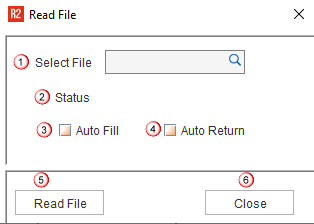
Select File: Select the CSV file.
Status: System displays the status at each step while reading the file.
Auto Fill**: Select the checkbox to fill and add the item to the order which is not added previously.
Auto Return**: Select the checkbox to return the added item on the order.
Read File: Click the button to read the file after locating it.
Close: Closes the 'Read File' pop-up.
 |
|
The CSV file contains the following details.
Details |
Description |
Product/AssetID |
Enter the valid Product ID or Asset ID. |
Qty |
Specify the quantity required to fill on the Order. |
Container ID |
Specify the container ID in which the item will be filled. |
Once the file imported is completely processed, a message displays to indicate whether the import was success or there were any exceptions.
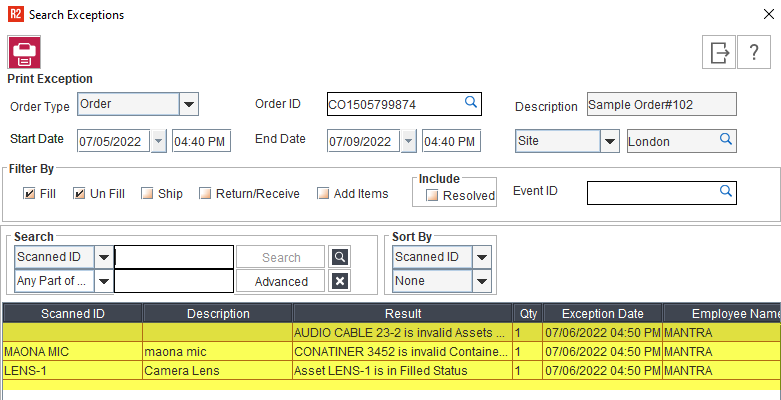
The exceptions are logged as 'Warehouse exceptions' and can be viewed later in time.
The sample workflow flow is explained for the Rental Order. The same can be followed to use the Read File feature for Transfer Orders also.
Create an Order and add items/assets.
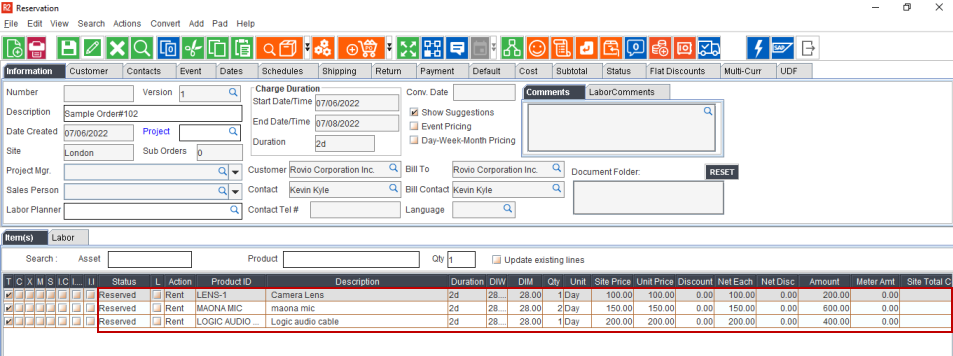
Ensure the CSV file is generated and the Container ID is updated.
In the below figure, the first column is Product ID/Asset ID, second is quantity, and the last is the Container ID.

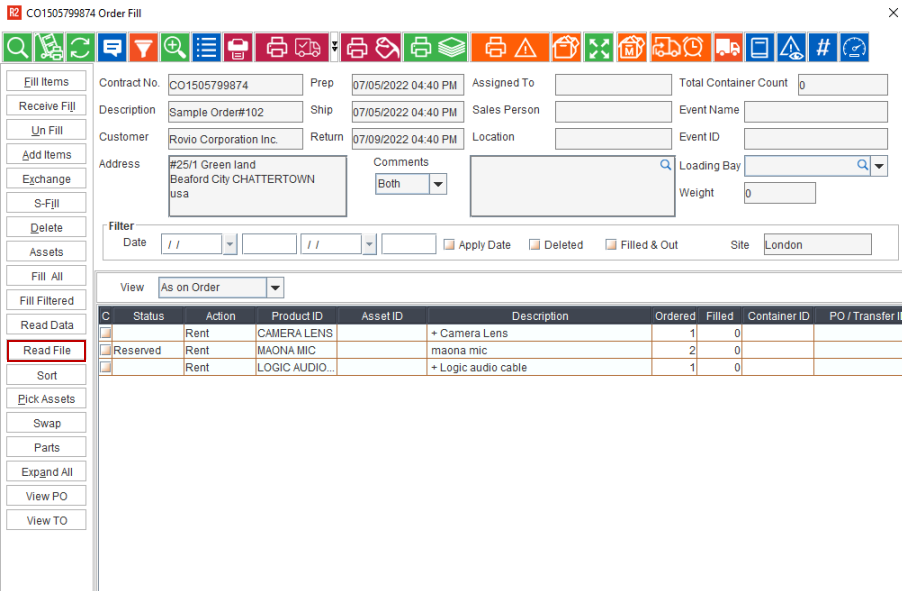
Open 'Order Fill' window, and click Read file button.
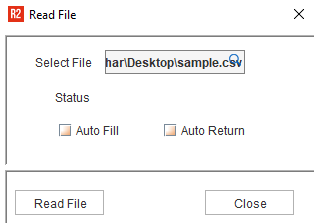
In the 'Read File' pop-up, locate the CSV file and click Read File button.
In the 'Read File' pop-up window, observe the status at this point, it shows as 'Ready to read items'. Also, a pop-up displays stating 'Do you want to load the data'. Click Yes so that file can be processed.
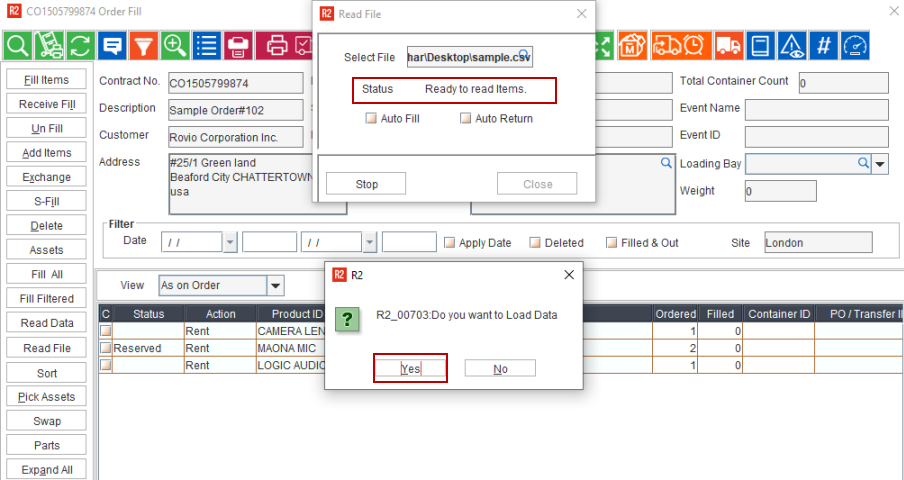
When the file is processing, the status in the 'Read File' pop-up changes to 'Processing data'.
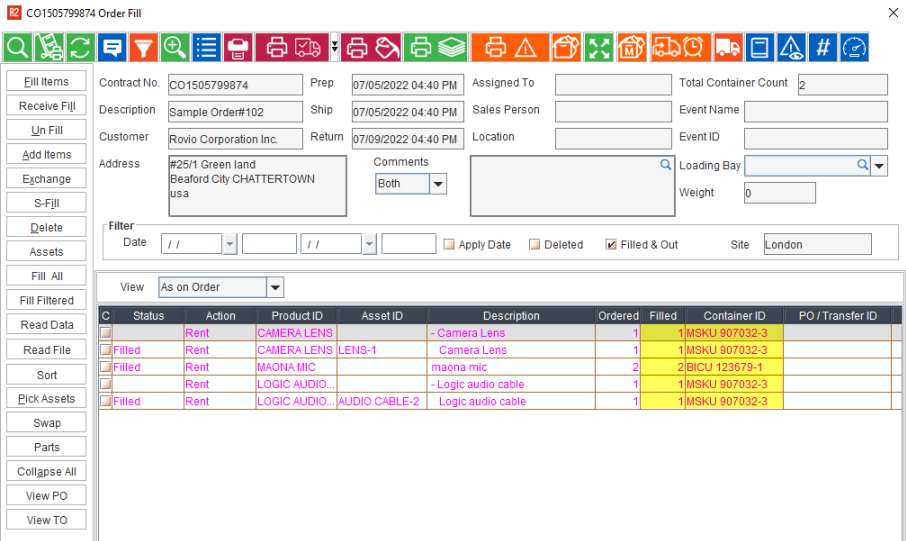
'If the file processed successfully, then a success message displays and the items gets filled and container ID is updated on the order as shown in Figure 2.6.
Once the file is processed, the status in the 'Read File' pop-up changes to 'Scanned items'.
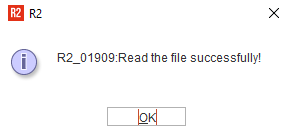
If processed file has exceptions, then you will see the below pop-up.
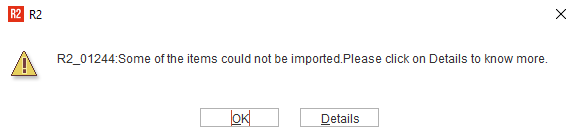
To view the details, click Details button.
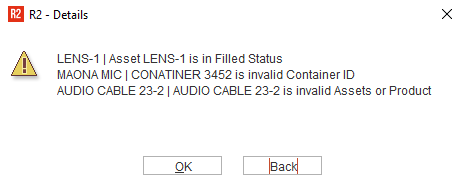
The same exceptions are logged in the 'View exceptions' as well.
Instead of opening each and every Order to read the file to fill the Items, 'Read File' option in 'Batch Fill' window helps in filling the items without opening the order and you can perform for multiple orders one after the other. Below is a glimpse of the same.
Open 'Batch Fill' window.
Enter the Order ID for which you want to fill the items.
'Auto Fill' and 'Auto Return' option is available in 'Batch Filling' window and you will not see in 'Read File' window. To use these options while filling, please select here itself.
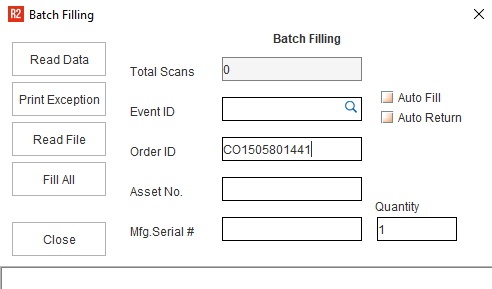
Click Read File option.
In 'Read File' window, locate the file and click Read File button.
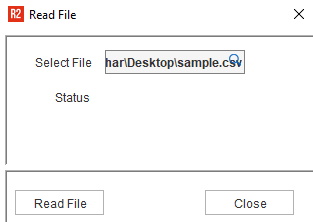
Click Yes to load the data.
Once the file is processed successfully, you can proceed to enter the other Order ID in the Batch Filling window to fill the items.
If the processed file has exceptions, you will see the 'Exception' pop-up to view the details as you usually see when reading the file in 'Order Fill' window.