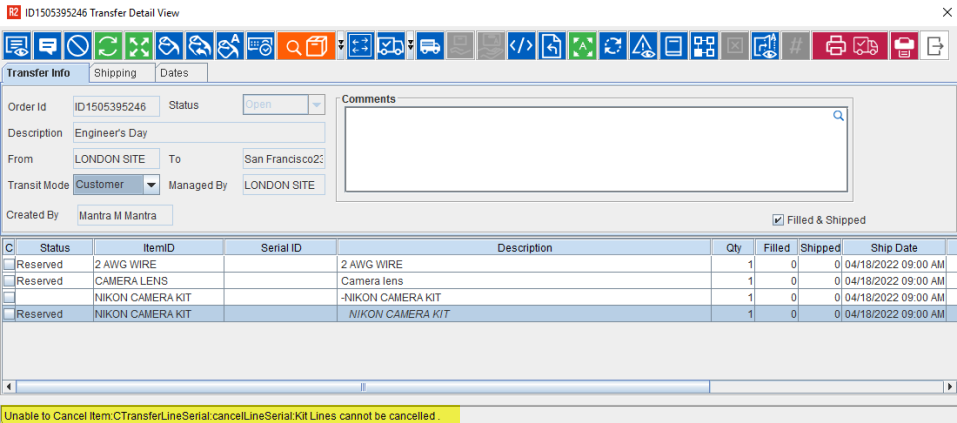
You can add items and kits to the transfer orders through Transfer Order details window also.
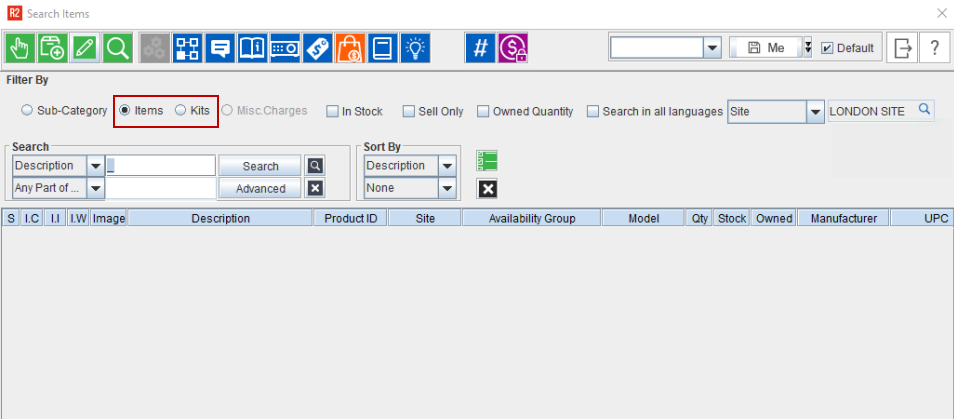
Upon clicking the items icon, the standard 'Search Item' dialog displays as shown below.
Items
By default, the items button is enabled.
Do a blank search or search for the item based on the search criteria and double click the item to add it to the Transfer Order.
The items added by one user in Transfer Order detail window is visible for the other users on refresh.
Kits
To add kits to the order, enable the Kits radio button.
Do a blank search or search for the kit based on the search criteria and double click the kit to add it to the Transfer Order.
The added kits displays in the detail window immediately. However, they reflect on Transfer Main window upon closing all instance of Transfer Detail window.
You can only see the serial kit header line but not the kit children.
Non-serial kits children added in the Transfer Detail window can be cancelled immediately in the same session.
Exchange feature is not allowed for Kits.
Serial Kit lines cannot be cancelled in TO Detail window. It shows a message as shown here.
The kits added by one user in Transfer Order detail window is visible for the other user on refresh.
The below scenarios explains how the system behaves when multiple user access the same Transfer Orders and lets you to proceed further.
Scenario 1:
First User
Creates Return Transfer Order (RTO) (Main Transfer Order + Return Transfer Order).
Open the Main Transfer Order in Transfer Order Detail View window and add items/ kits.
Save and close the Order.
Second user
Open the Return Transfer Order in warehouse window.
First user
Open the Main TO in Transfer Order Detail View window and add items/ kits.
System prompts a message stating 'Return Transfer Order's warehouse operation is in progress. Close it to proceed with the action'.
Scenario 2:
First user
Create RTO (Main TO + Return TO).
Open the RTO from Transfer Order search window.
Second user
Open the Main TO in Transfer Order detail view and add items and Kits.
System prompts a message stating 'Return Transfer Order is in use. Close it to proceed with the action'.
Scenario 3:
First user
Open the Main TO from the Warehouse window.
Second user
Open the same Main TO from Transfer Order search window in warehouse.
The Main TO opens in read only mode.
To unlock it, in the Transfer Order search window, search for the Main TO, right click and click Unlock.
System prompts a message as ‘The Order is in use by <User name (sitename)>. Are you sure to unlock it?’
Click Yes and provide your login credentials.
Open the Main TO again through Transfer Order search window to edit the Order.