Service Work Order: Basic Workflow
Content was last updated in 06.22.06-00
Revision
History
Well,
picture this - Can a pilot be assigned a flying duty when he or she is
on medical leave? or Can a student appear in an examination, while being
absent from the classroom? No !! Right !! We agree, both of these scenarios
are hilarious to even comprehend. However, in practicality, the examples
are a best possible analogies for similar situations in R2.
Technically
speaking, if an item is in repair or under servicing, it should automatically
becomes unavailable until QC has given clearance. And that's exactly what
this feature is helping us do.
Through
this functionality, once an Item. Asset or Kit is sent servicing will
be deemed as unavailable, until the SWO it was added to, is closed. And
simultaneously the overall quantity shown in the EUV (Equipment Usage
View) will also be adjusted and shown accordingly.
This is applicable
for both Serial and Non-serial type of Item. Asset, or Kit.
 |
System
considers the Equipment as Unavailable - Once the WO status is
Scheduled or Open.
The tenure of Equipment's Unavailability
lies between the SWO's Start Date and Due Date.
If the SWO
is Cancelled or once it is Closed, system marks the Equipment
as available. |
Basic Workflow for an SWO
The below sample workflow shows you the Service Work
Order (SWO) created for an asset.
Create
a serial item and receive
10 stocks.
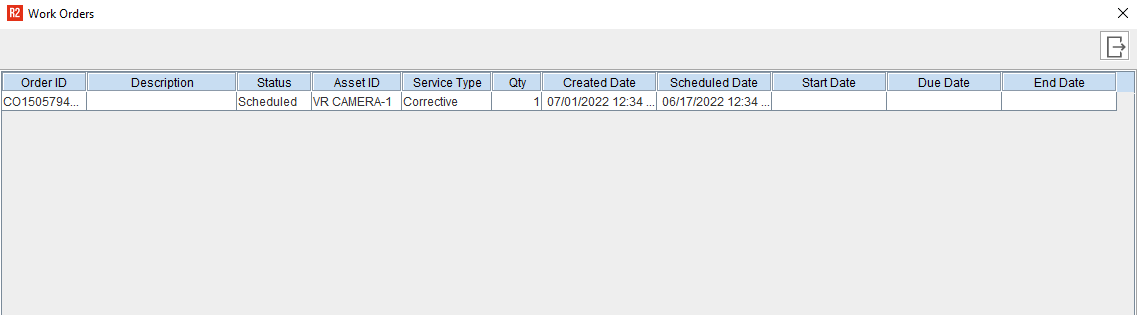
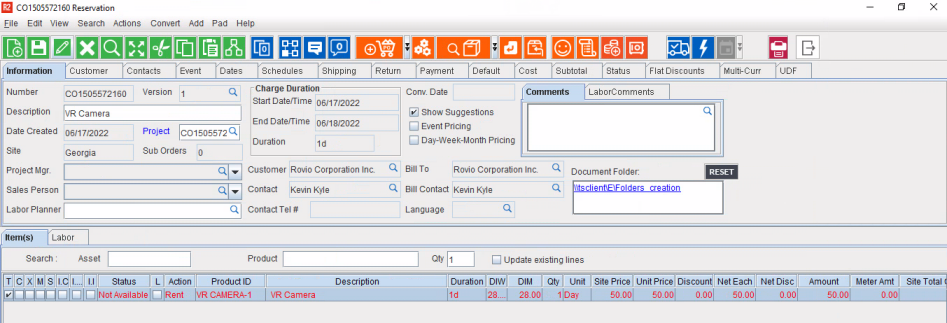
Create
a Service Work Order (SWO) for an asset.
Figure 1.0: SWO created for Asset

Change
the SWO status from Estimate
to Scheduled
and set the Schedule Date.
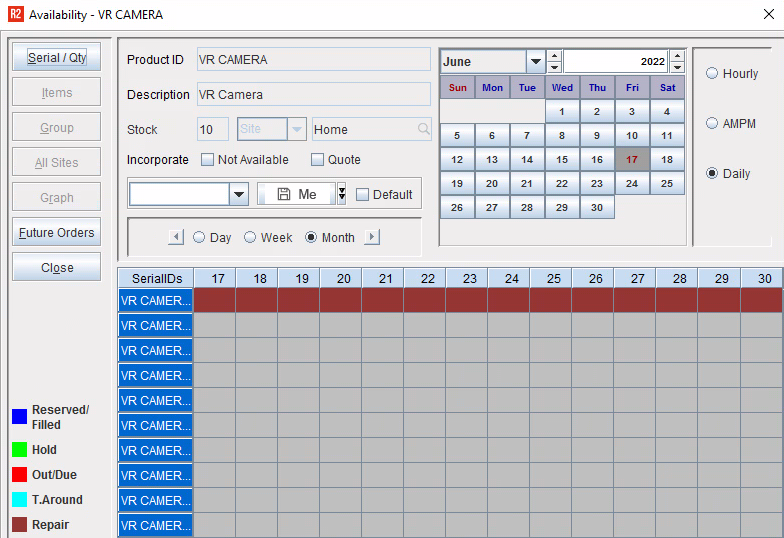
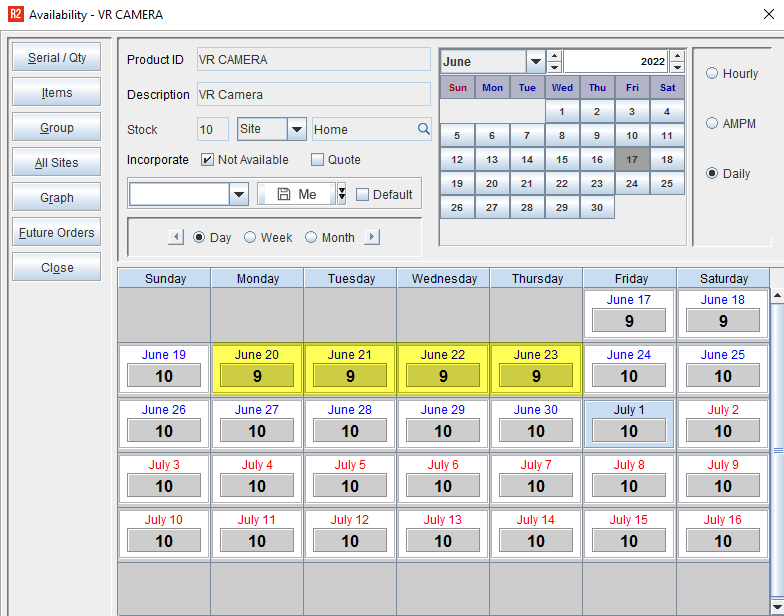
System locks the availability of
the Asset added to the SWO from the Schedule Date to Eternity
(see figure 1.2).
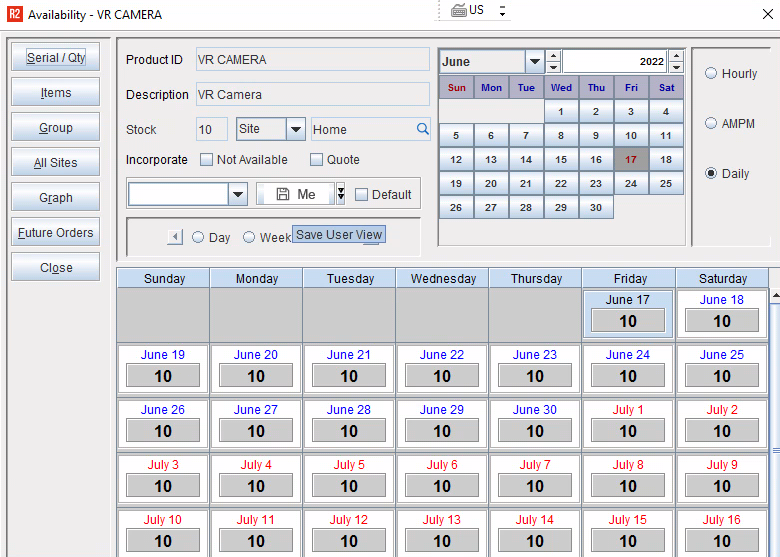
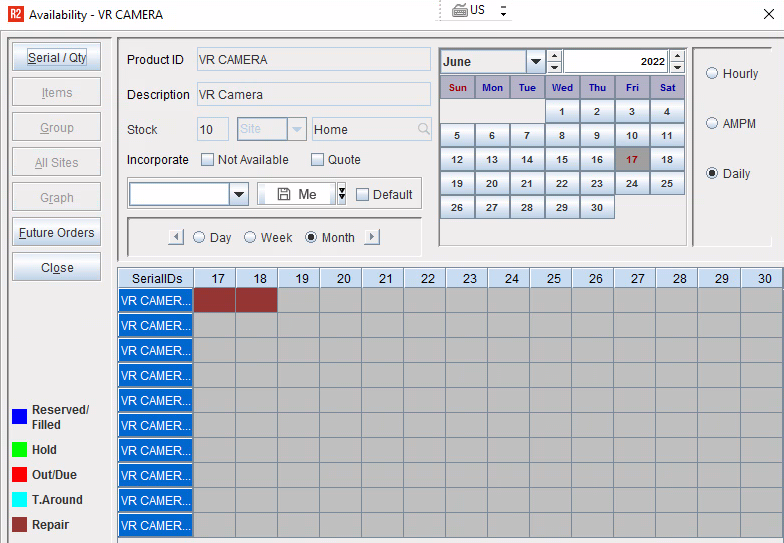
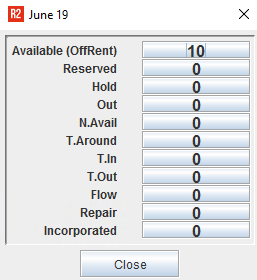
In the availability details window,
the Repair
count displays. Upon the clicking the repair quantity, you can
view the SWO
created against the asset.
In the 'Serial/ Qty' window, the
Repair
bar displays for eternity from SWO Schedule Date.
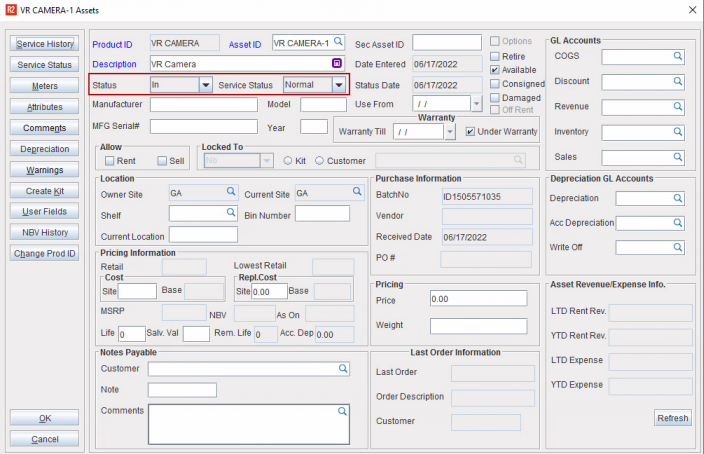
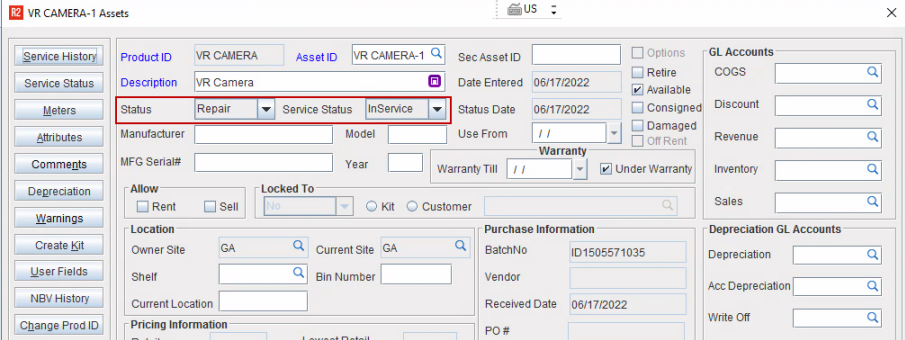
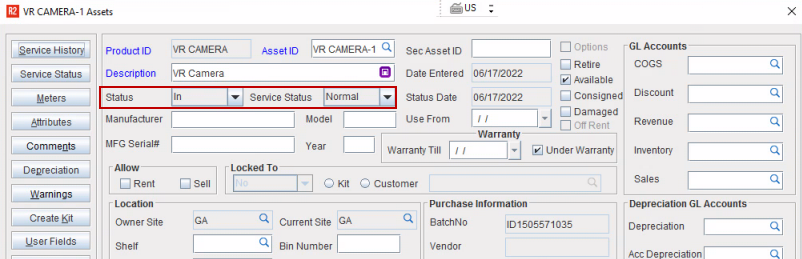
The
Asset
status displays as
In and Service
Status of the asset
updates as Pending Service.
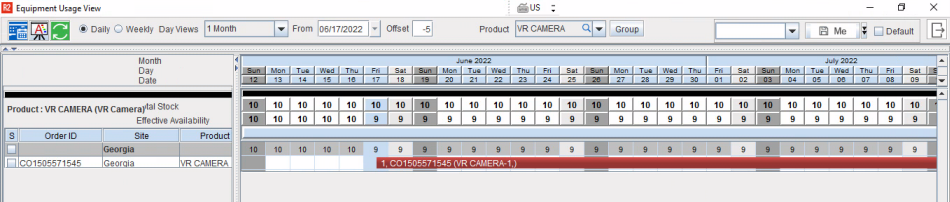
In the EUV, the SWO bar is displayed
for eternity as shown here.
Since
the SWO is in Schedule status, the asset cannot be reserved on
the orders (sample
figure).
The SWO which is in Schedule status impacts the availability of
the asset.
Figure 1.1: SWO in schedule status

Figure 1.2: Availability window reducing
the qty

Assign
a Mechanic to the SWO.
Now
change the status to Open
and 'Set Date' pop-up displays
to set the Start
Date of the SWO.
After
setting the Start Date, you can set the Due Date as well.
In
the availability window,
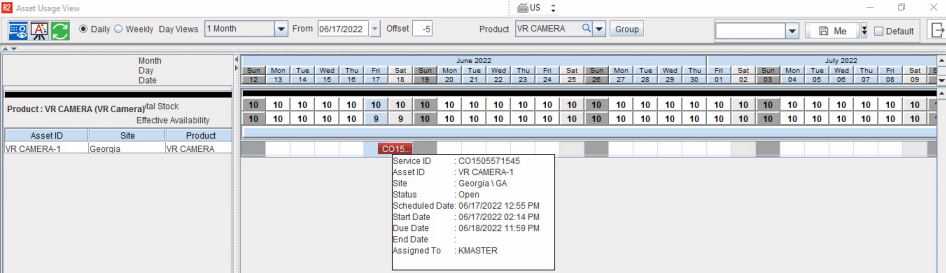
System now modifies the unavailability
of the asset from the SWO Start Date to Due Date (See Figure 1.4).
In the availability details window,
Repair
count displays. Upon the clicking the repair quantity, you can
view the SWO
created against the asset.
In the 'Serial/ Qty' window, the
Repair
bar displays based on SWO Start Date and Due Date
Figure 1.3: SWO in Open status

Figure 1.4: Availability window

When
and if the Servicing is done, change the status to Done.
'Set End
Date' pop up is displays to set the End date of the SWO. Update the End
Date of the SWO.
Figure 1.5: Done SWO

Figure 1.6: Availability window

Once the SWO is
done,
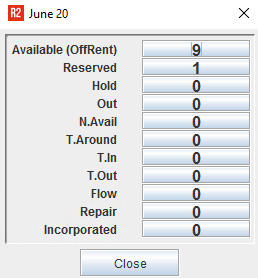
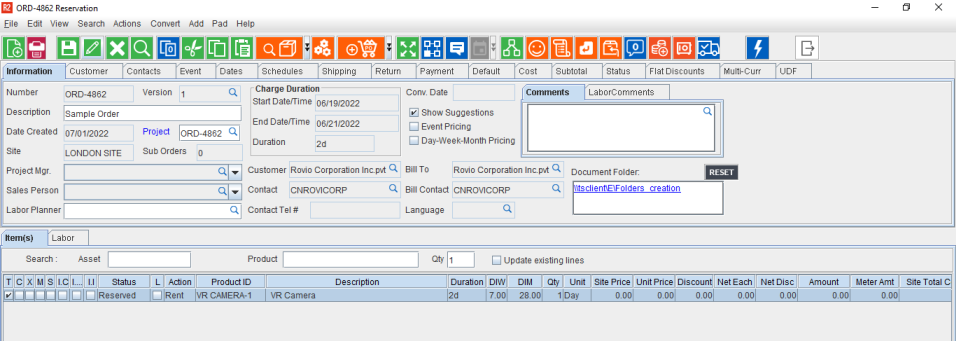
You can add the item to the order apart
from SWO duration and system lets you to reserve the item as shown here. Also,
in the 'Item availability' window, system blocks the availability
of the asset based on the Start and End date of the order and the
reserved
quantity displays in the availability details
window.
If at step
#5, Mechanic mentions that
Servicing Cannot be done, you can proceed as per the following situations:
If
the Asset is un-repairable, you can mark it as Damaged (Availability
Status). Service Status for Asset will become IN.
If
the required parts are unavailable, you can even temporarily Suspend
the SWO.
Once
the SWO is suspended, both the Availability and Service Status will
marked as IN.