Content was last updated in 06.00.04-00
The Service Type drop-down in the Service Work Order window is always displayed as Corrective for the Asset's Service Status type as PendingService, InService, or SuspendedService.
The Service Type in the Service Work Order window is modified to Preventive only if the Asset's Service Status type is NeedsService and the Damaged check box is cleared.
The details are explained in the sample workflow given below:
Perform the following the steps:
Select the Maintenance module > Items tab.
Create a Serial Item [SITEM#A] and receive the Assets [SITEM#A01], [SITEM#A02], and [SITEM#A03].
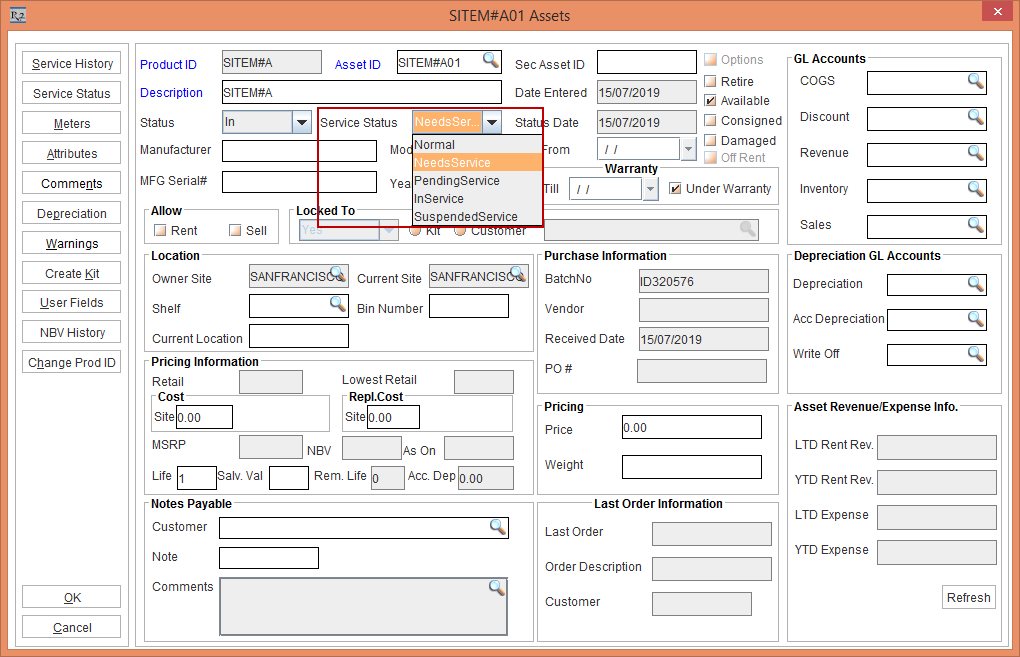
Edit the Asset [SITEM#A01] and modify the Service Status drop-down to NeedsService, as shown in Figure 1.0.
Click OK.
Exit the Maintenance module.
Select the Service module, click the WorkOrder icon and create a Service Work Order.
Select the Equipment tab and click the Asset ID / Product ID importable button. The Serial Assets / Non Serial Items window is displayed.
Search and tag the Asset [SITEM#A01], as shown in Figure 1.1.
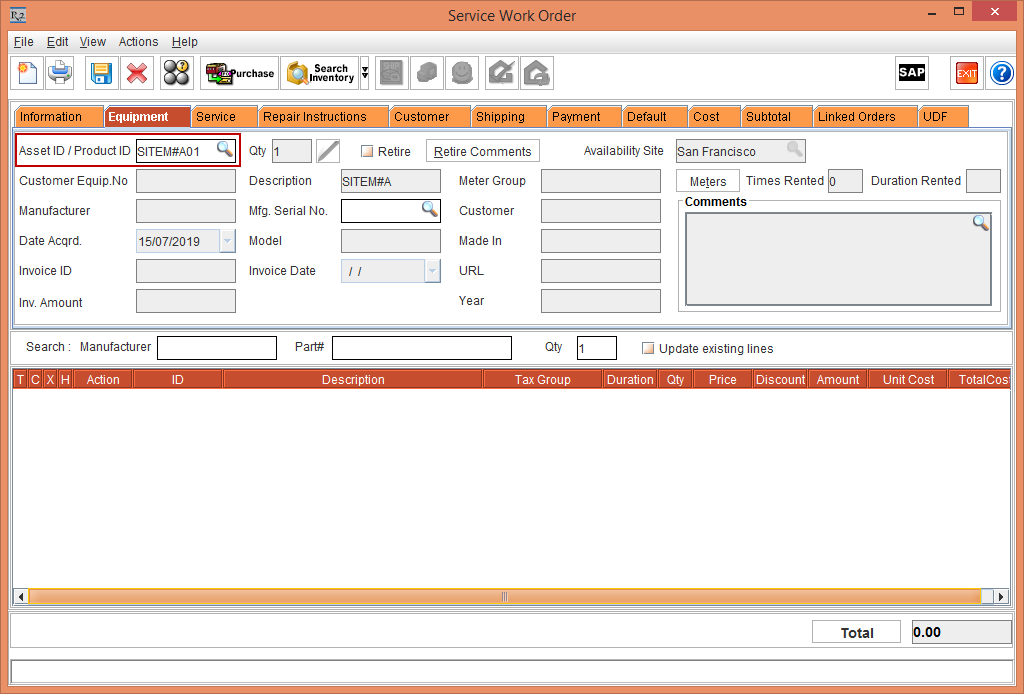
The system will not display any Service Type dialog box.
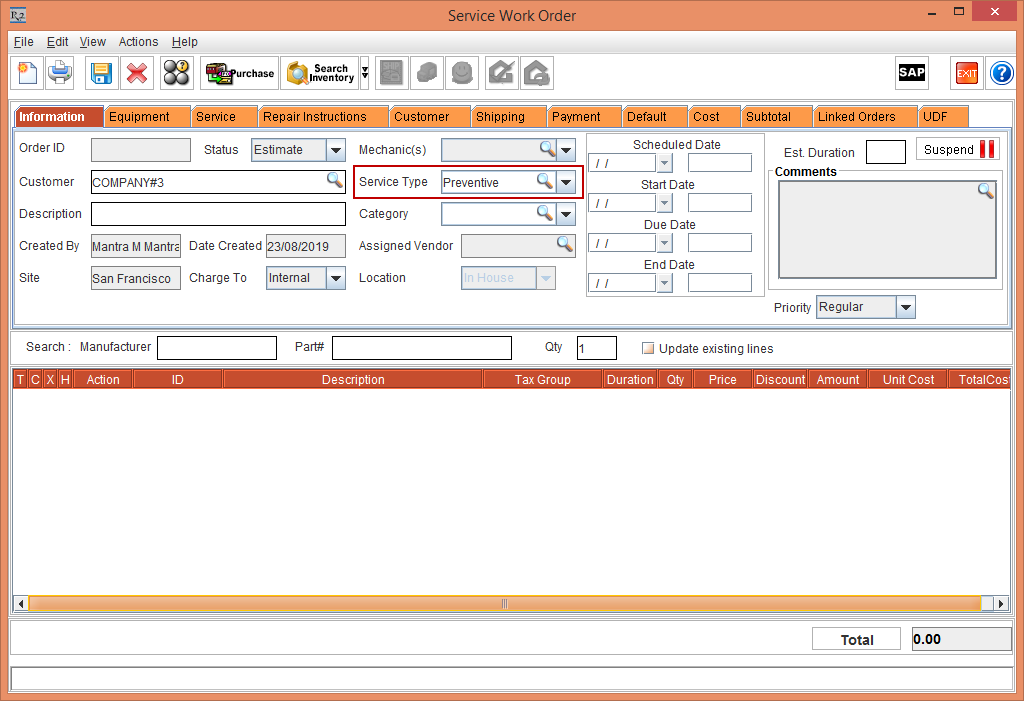
Select the Information tab. The Service Type is automatically selected and displayed as Preventive.
The Service Type is automatically selected as Preventive, as the Asset's [SITEM#A01] Service Status type is NeedsService and the Damaged check box is cleared.
Exit the Service Work Order window.
Perform the following the steps:
Select the Maintenance module > Items tab.
Search and Edit the Asset [SITEM#A02] and modify the Service Status drop-down to NeedsService and select the Damaged check box, as shown in Figure 2.0.
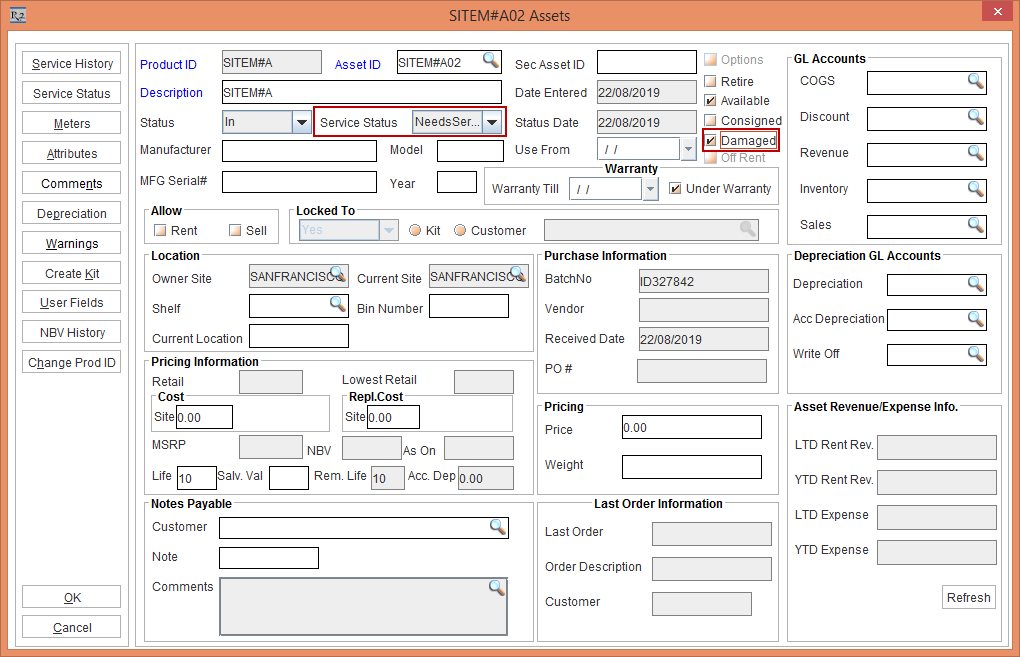
The system displays a prompt with the message "Do you want a Service Work Order to be created for the Damaged?" with Yes and No buttons.
Click No.
Click OK.
Exit the Maintenance module.
Select the Service module, click the WorkOrder icon and create a Service Work Order.
Select the Equipment tab and click the Asset ID / Product ID importable button. The Serial Assets / Non Serial Items window is displayed.
Search and tag the Asset [SITEM#A02].
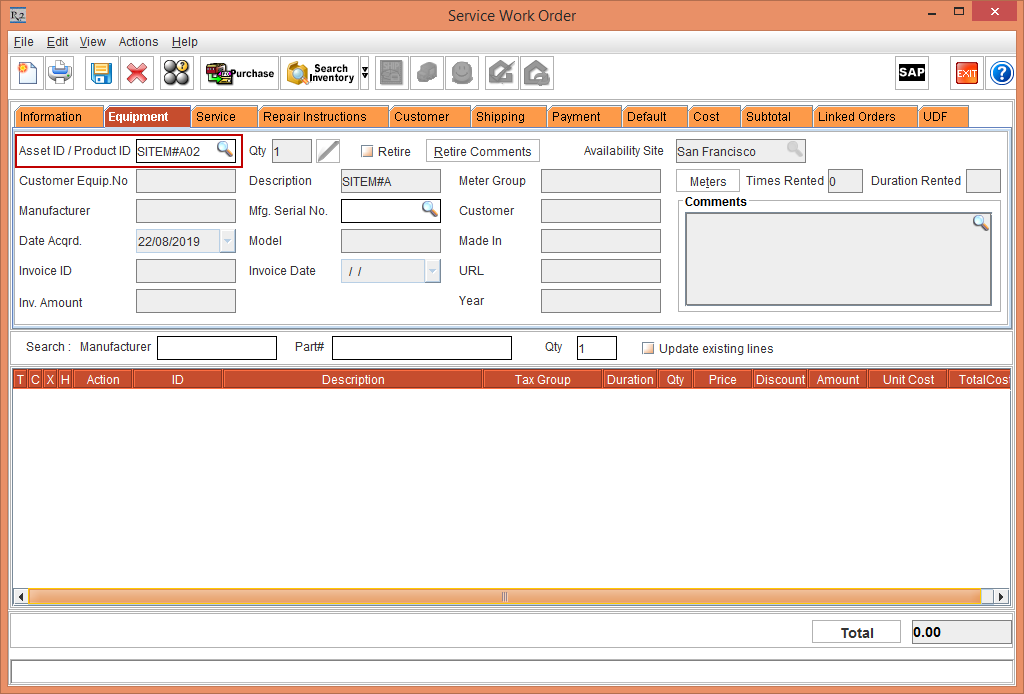
The system will not display any Service Type dialog box.
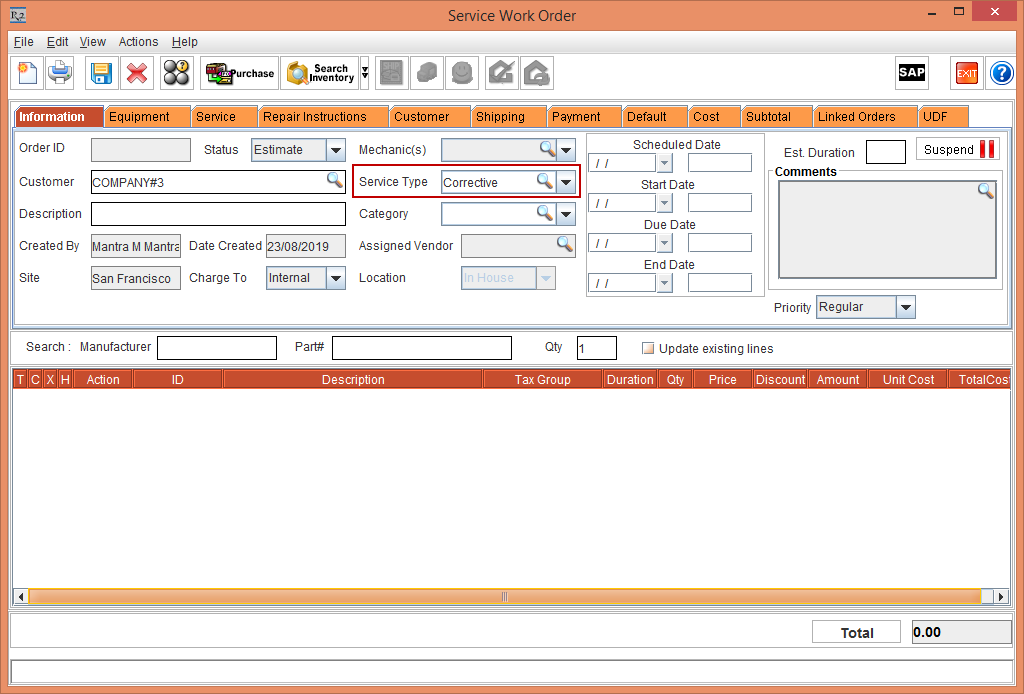
Select the Information tab. The Service Type is automatically selected and displayed as Corrective.
The Service Type is automatically selected as Corrective, as the Asset's [SITEM#A02] Service Status type is NeedsService and the Damaged check box is selected.
Exit the Service Work Order window.