Content was last updated in 06.01.14-00
The Timesheet bar in the dashboard shows the number of unread timesheets for Last Week, Current Week, and Next Week.
The app displays following three type of information on the bookings page. All the unfilled timesheets on each page are displayed in Bold.
Last Week: These are the timesheet for the past week, which are either filled or supposed to be filled.
If you missed entering timesheet for a past week, the app enables the Labor to enter the Clock-in/ Clock-out time for the EWT entries for any date within the range of Today's Date and up to 14 days in the past with respect to the current device date and time.
This Week: These are the timesheet for the current week, which are either filled or supposed to be filled.
Next Week: These are the timesheet for the forthcoming week(s), which are supposed to be filled.
|
|
The timesheets also display the Per Diem (if any) earned by the Crew Labor for each day of the timesheet filled. See the Per Diem information here. |
Figure 1.0: Timesheet — Last Week(s) |
Figure 2.0: Timesheet — Current Week |
Figure 3.0: Timesheet — Future Week(s) |
|
|
|
|
In Dashboard, under Bookings, go to the schedule (last week or this week) for which you want to log time. .
Select the assignment for which you want to log time.
Note: The screen shows list of days for which you can log time for the selected assignment.
Tap on the date for which you want to log time.

Tap on the Çlock In' button to create a blank row, and start logging your In/Out time.
The app by-defaults picks the current system time as 'In' time, where if required you can manually modify the 'In' and 'Out' time as shown in Figure 6.0

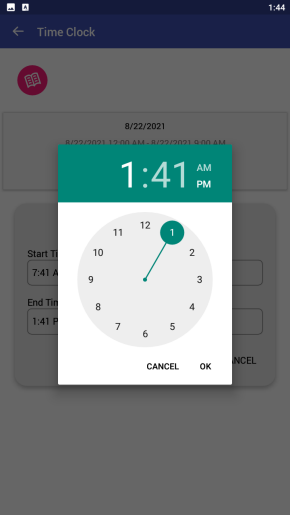
Tap on Start Time and use the Clock Wheel, to pick the desired time, Tap Ok on the clock wheel when done.
Similarly, Tap on End Time and pick time using the Clock Wheel. Tap Save button.
Figure 6.0: Logging time — Manual Time Entry
|
Figure 7.0: Logging time — Using Clock Wheel |
|
|
|
|
|
Once saved the list of time entries for a day (with possible multiple entries in a single day), will look like Figure 8.0
To Close the time entry use back arrow to go back to previous screen.

To Add Comment to your time entry, Tap on the pen icon in the row. (As highlighted in Figure 8.0)
Add comment and Tap on the Save.

|
|
You can log your time in parts. Each new time entry for the day is displayed as a separate row. (See Figure 10.0) |

The “Timesheet Details” section of the Crew Portal mobile application displays the ‘Per Diem Rate, Duration and the Per Diem Amount’ related to the Booking line along with its 'Per Diem Schedule’