Content was last updated in 06.01.14-00
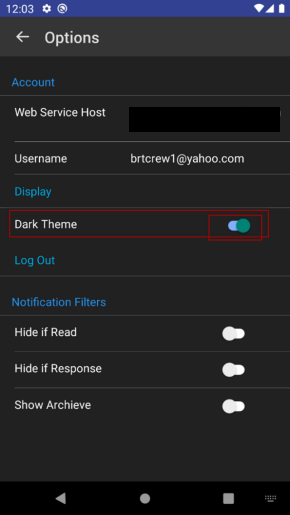
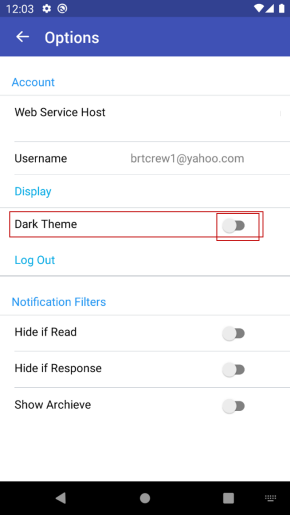
Crew Portal Mobile Application to provides option in the settings page inside app to switch between Light and Dark themes.
On app installation, the app should detect the device theme (Dark or Light) and default to device’s theme.
If the user changes the theme selection in Settings page, the selected theme should take precedence.
|
Device's theme |
User's selection in app. |
Theme enabled in app. |
|
Light |
Dark |
Dark Theme |
|
Dark |
Light |
Light Theme |
|
Dark/Light or Device Default |
None |
Device’s default theme is applied |
Note:
No selection is required in the Crew Portal Mobile App, if the user chooses to use the device's default theme.
Go to your phone’s display settings. Check for Dark/Light theme.
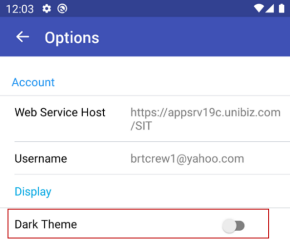
Toggle the switch if you want to change your phone’s existing display settings for theme
Figure 4.0: Dark theme enabled |
Figure 5.0: Light theme enabled |
|
|
|
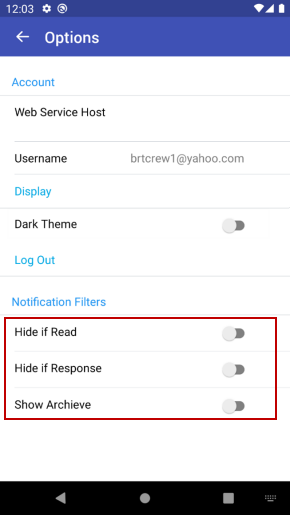
Crew Portal Mobile Application to provides option in the settings page inside app to define three notification filters..
Hide if Read: If this filter selected, then notifications gets hidden once they are read.
Hide is Responded: If this filter selected, then notifications gets hidden once they are responded to.
Show Archives: If this filter selected, the app maintains an archive of read, responded, and deleted notifications and messages..