
Content was last updated in 06.01.09-00
The Asset Manager App now can be integrated to a 3rd party RFID reader and is capable of reading RFID tags.
Reader installed at every gate/portal can be linked to a specific instance of Asset Manager App to bulk receive items/assets by processing RFID tags.
You can use this feature in the Asset Manager App on both Order Check-in/Check-out and Transfer-In/Transfer-Out operations.
The enhancement is briefly explained with the following scenario.
You are a warehouse manager and a large container carrying a number of Items/Assets is being dispatched to a client.
Instead of having to scan each Item or Asset separately, using this feature you now can simply pass the container through a RFID gate.
The RFID reader installed at the gate will read all RFID tags associated with the items and share the list of RFID tags directly to the configured Asset Manager App. which further can perform a bulk Check-Out/Check-In of items that are fed.
Subsequently, you can select an Order/Transfer Order on which the items have to be Check-in/Check-out, and click on Submit to process the batch.
At this point, once submitted the R2 will check-in/Check-out the submitted Items/Assets just as if they were physically scanned barcodes.
The App facilitates adding items/assets which were not a part of the selected Order.
Once you have submitted a list of Items/Assets in an Order for processing, the system generates a log. If you want system to automatically display the log, then the selected flag must be enabled.
When the asset is due for service, and you try to Fill by RFID (Fill Option or Fill Ship Option), Fill fails with the exception Message “Asset is Due for service/will be due for service before return date”.
 |
When the asset is due for service, and you try to Fill by RFID (Fill Option or Fill Ship Option), Fill fails with the exception Message “Asset is Due for service/will be due for service before return date”. |
Since this implementation involves the App. to read incoming information specifically from 3rd party RFID readers, there are few important steps to be ensured.
An instance of Asset Manager App should be mapped to a specific gate /portal from which the RFID information is supposed to be received. To know how to map an app instance to a specific gate, Please refer here.
The associated Asset Manager App. instance should have Check-in/Check-out or Transfer-in/Transfer-out page open and active on the App in listening mode at the gate.
The Order information for which the Items/Assets are to be dispatched or received is kept ready with you.
Login to Asset Manager App.
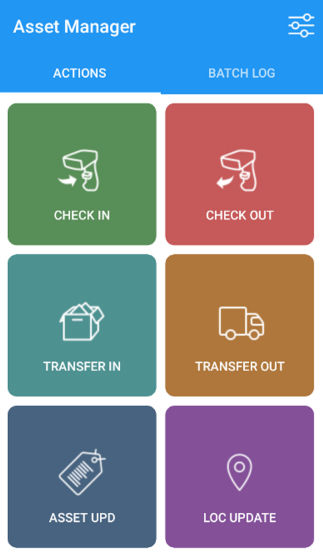
Select Check-Out button. Then in the Check-out page, select Fill Only button.
Click
the  button to browse for
Order Number.
button to browse for
Order Number.
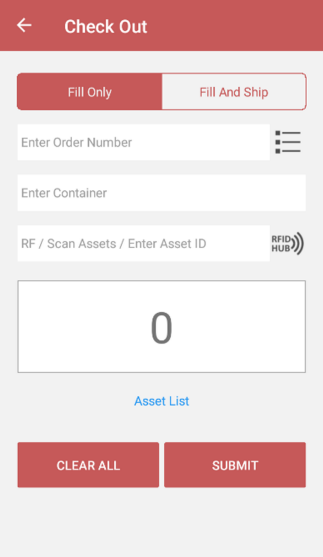
Click on the desired Order Number to select it.
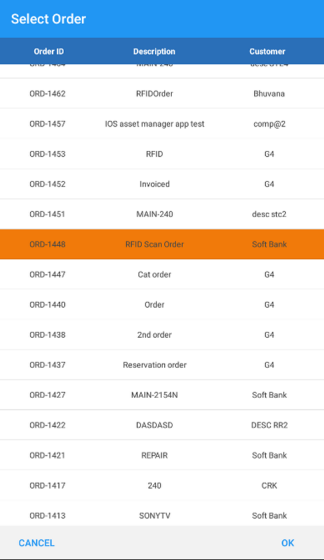
Enter the Container Information.
Ensure that RFID Hub icon is active.
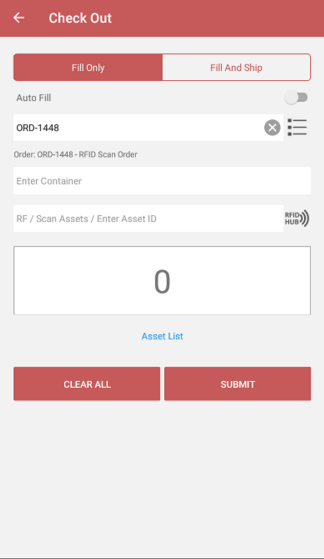
Use the 3rd party RFID reader to feed Items/Asset (needed to be checked-out) information to the Asset Manager App.
The Check-out page shows the count of Items/Assets checked-out (as shown in the figure below).
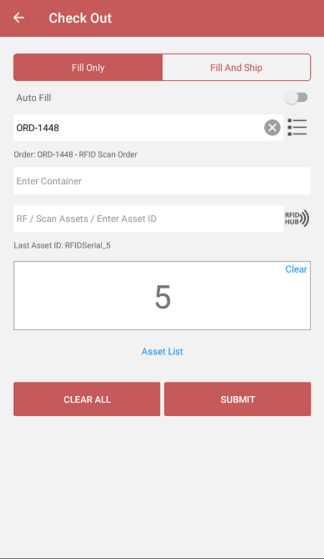
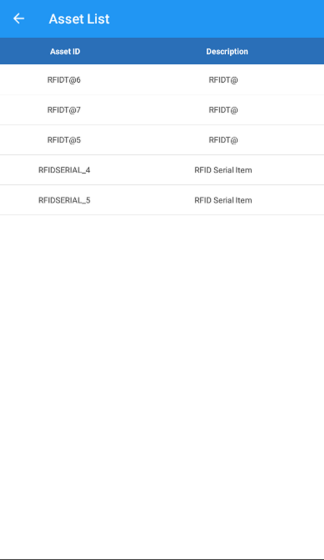
At this point, if you want to review the list of Items/Assets that have been scanned. Then click 'Asset List'.
|
|

Click on Submit button to process the Check-out for Items/Assets that have been scanned.
Click
the  to view
generated Batch Log.
to view
generated Batch Log.
The following window shows that the Item was successfully scanned and Checked-out.

In the above window, if you want to know the status of each scanned Item/Asset individually, then click the number below the heading count 'Count'.

|
If you list only the Items/Assets that failed to get Checked-in, click 'Failed Only'. |
To manually add any item with status 'Failed', click on the item line and click on 'Submit Tagged'.
If more than one item needs to be tagged, click 'Tag All' then click 'Submit Tagged'.

When prompted for a confirmation, click 'Yes'.

Batch details window shows that item was successfully added manually.

At this step, if we open the same Order [ORD-1448] in R2, it shows that item RFIDSerial_5 was manually added at the item of Order filling..

Similarly, the app can perform a Check-in operation where a list of assets are returned on a Order.
|
|