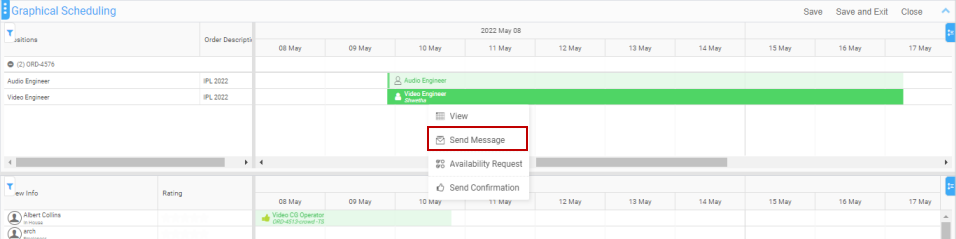
Planning Order > Booking line > Booking line header > Send Message
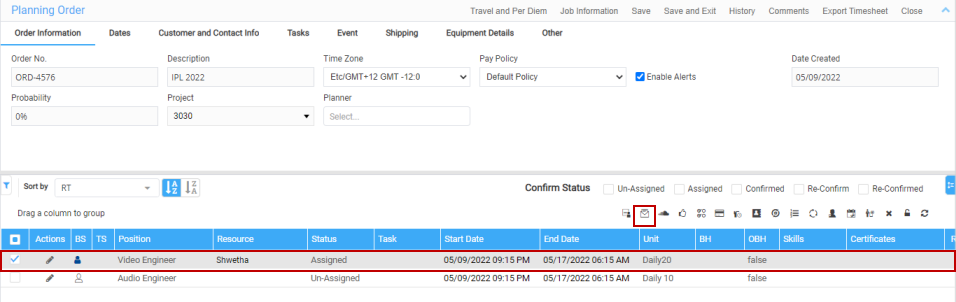
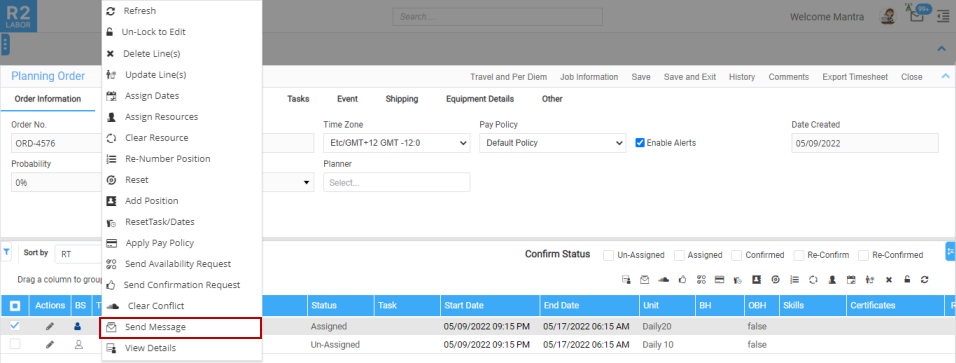
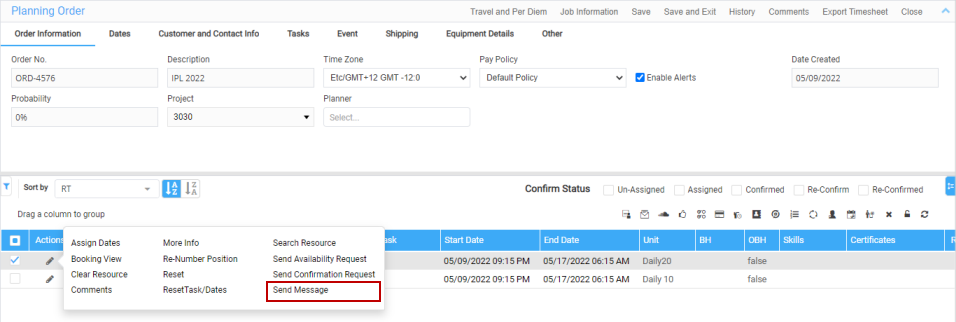

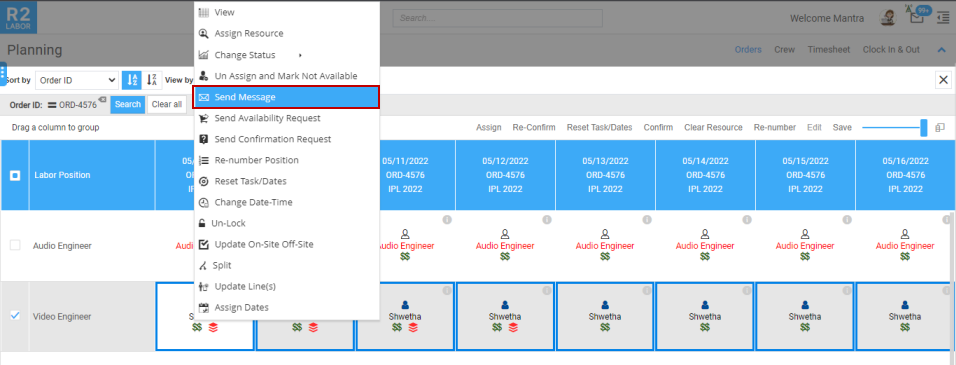
Graphical Scheduler > Order section > Right click > Send Message
Content was last updated in 06.01.04-00
Labor Planner cam send the message to multiple crews about their availability, skills, billing-rates, reference documents. etc. Similarly, the crew can respond with their answers, questions and clarifications.
Planning Order > Booking line > Booking line header > Send Message
Graphical Scheduler > Order section > Right click > Send Message
Ensure the labor positions are added to the Order.
Open the Order in Planning Order.
Select the Booking lines and click the Send Message icon. You can select multiple booking lines as well.

Send Message window displays. Click Expand to view the full window.

Add the recipient.
You can tag multiple resource also and a preview of the request is displayed.

Click Send button.
Then Save the order so the message will be sent to the recipient.
An e-mail will be triggered to the tagged recipients. Upon the resource response, you will receive the e-mail of their response and the e-mail sits in the mail box in application as shown below.

The same way, you can send the message from the other access points as well.