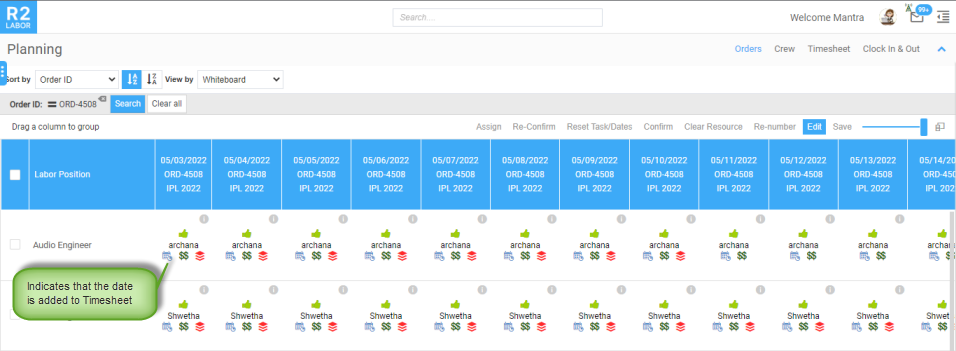
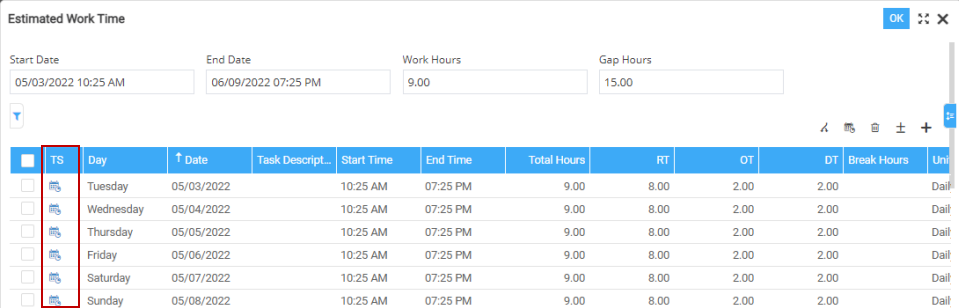
is introduced in the following places to indicate that the date is added
to the Timesheet.
is introduced in the following places to indicate that the date is added
to the Timesheet.
Content was last updated in 06.01.15-00
R2Labor restricts modification on booking lines if the valid timesheet (created/approved/rejected) exists.
Why are we not allowing you to modify/delete the booking lines having Timesheet?
From a business-logic perspective, an existing timesheet on a booking line indicates that the assigned crew has already started working on the task allotted, which means the labor hour billing has started. Thus, imperatively there is no business-case for the crew task details to be modified or deleted.
Also, the Planner might bulk select the booking lines having Timesheet/No Timesheet for planning. In such case, planning is allowed only for the lines without Timesheet and a on-screen message displays for the lines which has Timesheet.
These restrictions increase the data security and integrity, bringing it to near watertight level.
In addition to
this, a specific Timesheet icon
is introduced in the following places to indicate that the date is added
to the Timesheet.
Planning Order/Whiteboard: Assign Dates
Booking line grid: Resource, Company, Status, and Task fields are not editable.
Actions in Booking line
Confirmation Request, Clear Resource, Search Resource, Reset, and Reset Task/date actions are not allowed. Also, a message displays to indicate that the action could not be performed since the line had Timesheet.
More information: Resource, Company, Status, and Task fields are not editable.
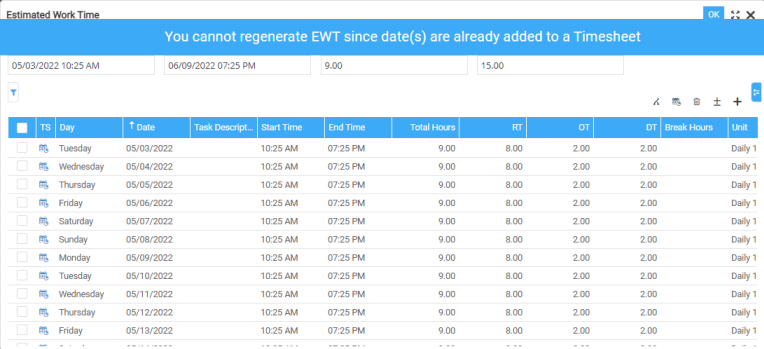
Regenerate: If any of the date is added to the Timesheet, then EWT cannot be re-generated. A message is displayed for the same.
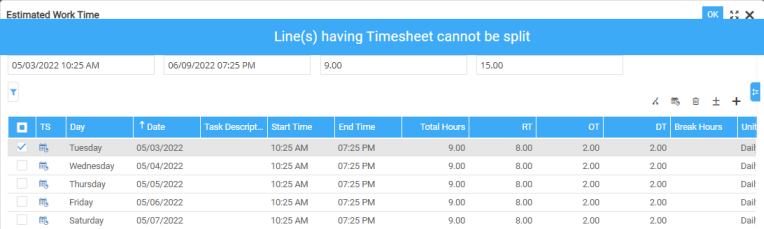
Split: Irrespective of the single/ multiple dates selected, you cannot split if any one of the selected date has Timesheet. A message is displayed for the same.
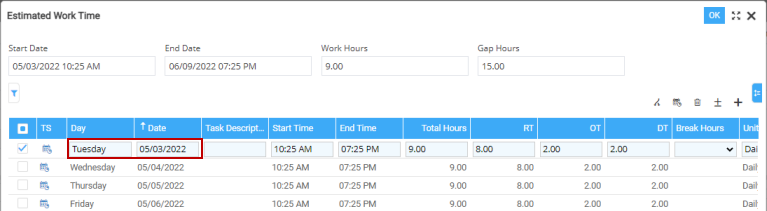
Modify: 'Day' and 'Date' fields are not editable to modify the EWT. Rest all the fields are editable as shown here.
Append lines: Creates new EWT entries for the dates for which EWT does not exists and stops updating EWT entries which are already present. This behavior remains same irrespective of whether the Timesheet exists or not.
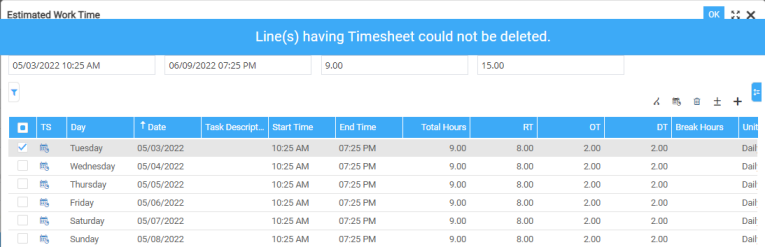
Delete: Delete action cannot be performed for the lines having Timesheet. If you bulk select the lines to delete, then system deletes the lines which has no Timesheet. A message is displayed for the same.
Booking line tool bar
Single line selected: System does not reset the line data to unplanned line.
Multi-line selected: System resets the line data only for the lines not having Timesheet.
For both the above cases, the following message is displayed.
"Line(s) having Timesheet could not be reset".
Single line selected: System does not reset the task/dates to unplanned line.
Multi-line selected: System resets the task/dates data only for the lines not having Timesheet.
For both the above cases, the following message is displayed.
"Could not reset Task/Dates for line(s) having Timesheet".
|
'Reset' and 'Reset Task/Dates' action works only when the lines are added from R2. |
Assign Resource
Single line selected: System does not assign the resource and throws a message.
Multi-line selected: System prompts a message stating "Cannot assign Resource to some of the lines, since they have Timesheet. Do you want to continue?". Upon Yes, ‘the Assign Resource’ window opens. However, you can only see the Labor positions that doesn't have Timesheet.
Single line selected: System does not send the request and the following message is displayed.
"Selected line is having timesheet already and hence will not send request".
Multi-line selected: Confirmation request can be sent only for the lines without Timesheet. Also, the following message is displayed.
"Request cannot be sent for the lines having Time Sheet. For rest of the lines, e-mails are scheduled and will be delivered on Save".
Additionally, you will see the Timesheet exists message in another possibility. Consider the following scenario for the feature explanation:
When a Confirmation request is sent to two Resources [Resource#1 and Resource#2] and Resource#1 accepts the confirmation request first and the timesheet is created, then the Resource, Company, and Status fields will be disabled for that booking line.
Now, even if Resource#2 accepts the request, these fields will not be changed. The Planner however, receives a message stating that the "Resource#2 has accepted the confirmation for the following Job but could not be confirmed on the Order because Timesheet already exist. Kindly take necessary action".
Clear Resource
Single line selected: System will not clear the resource and displays a message.
Multi-line selected: Resource can be cleared only for the lines without Timesheet and displays a message.
In both the cases, the following message is displayed.
“Some of the line(s) could not be updated as they have Timesheet”.
Single line selected: The Resource, Status, and Union/Broker/Pay agent (company), Task fields are not editable.
Multi-line selected: Resource, Status, Union/Broker/Pay agent (company), and Task fields updates only for the lines without Timesheet. You will also see the following message.
"Some of the line(s) could not be updated as they have Timesheet".
Single line selected: The behavior is same when performed from 'Actions' booking line.
Multi-line selected: If any one of the selected line has Timesheet, then you can generate the EWT only for the lines without Timesheet. The following message is displayed.
"Some of the line(s) could not be updated as they have Timesheet".
Booking line > right click
Reset: The functionality is same as 'Reset' action in booking line tool bar.
Reset Task/Dates: The functionality is same as 'Reset Task/Dates' action in booking line tool bar.
Update lines: The functionality is same as 'Update lines' action in booking line tool bar.
Assign Dates: The behavior is same when performed from 'Actions' booking line.
Task tab: You cannot apply the task modified from the ‘Task’ tab to the lines having Timesheet. The following message is displayed.
“Could not apply the task to the line(s) having Timesheet”.
Additionally, following actions are also stopped if Timesheet exists:
Booking line > Right click
Update lines: The functionality is same as 'Update lines' in Planning Order.
Assign Dates: The functionality is same as 'Assign Dates' in Planning Order.
Reset Task/Dates: The functionality is same as 'Reset Task/Dates' in Planning Order.
Split: Irrespective of the single/ multiple dates selected, you cannot split if any one of the selected date has Timesheet. A message is displayed for the same.
Change Date-Time
If all the fields are modified in 'Change Date and Time' dialog window: System updates data only to the dates having no Timesheet and restricts for the dates having Timesheet.
Apart from 'Date' field, if all the other fields are modified in 'Change Date and Time' dialog window: The data will be updated for the dates irrespective of whether the Timesheet exists or not.
Booking line > Reset Task/Dates for selected rows: The functionality is same as 'Reset Task/Dates' in Planning Order.
Confirmation request: The request cannot be sent and system displays a message for the same.
Assigning job to the crew: You cannot drag and drop the booking bar to the crew (lower) section/ within the crew section.
Resource tab > Confirmation request: Behavior is same as Confirmation request in Planning Order.
UBA tab: U/B/A field is not editable for the lines.