Support for indicating Break Hour Conflict
Content was last updated in 06.00.04-00
The Break Hour Conflict is created when the work is assigned to the resource during the break hour.
Now, Break Hour Conflict can be cleared by selecting the OBH (Override Breakup hour)
Login to application as a Planner.
Search and assign a resource [UBS Freelancer] for a position to an Order.
Login to R2 Labor application as a Planner.
Select Planning > click Order. The Order search screen is displayed.
Open Order > click Planning tab. The Planning Order screen is displayed.
Search and assign a resource to the position [Video Engineer]. The BH icon appears in red indicating the Break Hour Conflict with OBH status as false.
Select OBH false option. An unchecked checkbox is displayed.
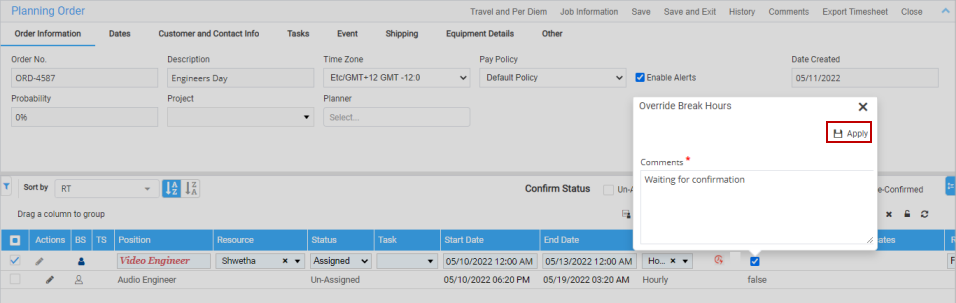
Click the OBH checkbox. A comment box is displayed as shown in the Figure 1.0.
Enter the comments in the Override Break Hours comments box > click Save. The BH icon appears in green, indicating no Break Hour Conflict with OBH status as true, as shown in the Figure 1.1.
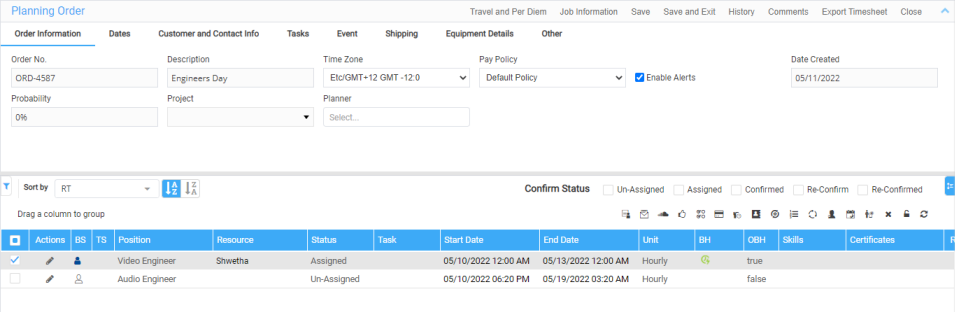
Select OBH true option. A checked checkbox is displayed.
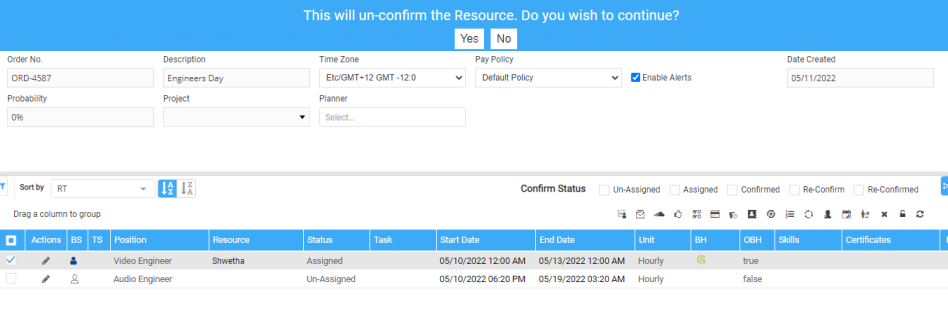
Clear the OBH check box. A message [This will un-confirm the Resource. Do you wish to continue?] with Yes or No option is displayed as shown in the Figure 1.2.
The BH icon appears in red, if option Yes is selected, and state turns to false. BH icon appears in green, if option No is selected.
The