Content was last updated in 01.03.03-07
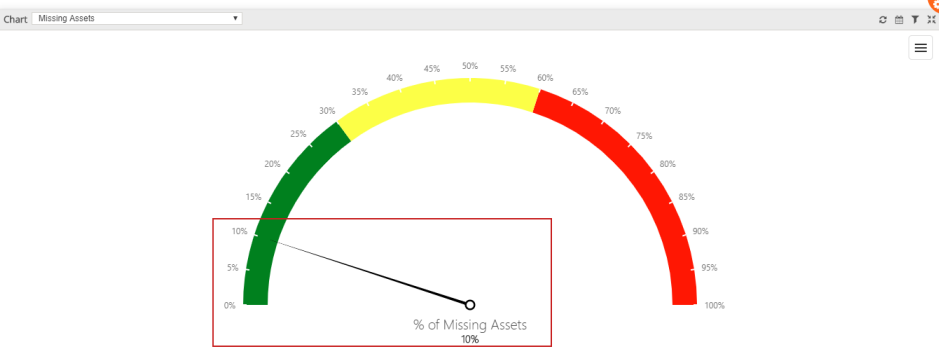
Support has been provided for the Gauge Widgets % for Missing Assets by Product/Category/Sub-Category/Department for a selected Site in the R2 Labor application > Operations section, as shown in Figure 1.0.
The details are explained in the sample workflow given below:
Log into the R2 Labor application.
Select the Operations section.
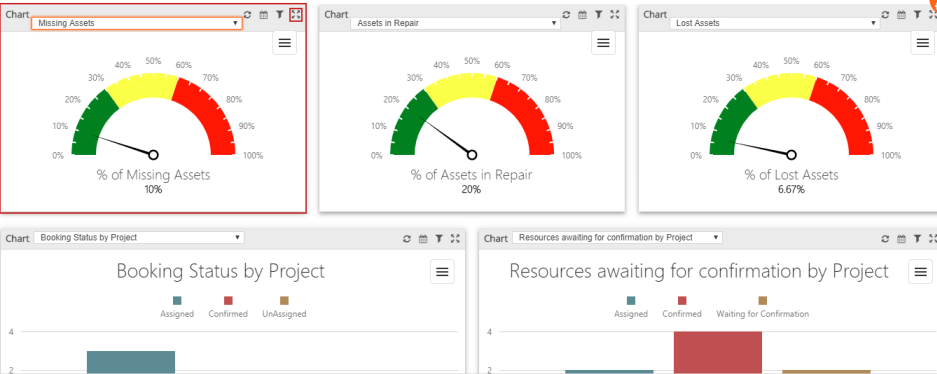
The Gauge Widgets % for Missing Assets is displayed, as shown in Figure 1.0.
Select the Maximize button. The maximized view of the Gauge Widgets % for Missing Assets is displayed, as shown Figure 1.1
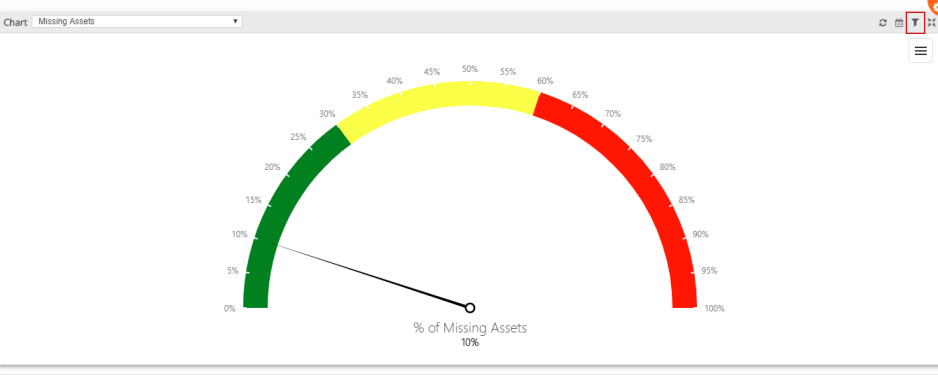
Click the Filter button, as shown in Figure 1.1.
The Missing Assets Filter screen with the Filters drop-downs Category, Department, Product, Site, and Sub-Category are displayed, as shown in Figure 1.2.
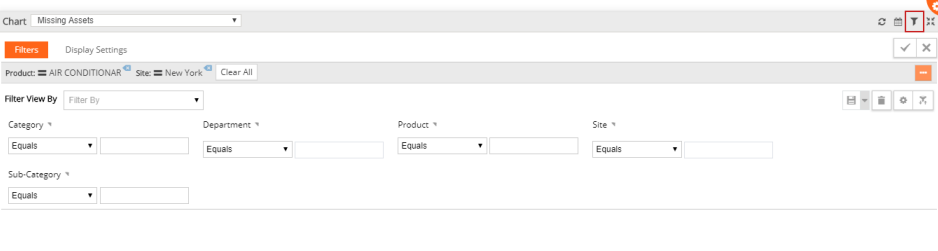
The filter options such as Equals, Not equals, Starts with, Ends with, Any Part, and Does not have are included in each of the Filters drop-downs Category, Department, Product, Site, and Sub-Category, as shown in Figure 1.3.
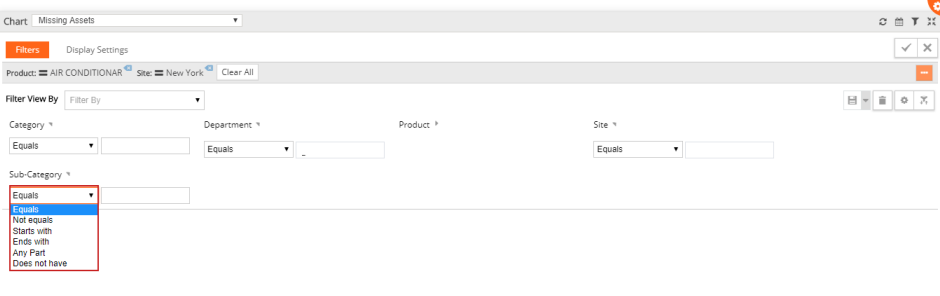
Enter the Filter View By [Filter#1] and select the Product filter [AIR CONDITIONER] Site filter [Equals] and enter the Site [Los Angeles]. The filter is applied and is displayed, as shown in Figure 1.3.
Click the Apply button. The Gauge Widgets % for Missing Assets is displayed, as shown in Figure 1.4.
The Gauge Widgets % for Missing Assets displays 10% of Missing Assets, as shown in Figure 1.4.