Reference No: R2-666
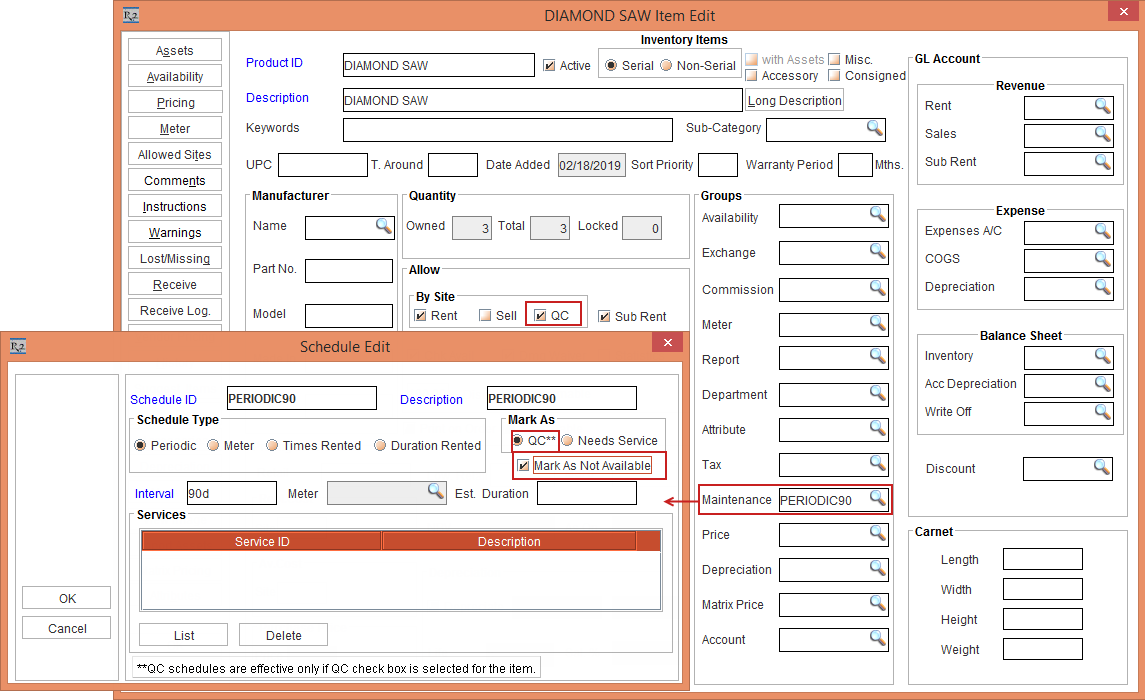
Support for Mark As Not Available check box is provided in the Maintenance Schedules Edit Window, as shown in Figure 1.1.
This check box when selected, enables to mark the Items that are in different schedules such as, Periodic / Meter / Times Rented / Duration Rented with QC or Needs Service to Not Available. Also, it marks the Items as QC with the Available check box cleared in the Asset Edit window.
The below Sample Workflow explains the above functionality:
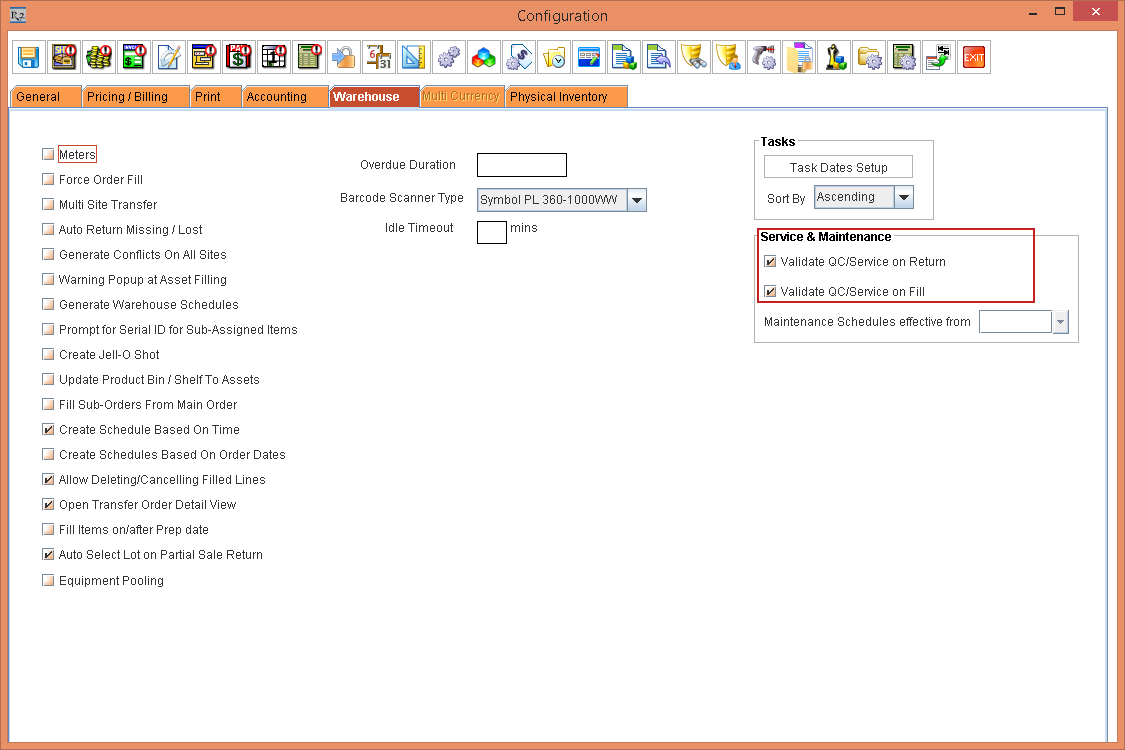
Select the Configuration module > Warehouse tab > select the check boxes Validate QC/Service on Return and Validate QC/Service on Fill, as shown in Figure 1.0.
Save and exit Configuration module.
Relaunch the R2 application.
Select the Maintenance module > Items tab.
Create a Serial Item [DIAMOND SAW].
Receive an three Assets [DIAMOND SAW#01], [DIAMOND SAW#02], and [DIAMOND SAW#03] on [18-Feb-2019]. Based on Maintenance Setup the asset will be on QC on [20-May-2019].
Tag a Maintenance Group [PERIODIC90] with the Schedule ID [Periodic 90], Mark As - QC and Mark as Not Available selected, as shown in Figure 1.1.
Create another Serial Item [DEMO SAW].
Receive an three Assets [DEMO SAW#01], [DEMO SAW#02], and [DEMO SAW#03] on [18-Feb-2019]. Based on Maintenance Setup the asset will be on QC on [20-May-2019].
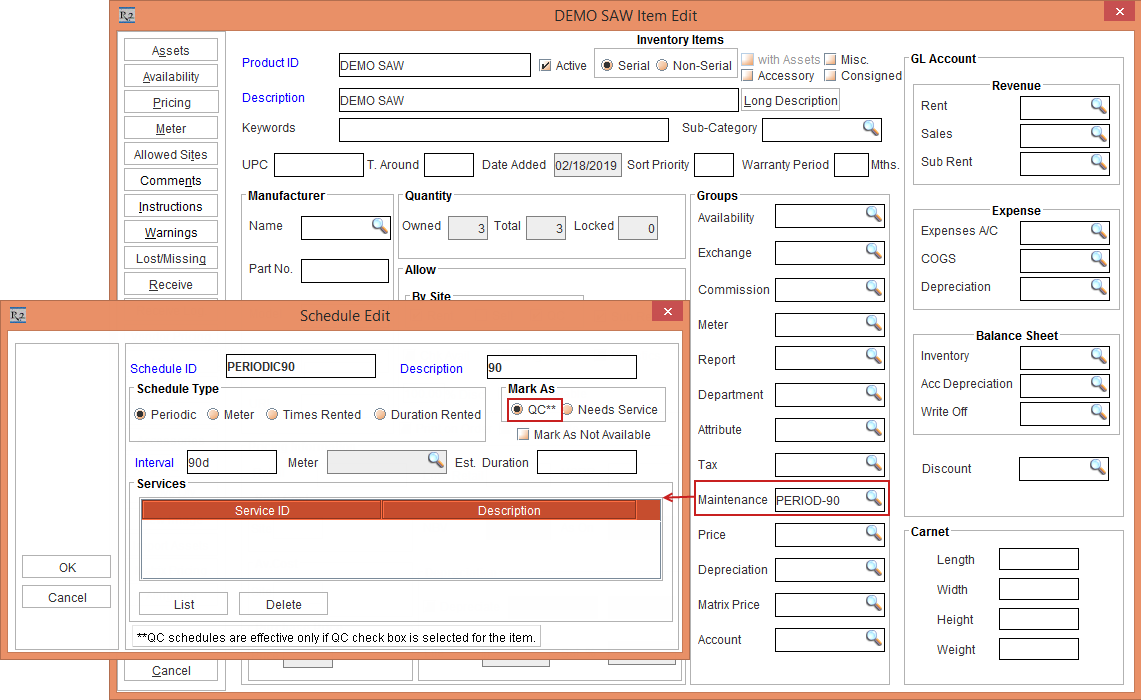
Tag a Maintenance Group [PERIODIC-90] with the Schedule ID [PERIODIC90] and Mark As - QC selected, as shown in Figure 1.4.
Save and Exit the Maintenance module.
Select the Account module. The Account window is displayed.
Tag a Company [EVERGREEN AV RENTALS] and create a Rental Reservation Order [ORD-22] for 90 days duration with the Start Date [19-Feb-2019] and End Date [20-May-2019].
Search and add the Items [DIAMOND SAW] and [DEMO SAW] with 1 Qty each and the Unit Price [100.00].
Select the View menu > Fill Order option. The Fill Order window is displayed.
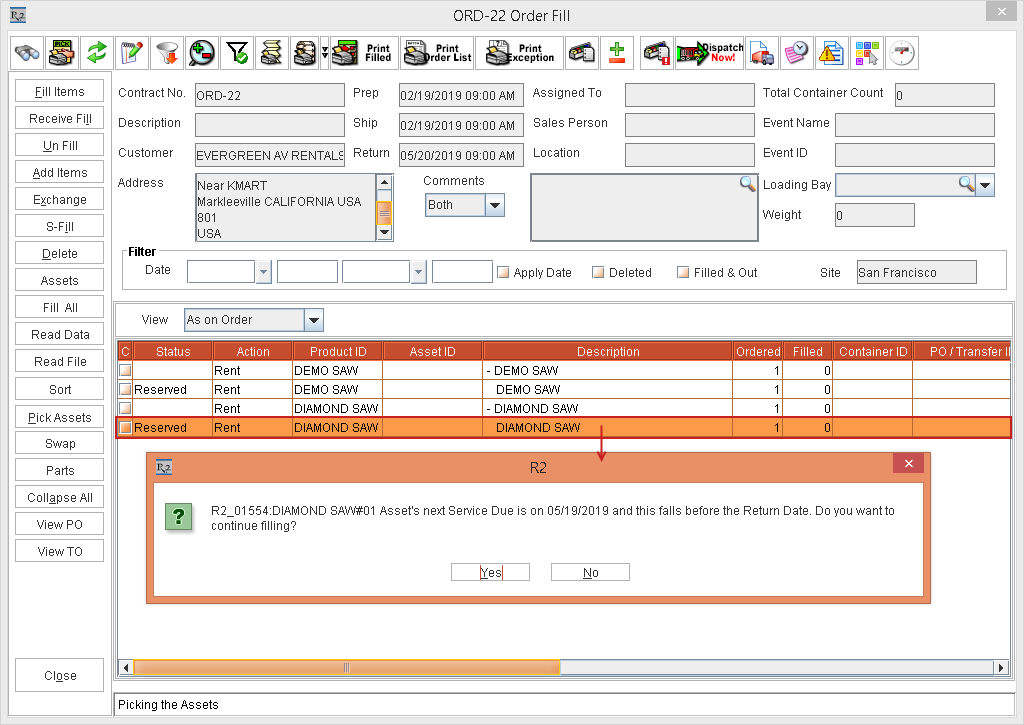
Fill the Item [DIAMOND SAW] with the Asset [DIAMOND SAW#01]. The system displays a prompt with the message "R2_01554: DIAMOND SAW#01 Asset's next Service Due is on 05/19/2019 and this falls before the Return Date. Do you want to continue filling?" with Yes and No buttons, as shown in Figure 2.0.
Click Yes. The Item [DIAMOND SAW] is filled with the Asset [DIAMOND SAW#01].
Similarly, fill the Item [DEMO SAW] with the Asset [DEMO SAW#01]. The system displays a prompt with the message "R2_01554: DEMO SAW#01 Asset's next Service Due is on 05/19/2019 and this falls before the Return Date. Do you want to continue filling?" with Yes and No buttons.
Click Yes. The Item [DEMO SAW] is filled with the Asset [DEMO SAW#01].
Ship the filled Assets [DEMO SAW#01] and [DIAMOND SAW#01]. The Status of the Assets [DEMO SAW#01] and [DIAMOND SAW#01] is displayed as Out, as shown in Figure 2.1.
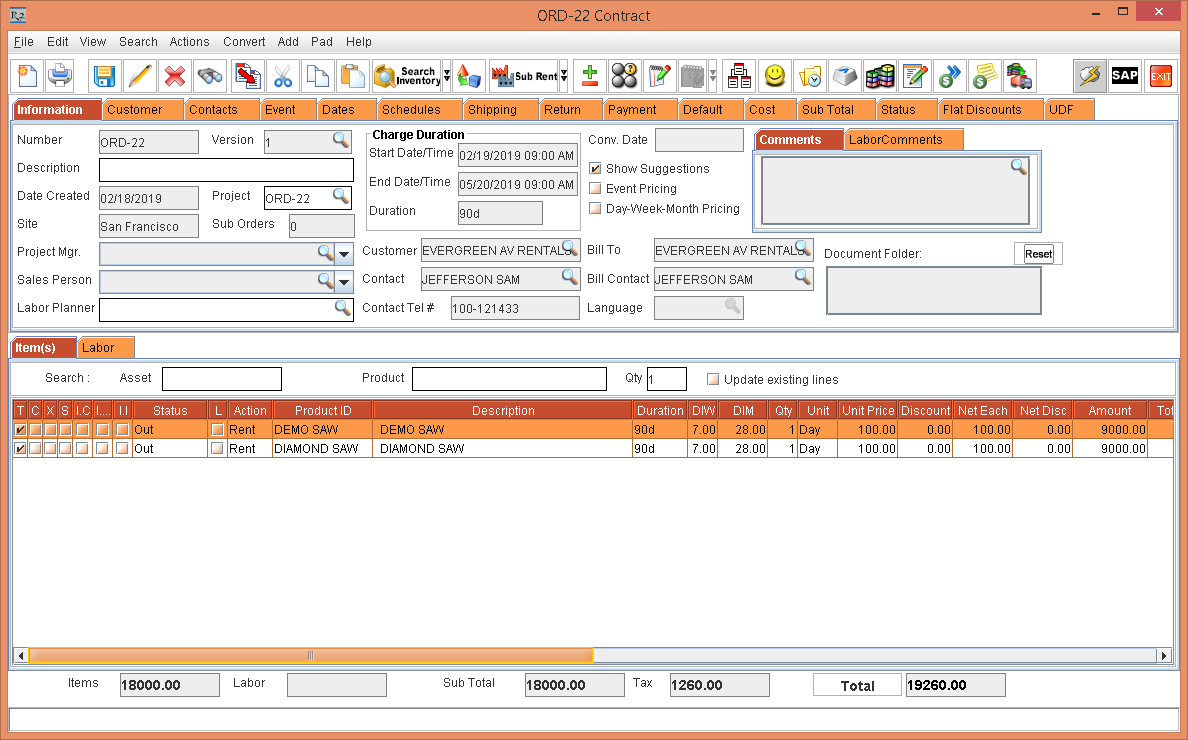
Let the System Date be [22-May-2019].
Select the View menu > Return Order option. The Return Order window is displayed.
Select the Asset [DIAMOND SAW#01] and click the Return button. The system displays a prompt with the message "R2_01555:Asset is due for Service. Do you want to mark it as QC / Needs Service as per its Maintenance setup?" along with "Skip this prompt for all the Assets scanned during this session" check box and Yes, Skip Service, and Suspend buttons, as shown in Figure 2.2.
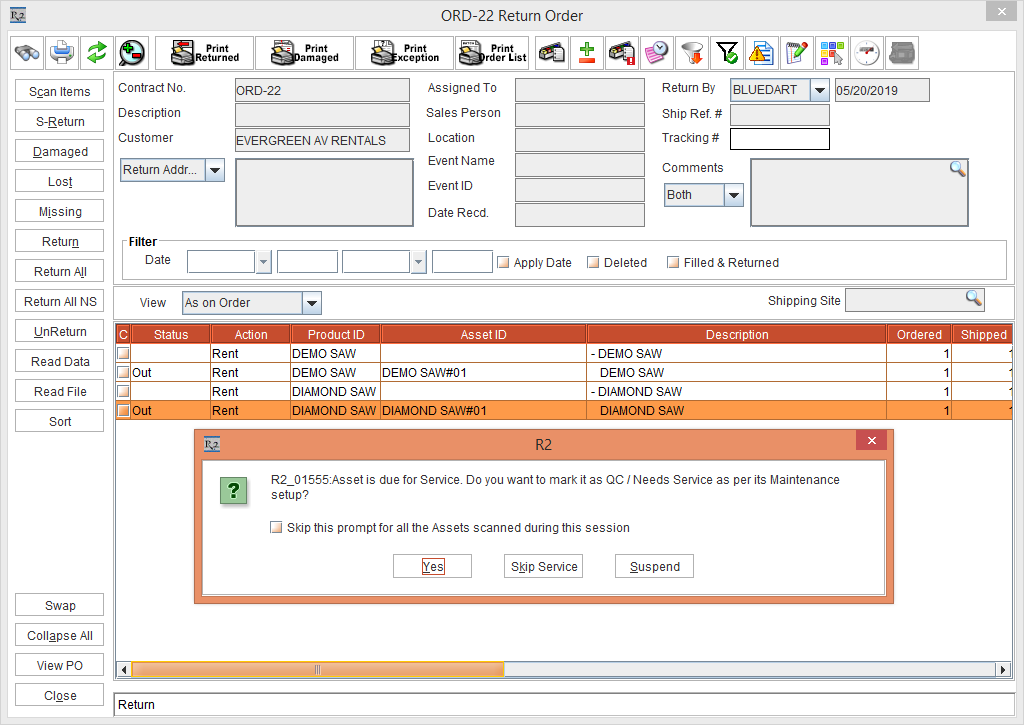
Click Yes. The Asset [DIAMOND SAW#01] Status is modified to Returned, as shown in Figure 2.3.
Similarly Return the Asset [DEMO SAW#01]. The system displays a prompt with the message "R2_01555:Asset is due for Service. Do you want to mark it as QC / Needs Service as per its Maintenance setup?" along with "Skip this prompt for all the Assets scanned during this session" check box and Yes, Skip Service, and Suspend buttons.
Click Yes. The Asset [DEMO SAW#01] Status is modified to Returned, as shown in Figure 2.3.
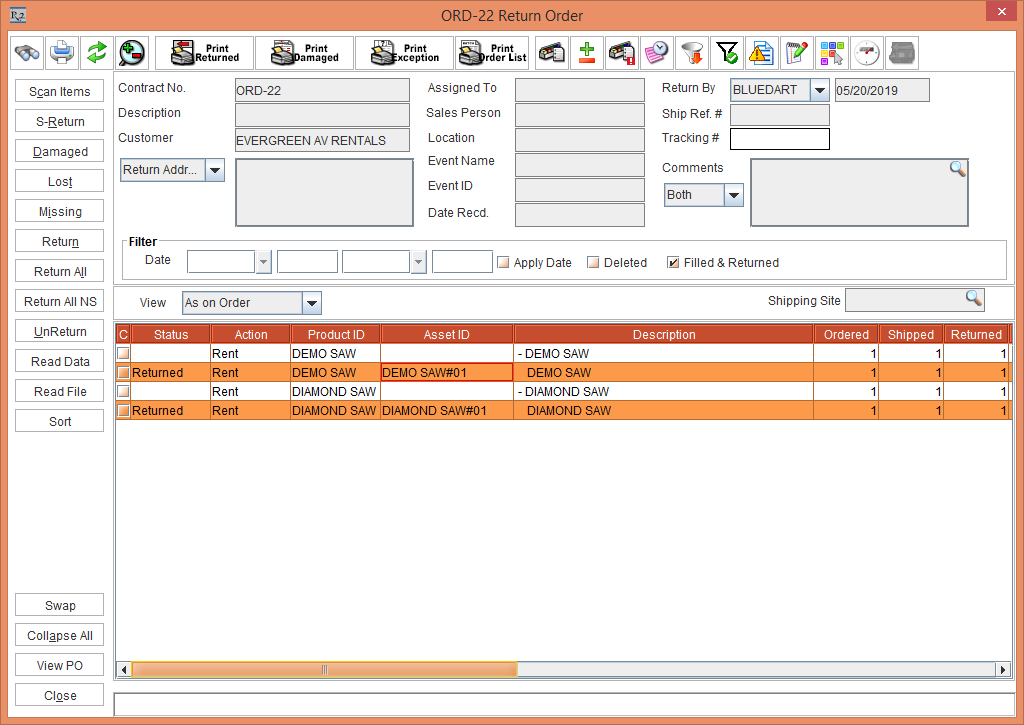
Close the Return Order window.
In the Order [ORD-22], select the Item line [DIAMOND SAW] and click the Availability icon. The Availability- DIAMOND SAW window is displayed.
Click the Date [February 19]. The [February 19] window is displayed with the Available (OffRent) as 1, Out as 1, and N.Avail as 1.
Click the N.Avail as 1. The Item Not Available window is displayed with the Asset [DIAMOND SAW#01] in Status [QC-Notavailable] within the Order ID [ORD-22], as shown in Figure 2.4.
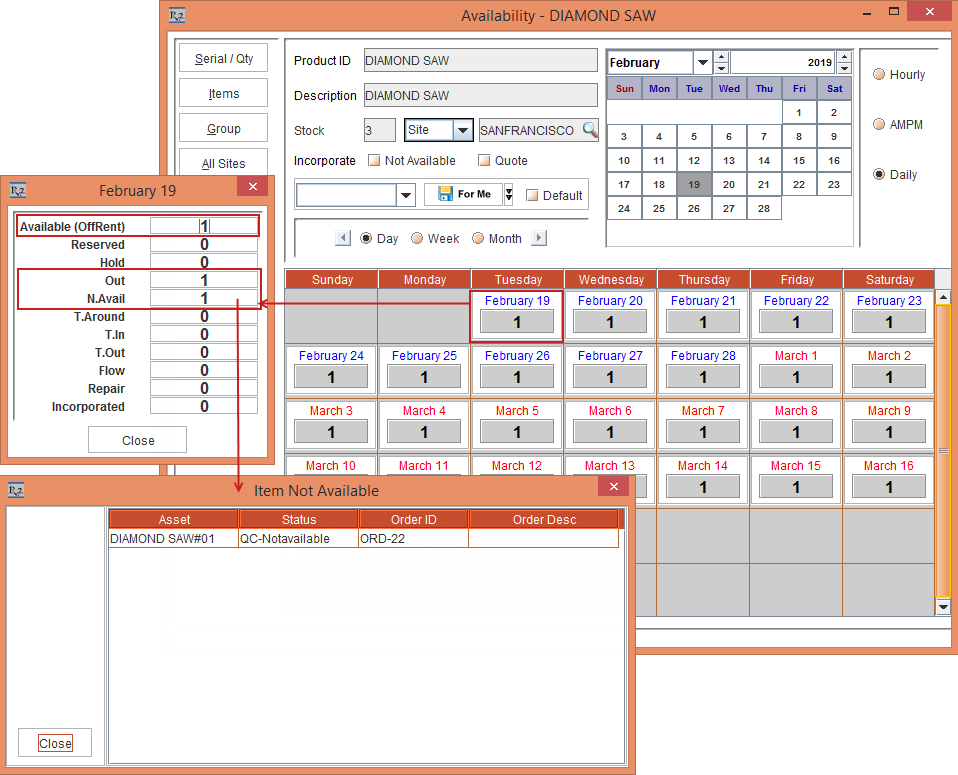
Close the Availability window.
In the Order [ORD-22], select the Item line [DEMO SAW#01] and click the Availability icon. The Availability- DEMO SAW window is displayed.
Click the Date [February 19]. The [February 19] window is displayed with the Available (OffRent) as 2, Out as 1, and N.Avail as 0, as shown in Figure 2.5.

Close the Availability window.
Open the Asset [DIAMOND SAW#01] Edit window. The Asset [DIAMOND SAW#01] displays the Status [QC] with the Available check box cleared, as shown in Figure 2.6.

Close the Asset [DIAMOND SAW#01] Edit window.
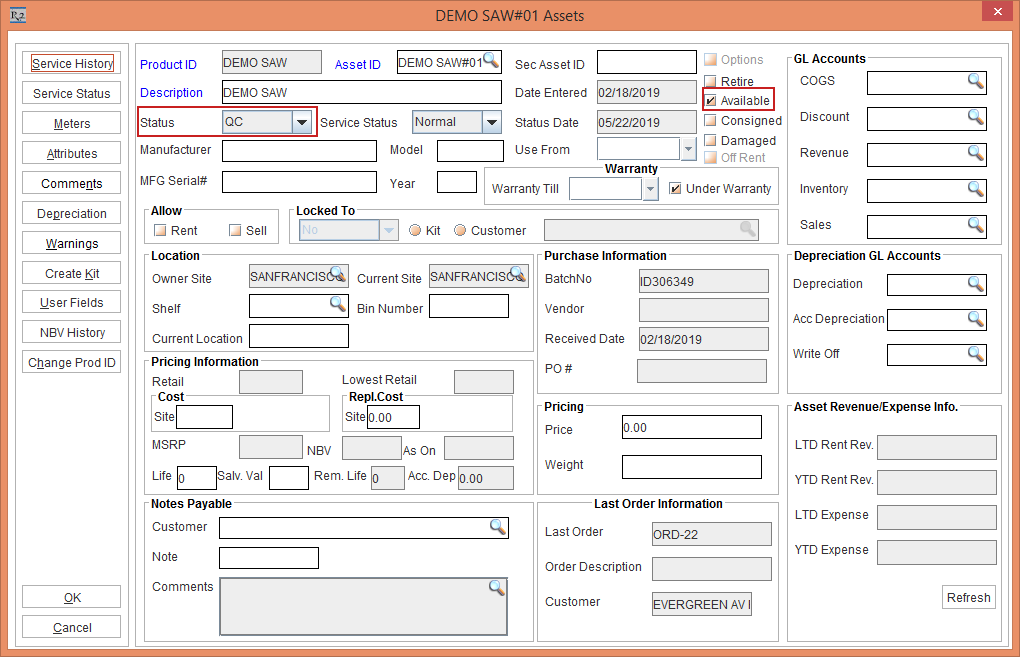
Open the Asset [DEMO SAW#01] Edit window. The Asset [DEMO SAW#01] displays the Status [QC] with the Available check box selected, as shown in Figure 2.7.
Close the Asset [DEMO SAW#01] Edit window.
Click the "Support for Mark QC Asset to IN and Available option in the Location Update Section of the Asset Manager App" to view the changes in the Asset Manager App