View Affected Orders - Due to Return Site Modification
Content was last updated in 06.22.11-00
Revision
History
You can now view how modifying the Returning
Site for any rental order, can affect other rental or transfer orders,
at the Original Site.
Subsequently, a conflict may arise when
the Returning Site for an Order is changed, since the site modification
alters the availability of the items at the Original Site.
In
simpler terms, when the Returning Site is changed, the required quantity
will no longer be available on the expected dates.
Thus
a shortfall occurs, which restricts other order from being fulfilled.
The
same information can be viewed under Affected Orders, in Accounts module.
Pre-requisites
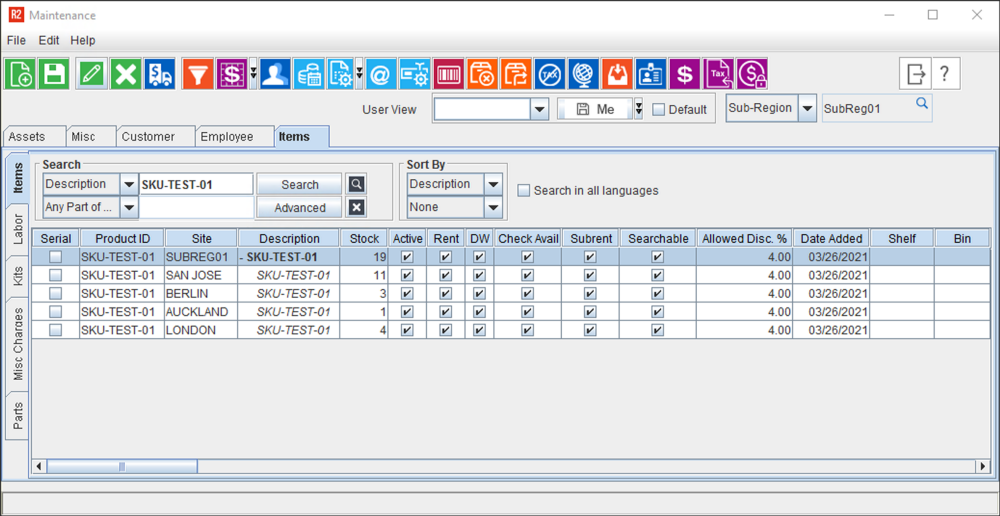
Create four sites: San Jose, London, Berlin, and
Auckland.
Create stock
[SKU-TEST-01] at each of the
sites as: San Jose (11), London(4), Berlin(3),
and Auckland(1). See
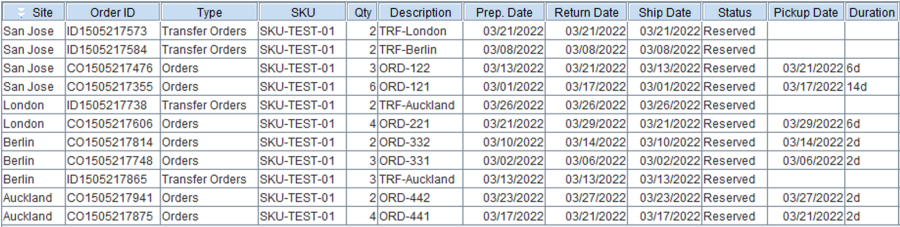
Create orders
at each of the sites as per details given in the following table
Process
these Orders to Out, Filled, or Overdue status.
This
clause ensures that the items are actually out from the Site's inventory,
and only the residual stock at the site is considered for any subsequent
Order created or any existing Order modified.
These
Orders are termed as Inflicting Orders.
Linguistically speaking, they are the source/reason of the shortfall trouble,
and are imposing (making the impact happen) the shortfall on other Orders.
Table
2.0 Initially Created Scenarios
Initial Situation:
No
return dates are changed |
Order
Site |
Order
Type |
Order
Qty |
Order line Prep-Return Dates |
Results) |
1 |
2 |
3 |
4 |
5 |
6 |
7 |
8 |
9 |
10 |
11 |
12 |
13 |
14 |
15 |
16 |
17 |
18 |
19 |
20 |
21 |
22 |
23 |
24 |
25 |
26 |
27 |
28 |
Remaining Qty @
Site >>> |
11 |
5 |
5 |
5 |
5 |
5 |
5 |
3 |
3 |
3 |
2 |
2 |
2 |
5 |
5 |
5 |
6 |
6 |
6 |
6 |
7 |
7 |
7 |
7 |
7 |
7 |
7 |
7 |
Since
there is NO short-fall of quantity
at any site on any given day, all the Rental Orders and Transfer
Orders get processed without any hindrance. |
San Jose |
Rental |
6 |
|
ORD-121 |
|
|
|
|
|
|
|
|
|
|
|
|
|
|
|
|
Rental |
6 |
|
|
|
|
|
|
|
|
|
|
|
|
|
ORD-122 |
|
|
|
|
|
|
|
|
|
Transfer |
2 |
|
|
|
|
|
|
|
|
|
|
|
|
|
|
|
|
|
|
|
|
TRF-London |
|
|
|
|
|
|
Transfer |
2 |
|
|
|
|
|
|
|
TRF-Berlin |
|
|
|
|
|
|
|
|
|
|
|
|
|
|
|
|
|
|
Remaining
Qty @ Site >>> |
4 |
4 |
4 |
4 |
4 |
4 |
4 |
4 |
4 |
4 |
4 |
4 |
4 |
4 |
4 |
4 |
4 |
4 |
4 |
4 |
6 |
2 |
2 |
2 |
2 |
0 |
0 |
0 |
London |
Rental |
4 |
|
|
|
|
|
|
|
|
|
|
|
|
|
|
|
|
|
|
|
|
|
ORD-221 |
|
Transfer |
2 |
|
|
|
|
|
|
|
|
|
|
|
|
|
|
|
|
|
|
|
|
|
|
|
|
|
TRF-Auckland |
Remaining
Qty @ Site >>> |
3 |
3 |
0 |
0 |
0 |
3 |
3 |
5 |
5 |
5 |
3 |
3 |
0 |
2 |
2 |
2 |
2 |
2 |
2 |
2 |
2 |
2 |
2 |
2 |
2 |
2 |
2 |
2 |
Berlin |
Rental |
3 |
|
|
ORD-331 |
|
|
|
|
|
|
|
|
|
|
|
|
|
|
|
|
|
|
|
|
|
|
|
|
Rental |
2 |
|
|
|
|
|
|
|
|
|
|
ORD-332 |
|
|
|
|
|
|
|
|
|
|
|
|
|
|
|
|
Transfer |
3 |
|
|
|
|
|
|
|
|
|
|
|
|
TRF-Auckland |
|
|
|
|
|
|
|
|
|
|
|
|
|
Remaining
Qty @ Site >>> |
1 |
1 |
1 |
1 |
1 |
1 |
1 |
1 |
1 |
1 |
1 |
1 |
4 |
4 |
4 |
4 |
4 |
0 |
0 |
0 |
4 |
4 |
4 |
2 |
2 |
4 |
4 |
6 |
Auckland |
Rental |
4 |
|
|
|
|
|
|
|
|
|
|
|
|
|
|
|
|
|
ORD-441 |
|
|
|
Rental |
2 |
|
|
|
|
|
|
|
|
|
|
|
|
|
|
|
|
|
|
|
|
|
|
|
ORD-442 |
|
|
Sample Workflow
Change the
begin/return dates for rental orders as follows.
Table 3.0: Sample
Order Information
Order Site |
Order# |
Modified
Return Site |
San
Jose |
ORD-121 |
Auckland |
|
ORD-122 |
Auckland |
You
can the returning site for an Order, from any of the following access
points:
Import button on Returning Site
Right click menu > Returning Site
(Single / Multiple line selection)
Order Header > Default tab >
Returning Site
Also,
ensure that 'View Affected Orders'
checkbox is selected in the window where you had change the return date
for the Order.
Changing the
above dates, disrupts the availability of the items at the four sites,
since the required quantity is no longer available on the expected
dates.
The 'Modified
Returning Site' of the Order has been depicted as Modified
Return Site in
the table below.
The 'Impacted
Order' due to short-fall in quantity has been depicted as Red Block
in the table below.
The 'Numbers
in Negative' depicted as -
x in Remaining Qty @ Site row, refer to the shortfall
quantity.
Table 4.0 Scenarios
after Return Site is changed
Initial Situation:
No
return dates are changed |
Order
Site |
Order
Type |
Order
Qty |
Order line (Return Site Modified) |
Results) |
1 |
2 |
3 |
4 |
5 |
6 |
7 |
8 |
9 |
10 |
11 |
12 |
13 |
14 |
15 |
16 |
17 |
18 |
19 |
20 |
21 |
22 |
23 |
24 |
25 |
26 |
27 |
28 |
Remaining Qty @
Site >>> |
11 |
5 |
5 |
5 |
5 |
9 |
5 |
3 |
3 |
3 |
3 |
3 |
3 |
0 |
0 |
0 |
-3 |
-3 |
-3 |
-3 |
-
2 |
-
2 |
-
2 |
- 2 |
- 2 |
- 2 |
- 2 |
- 2 |
Since
there is NO short-fall of quantity
at any site on any given day, all the Rental Orders and Transfer
Orders get processed without any hindrance. |
San Jose |
Rental |
6 |
|
ORD-121
Auckland |
|
|
|
|
|
|
|
|
|
|
|
|
|
Rental |
6 |
|
|
|
|
|
|
|
|
|
|
|
|
|
ORD-122
Auckland |
|
|
|
|
|
|
|
|
|
Transfer |
2 |
|
|
|
|
|
|
|
|
|
|
|
|
|
|
|
|
|
|
|
|
TRF-London |
|
|
|
|
|
|
Transfer |
2 |
|
|
|
|
|
|
|
TRF-Berlin |
|
|
|
|
|
|
|
|
|
|
|
|
|
|
|
|
|
|
Remaining
Qty @ Site >>> |
4 |
4 |
4 |
4 |
4 |
4 |
4 |
4 |
4 |
4 |
4 |
4 |
4 |
4 |
4 |
4 |
4 |
4 |
4 |
4 |
4 |
0 |
0 |
0 |
0 |
- 2 |
- 2 |
-
2 |
London |
Rental |
4 |
|
|
|
|
|
|
|
|
|
|
|
|
|
|
|
|
|
|
|
|
|
ORD-221 |
|
Transfer |
2 |
|
|
|
|
|
|
|
|
|
|
|
|
|
|
|
|
|
|
|
|
|
|
|
|
|
TRF-Auckland |
Remaining
Qty @ Site >>> |
3 |
3 |
0 |
0 |
0 |
0 |
0 |
2 |
2 |
2 |
3 |
3 |
0 |
0 |
0 |
2 |
2 |
2 |
2 |
2 |
2 |
2 |
2 |
2 |
2 |
2 |
2 |
2 |
Berlin |
Rental |
3 |
|
|
ORD-331 |
|
|
|
|
|
|
|
|
|
|
|
|
|
|
|
|
|
|
|
Rental |
2 |
|
|
|
|
|
|
|
|
|
|
ORD-332 |
|
|
|
|
|
|
|
|
|
|
|
|
|
|
|
|
Transfer |
3 |
|
|
|
|
|
|
|
|
|
|
|
|
TRF-Auckland |
|
|
|
|
|
|
|
|
|
|
|
|
|
Remaining
Qty @ Site >>> |
1 |
1 |
1 |
1 |
1 |
1 |
1 |
1 |
1 |
1 |
1 |
1 |
4 |
4 |
4 |
4 |
4 |
6 |
6 |
6 |
6 |
9 |
9 |
7 |
7 |
7 |
11 |
13 |
Auckland |
Rental |
4 |
|
|
|
|
|
|
|
|
|
|
|
|
|
|
|
|
|
ORD-441 |
|
|
|
Rental |
2 |
|
|
|
|
|
|
|
|
|
|
|
|
|
|
|
|
|
|
|
|
|
|
|
ORD-442 |
|
If 'View Affected Orders' checkbox is
selected, then when you attempt to perform the change dates, system
gives you the following prompt.
Figure 3.0 Prompt-1
conforming 'View Affected Orders'

Upon
confirmation, the following prompt is shown,
Figure 4.0 Prompt-2
conforming 'View Affected Orders'

Upon
further confirmation, the Affected Order(s)
window are shown (Only if there are 1 or more orders which gets affected,
this window is displayed).
Figure
5.0 List of 'Affected Orders' when 'Returning Site' for both
ORD-121 and ORD-122 is modified.
At this point it
is not important if the returning site for both Orders is same or not,
since the impact of site change is agnostic of what site it is changed
into.

Configure 'Buffer Duration' to View Affected Orders
When the Returning Site for an Order is Changed
(using any of the available
methods) the affected orders should be fetched for
next X days.
This duration of 'X days' is configured in
the Employee
defaults.
However, this configured duration of 'X days'
is taken into consideration only when
the Retuning Site is modified for an Order.
It Considers the Inflicting Order's Return
Date and calculates the 'X' days from it, to display the Affected Orders.
The default value for 'X' is 15 and a negative
value cannot be assigned.
Also, a significantly higher value of 'x'
may affected system performance, when results are sought based on the
value entered.
 |
It has no impact, if the Return
Date is changed for the Order, or the Receive Date is changed
for a Transfer Order. |