
Reference No: 29608
Support has been provided to Reset the Billing for Periodic Billing Orders. The Reset Billing is supported with or without Day-Week-Month Pricing being selected.
The following are the work flows for enabling and disabling the Day-Week-Month Pricing option and the Amount Calculation depending on the Configuration settings:
Select the Configuration module > Pricing / Billing tab > select the Day-Week-Month Pricing check box > save and exit the Configuration module. This is, as shown in the Figure 1.0.
Select the Account module > click the Reservation button . The Order in Formation window is displayed, as shown in the Figure 1.1. Create an Order [ORD-338 ] for 28 Days starting from 15-Jan-2018.
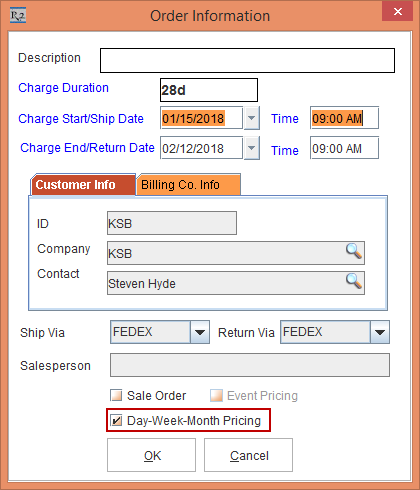
NOTE: When the Day-Week-Month Pricing check box is enabled in the Configuration module, that is reflected or defaulted in the Order in Formation window. If the Day-Week-Month Pricing check box is not enabled in the Configuration module, you can enable or disable it by selecting the Day-Week-Month Pricing check box in the Order in Formation window.
Click the OK button.
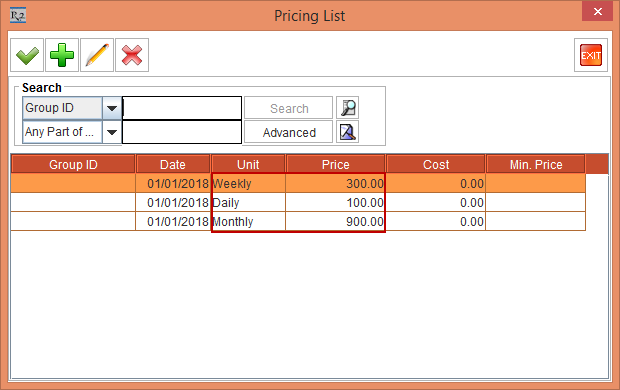
Create an Item [CAMERAHD] and receive some stock > define the Pricing as following: Day Price as 100, Week Price as 300 and Month Price as 900. This is, as shown in the Figure 1.2.
In the Order [ORD-338 ], observe that the Day/Each Price, Week Price and Month Price are fetched from the Pricing definition provided in the Item. This is, as shown in the Figure 1.3.
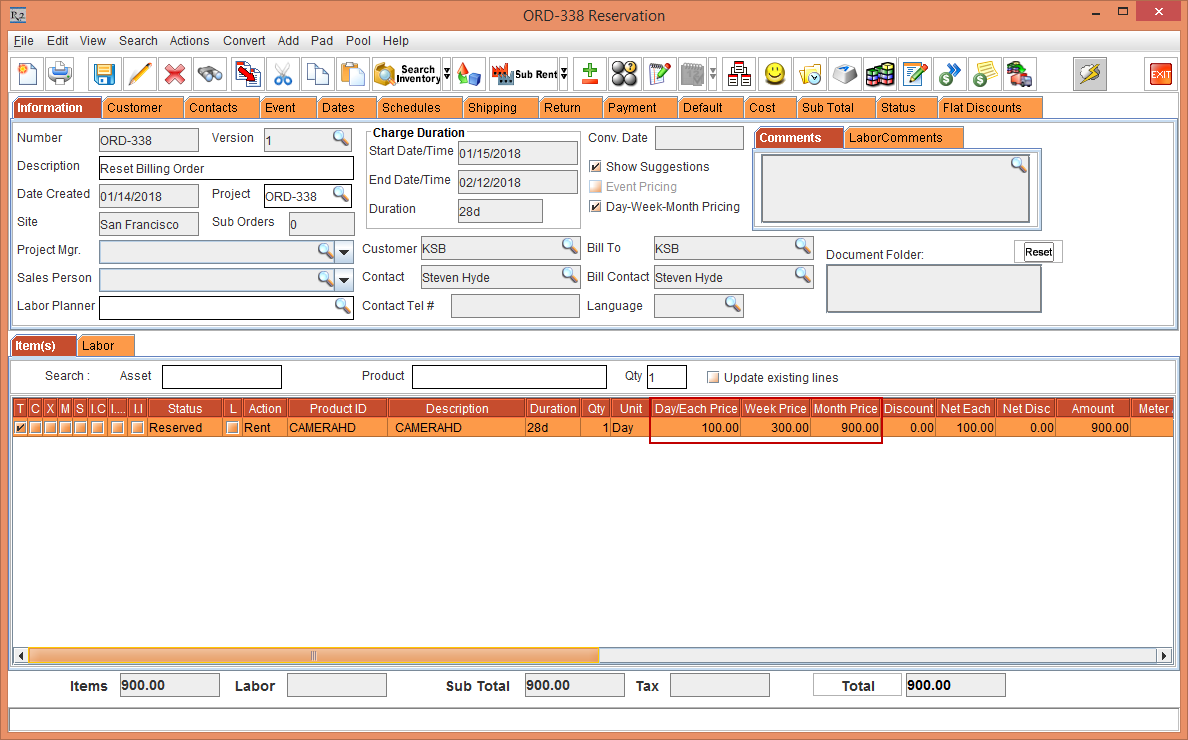
NOTE: When the Day-Week-Month Pricing check box is selected, the Unit Price, DIW and DIM columns will not be visible.
The following work flows explain how the Reset Billing option works when the Day-Week-Month Pricing option is not selected.
Select the Configuration module > Pricing / Billing tab > clear the Day-Week-Month Pricing check box > save and exit the Configuration module. When the Day-Week-Month Pricing check box is cleared in the Configuration module, that is reflected or defaulted in the Order in Formation window. This is, as shown in the Figure 1.4.

Create a Rental Reservation Order [ORD-342] for 28 Days starting from 15-Jan-2018.
To the Order [ORD-342], add an Item [CAMERAHD] having the Pricing defined as Day Price as 100, Week Price as 300 and Month Price as 900. Observe that the Unit Price is fetched from the Pricing defined in the Item. This is, as shown in the Order as follows:

NOTE: The system works in the same manner for other - Unit, Serial Kits and Non-Serial Kits as well.
Select the Dates tab > Edit Dates> enter DIW as 3 and DIM as 9 > click OK button.
Select the Payment tab > select Pay At as Periodic Billing > click the Billing Terms importable button. The Billing Terms window is displayed with the details, as shown in Figure 1.6. A new check box is provided in the Billing Terms dialog.
When the Reset Billing check box is selected, then the Amount calculation in the Order and Invoice resets the Price every Billing cycle.
When the Reset Billing check box is not selected, then the Invoice calculation in the Order and Invoice resets the Price based on Pricing by 28days or Calendar Month setting in Configuration module.
The Reset Billing check box in Billing Terms dialog is available for both Day-Week-Month Pricing selected and when Day-Week-Month Pricing is not selected in Orders.

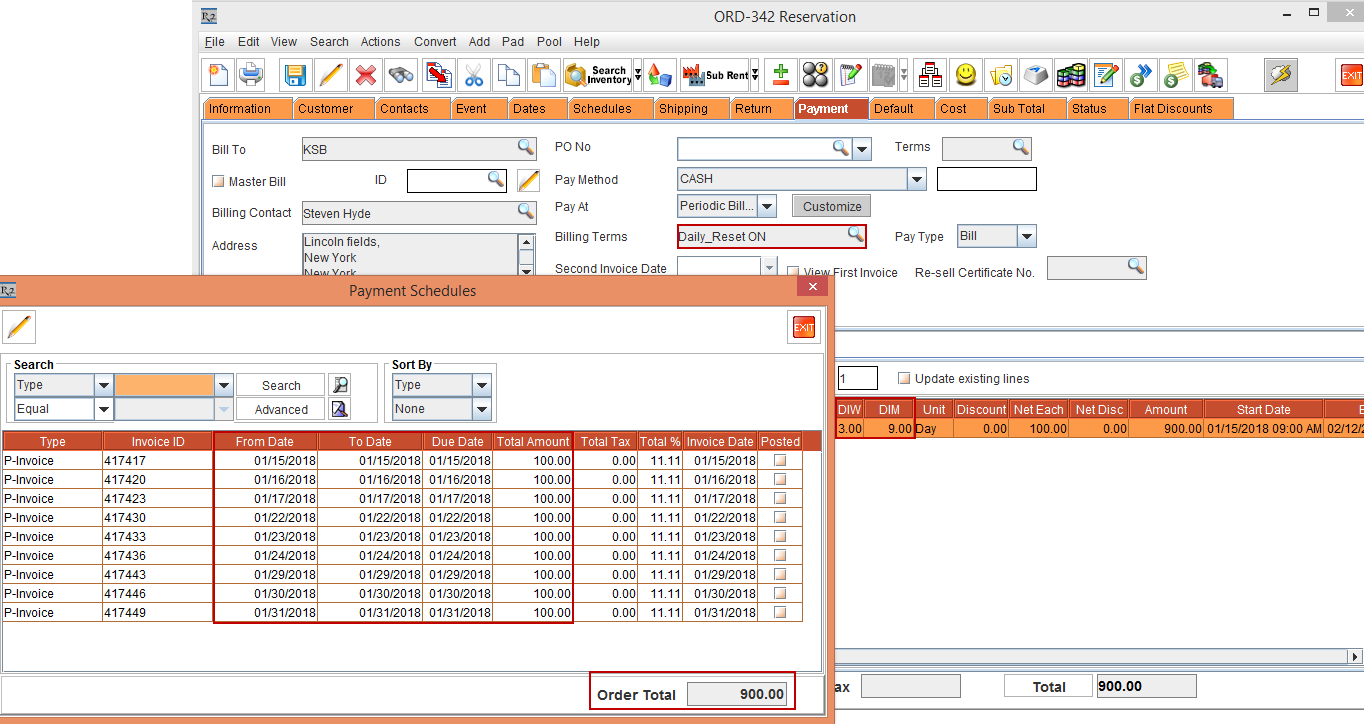
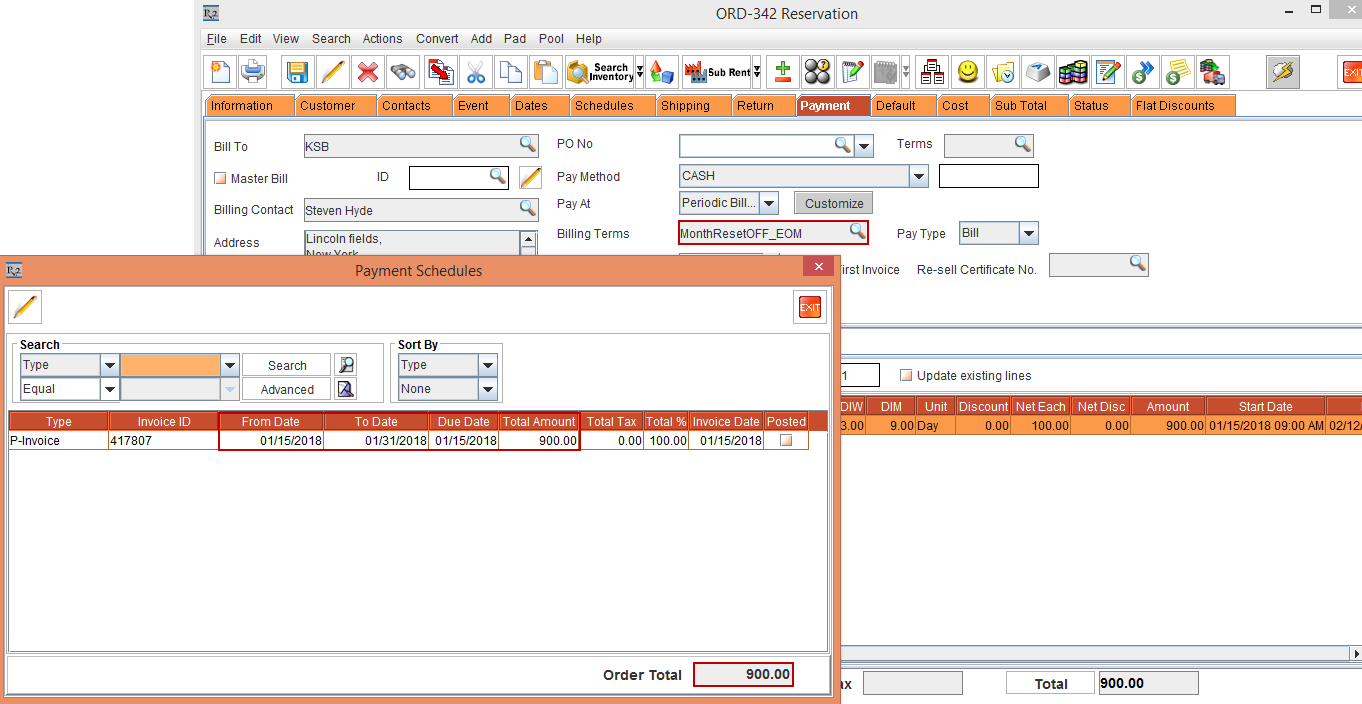
Select the Reset Billing check box in Billing Terms dialog > click the OK button > Tag the Billing Terms [ID414825]. Observe that the Order Amount is 900.
Select the View menu > Payment Schedules. The Payment Schedules window is displayed. This is, as shown in the Figure 1.7.
Select the Payment tab > select Pay At as Periodic Billing > click the Billing Terms importable button. The Billing Terms window is displayed.
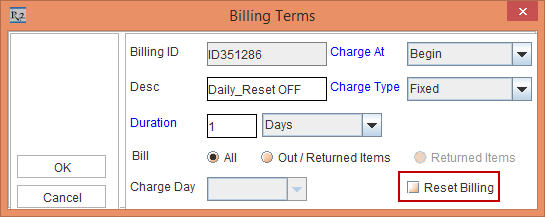
Tag the Billing Terms [ID351286] with the details, as shown in Figure 1.8 > click the OK button.
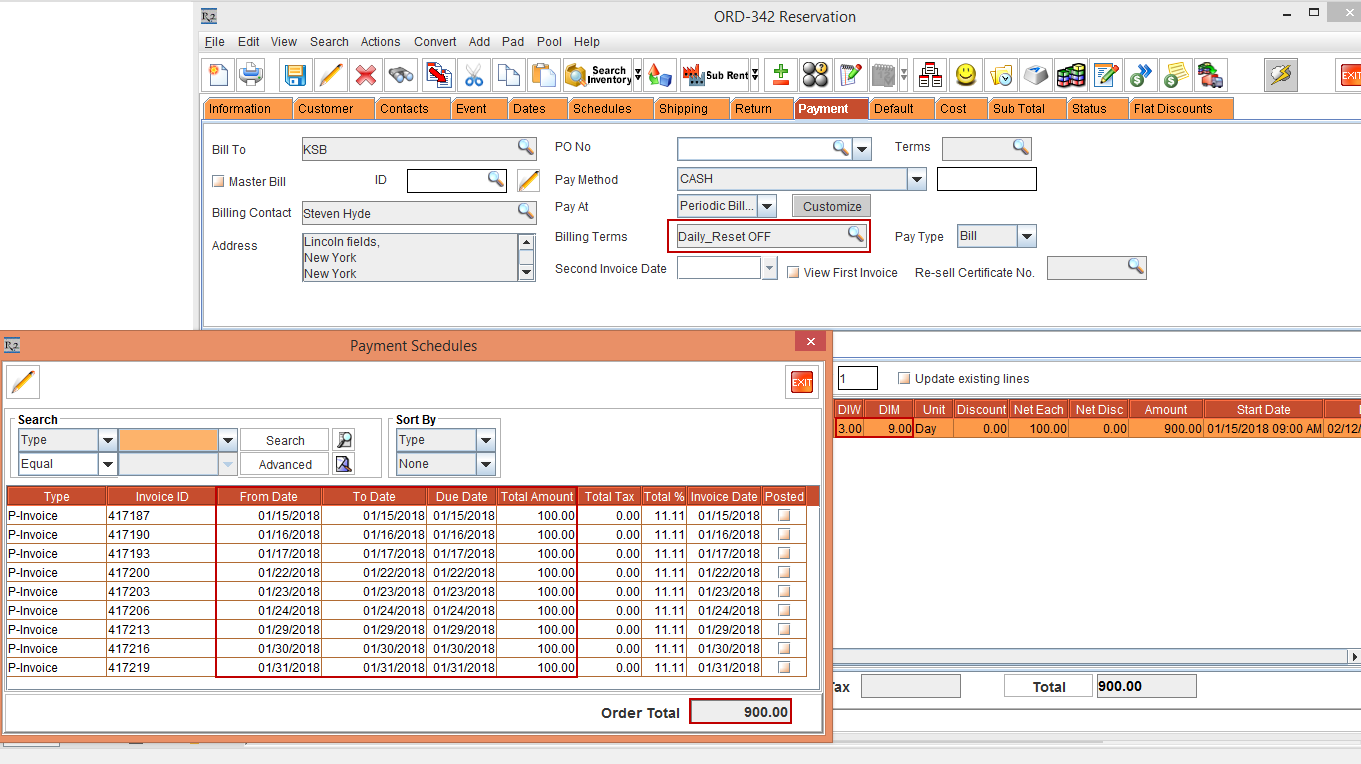
Observe that the Order Amount is 900. Select the View menu > Payment Schedules. The Payment Schedules window is displayed. This is, as shown in the Figure 1.9. Close the Payment Schedules window.
Select the Payment tab > select Pay At as Periodic Billing > click the Billing Terms importable button. The Billing Terms window is displayed.
Tag the Billing Terms [ID335289] with the details, as shown in Figure 1.10 > click the OK button.

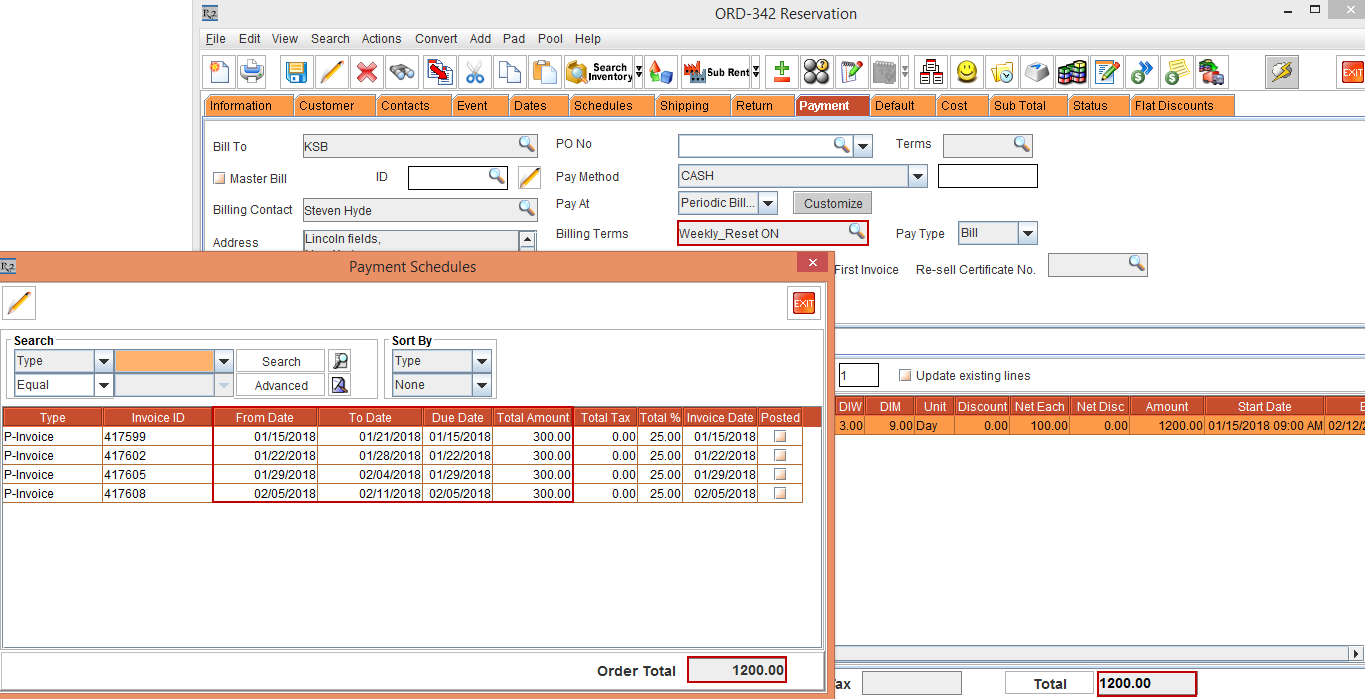
Observe that the Order Amount is 1200. Select the View menu > Payment Schedules. The Payment Schedules window is displayed. This is, as shown in the Figure 1.9. Close the Payment Schedules window.
Select the Payment tab > select Pay At as Periodic Billing > click the Billing Terms importable button. The Billing Terms window is displayed.
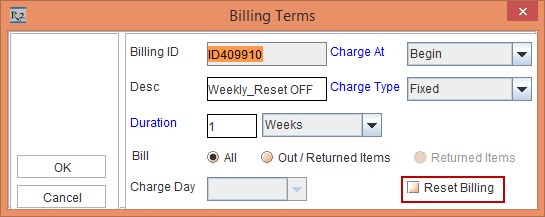
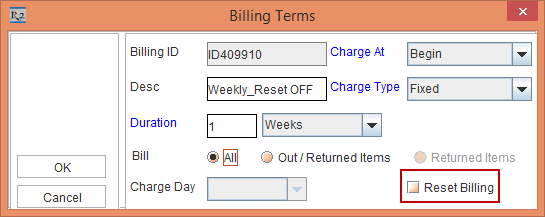
Tag the Billing Terms [ID409910] with the details, as shown in Figure 1.12 > click the OK button.
Observe that the Order Amount is 900. Select the View menu > Payment Schedules. The Payment Schedules window is displayed. This is, as shown in the Figure 1.13. Close the Payment Schedules window.
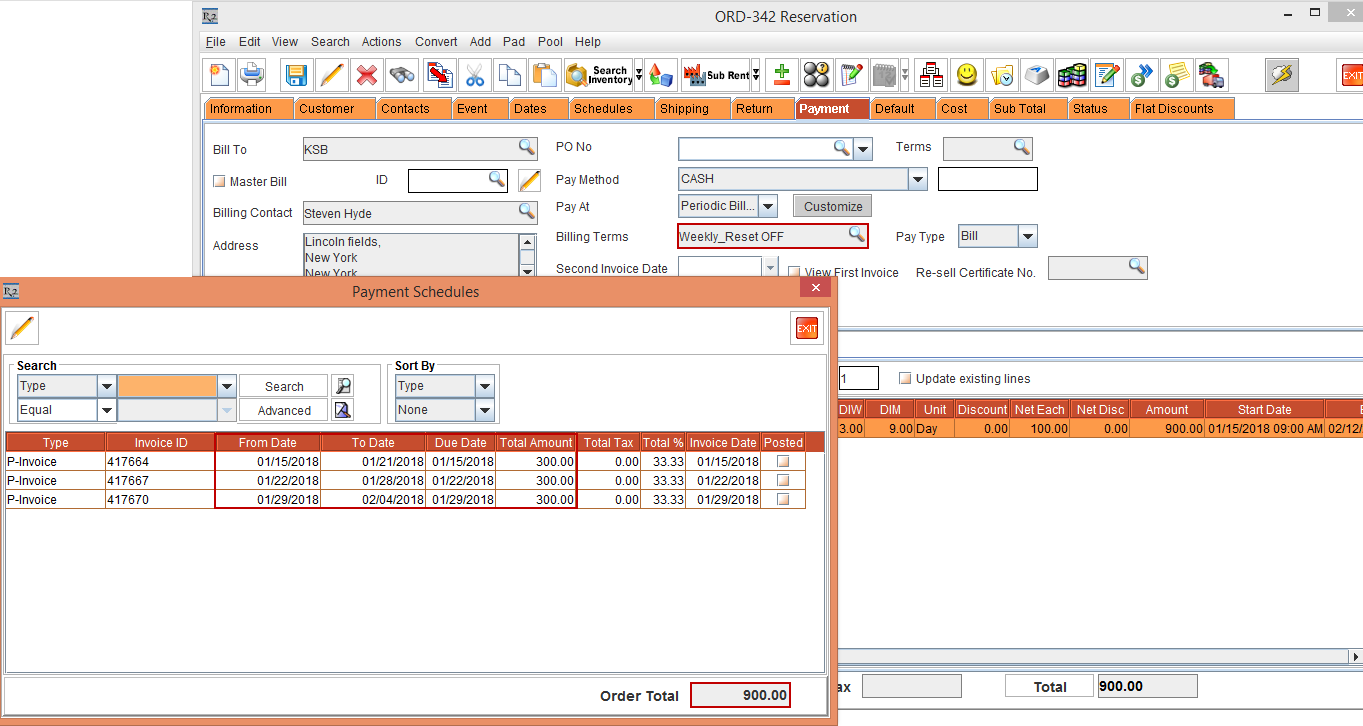
Select the Payment tab > select Pay At as Periodic Billing > click the Billing Terms importable button. The Billing Terms window is displayed.
Tag the Billing Terms [ID303335] with the details, as shown in Figure 1.14 > click the OK button.
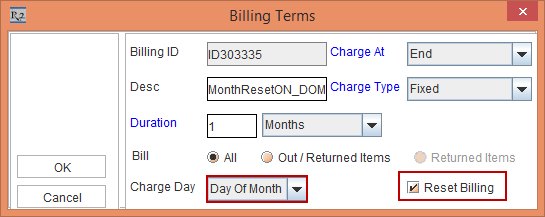
Observe that the Order Amount is 900. Select the View menu > Payment Schedules. The Payment Schedules window is displayed. This is, as shown in the Figure 1.15. Close the Payment Schedules window.
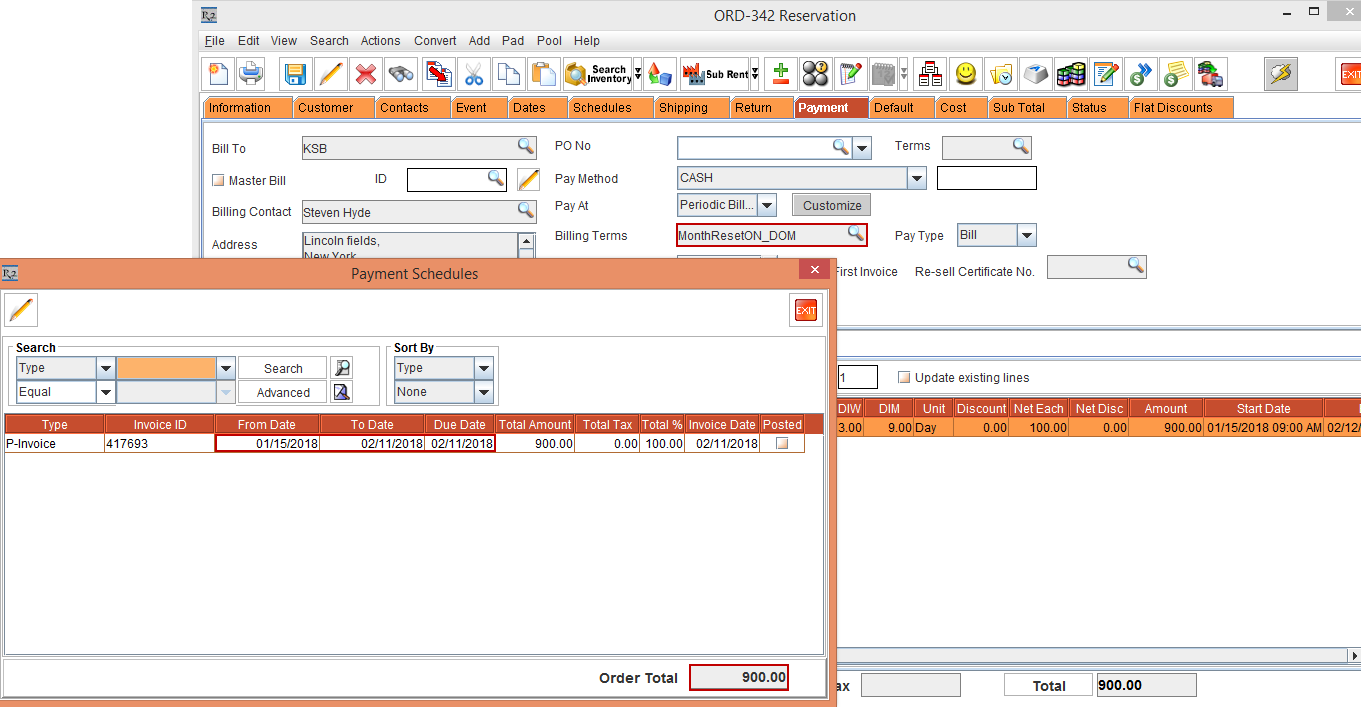
Select the Payment tab > select Pay At as Periodic Billing > click the Billing Terms importable button. The Billing Terms window is displayed.
Tag the Billing Terms [ID417738] with the details, as shown in Figure 1.16 > click the OK button.
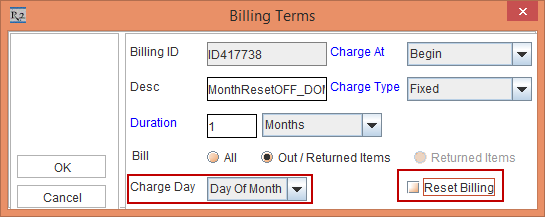
Observe that the Order Amount is 900. Select the View menu > Payment Schedules. The Payment Schedules window is displayed. This is, as shown in the Figure 1.17. Close the Payment Schedules window.
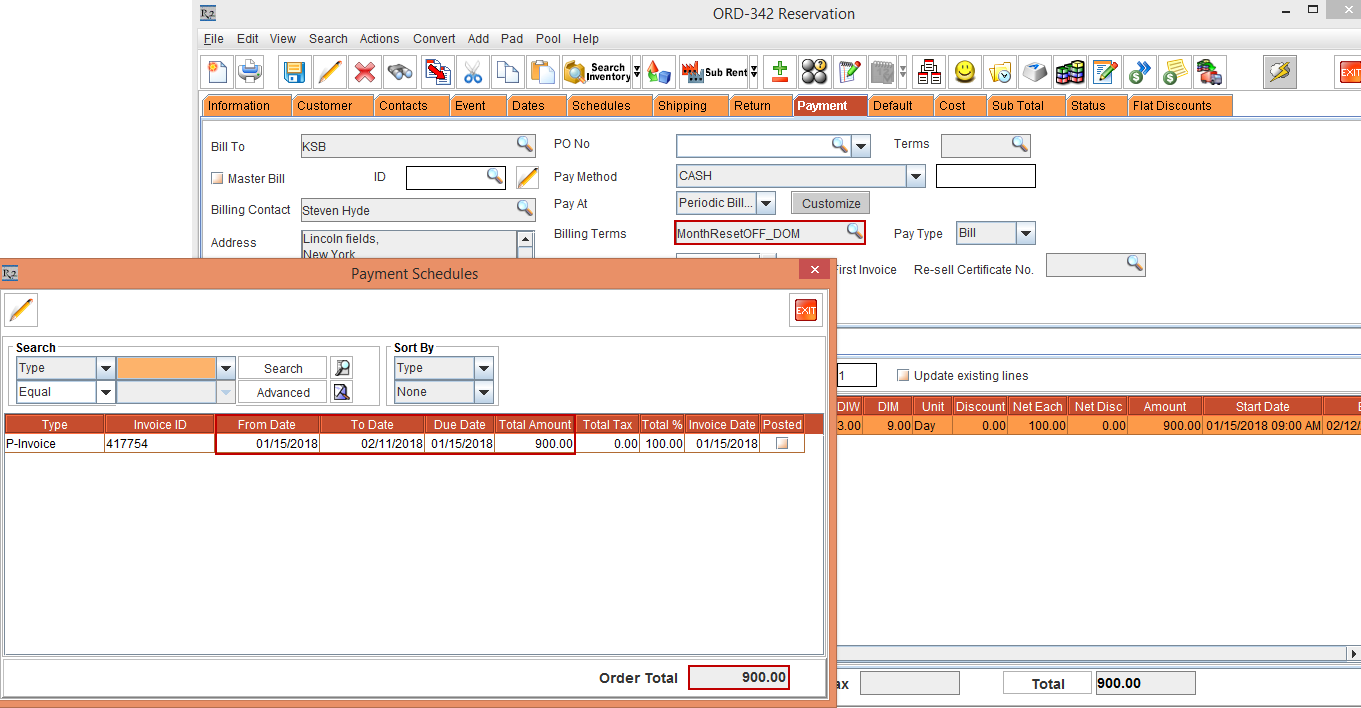
Select the Payment tab > select Pay At as Periodic Billing > click the Billing Terms importable button. The Billing Terms window is displayed.
Tag the Billing Terms [ID417763] with the details, as shown in Figure 1.18 > click the OK button.
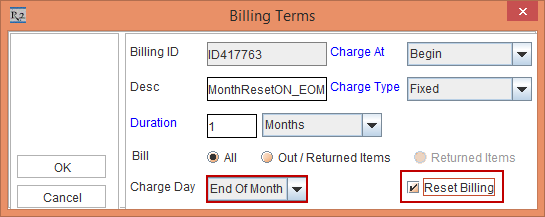
Observe that the Order Amount is 1500. Select the View menu > Payment Schedules. The Payment Schedules window is displayed. This is, as shown in the Figure 1.19. Close the Payment Schedules window.
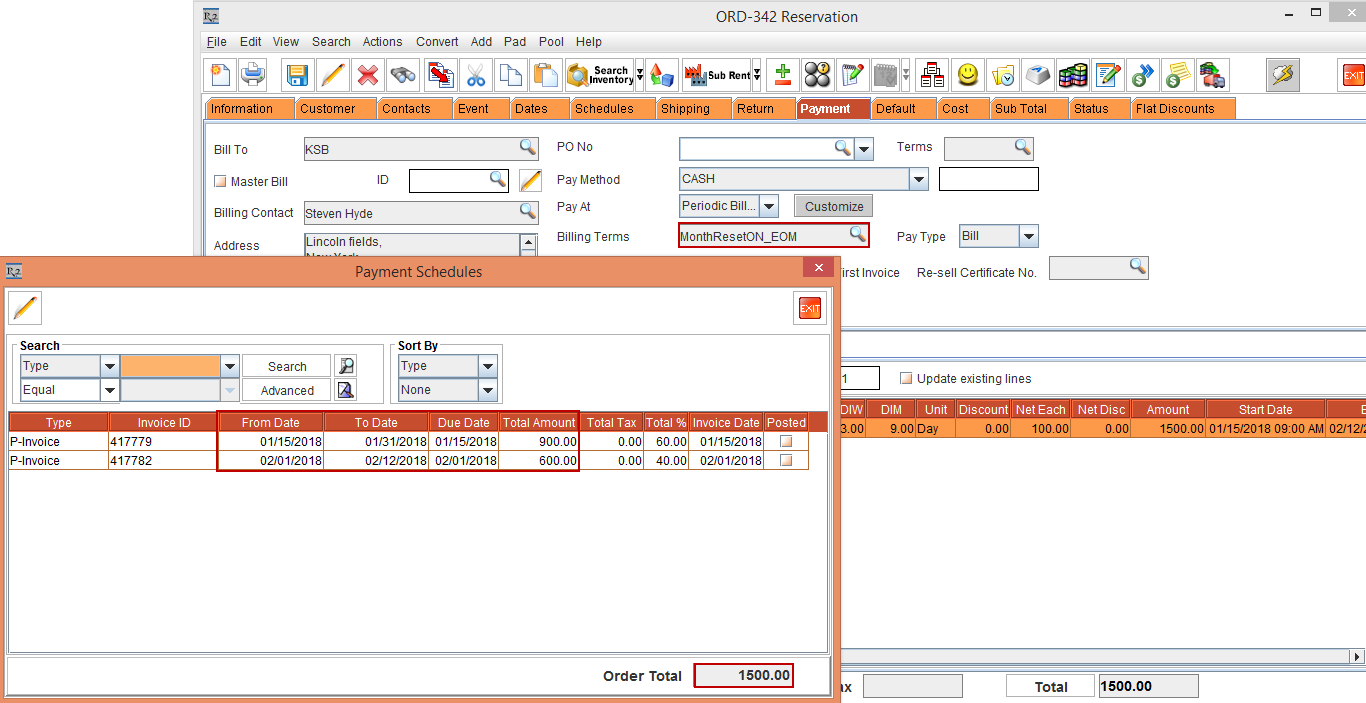
Select the Payment tab > select Pay At as Periodic Billing > click the Billing Terms importable button. The Billing Terms window is displayed.
Tag the Billing Terms [ID417677] with the details, as shown in Figure 1.20 > click the OK button.
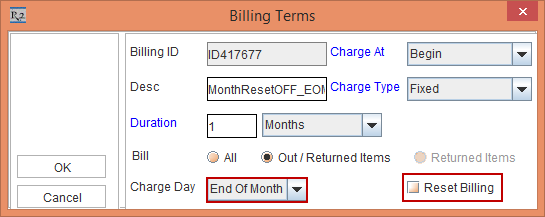
Observe that the Order Amount is 900. Select the View menu > Payment Schedules. The Payment Schedules window is displayed. This is, as shown in the Figure 1.21. Close the Payment Schedules window.
The Amount calculation differs based on the following options in the Configuration settings:
Allow Fractional Charge Duration On Order
Pricing Month By : Calendar Month or 28 Days
Charge Duration based on Mid Night
The cases below explain the highlighted Configuration Settings and its effect on the Order and Invoice calculations in different permutations and combinations.
In the Configuration module > Pricing / Billing tab > select the Allow Fractional Charge Duration On order check box.
NOTE: When the Allow Fractional Charge Duration On order check box is selected, the Charge Duration Based on Mid Night check box is automatically cleared.
Select the Day-Week-Month Pricing check box as explained above.
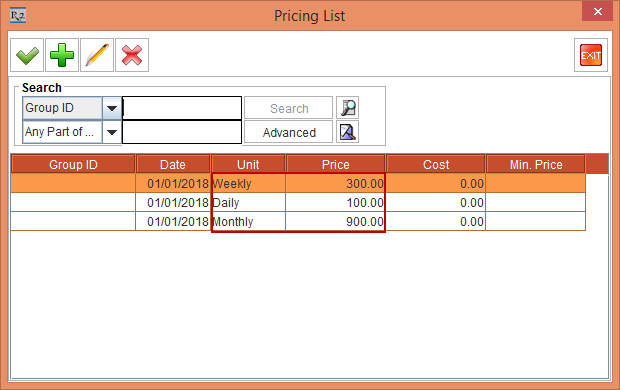
Create an Item [CAMERAHD] and receive some stock > define the Pricing as following: Day Price as 100, Week Price as 300 and Month Price as 900. This is, as shown in Figure 2.0.
Create a Rental Reservation Order [ORD-344] from 15-Jan-2018 for 40 Days. observe that the Day/Each Price, Week Price and Month Price are fetched from the Pricing definition provided in the Item.
Select the Payment tab > select Pay At as Periodic Billing > click the Billing Terms importable button. The Billing Terms window is displayed.
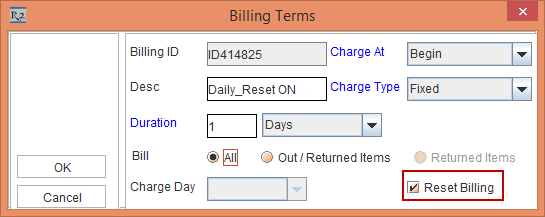
Tag the Billing Terms [ID414825] with the details, as shown in Figure 2.1 > click the OK button.
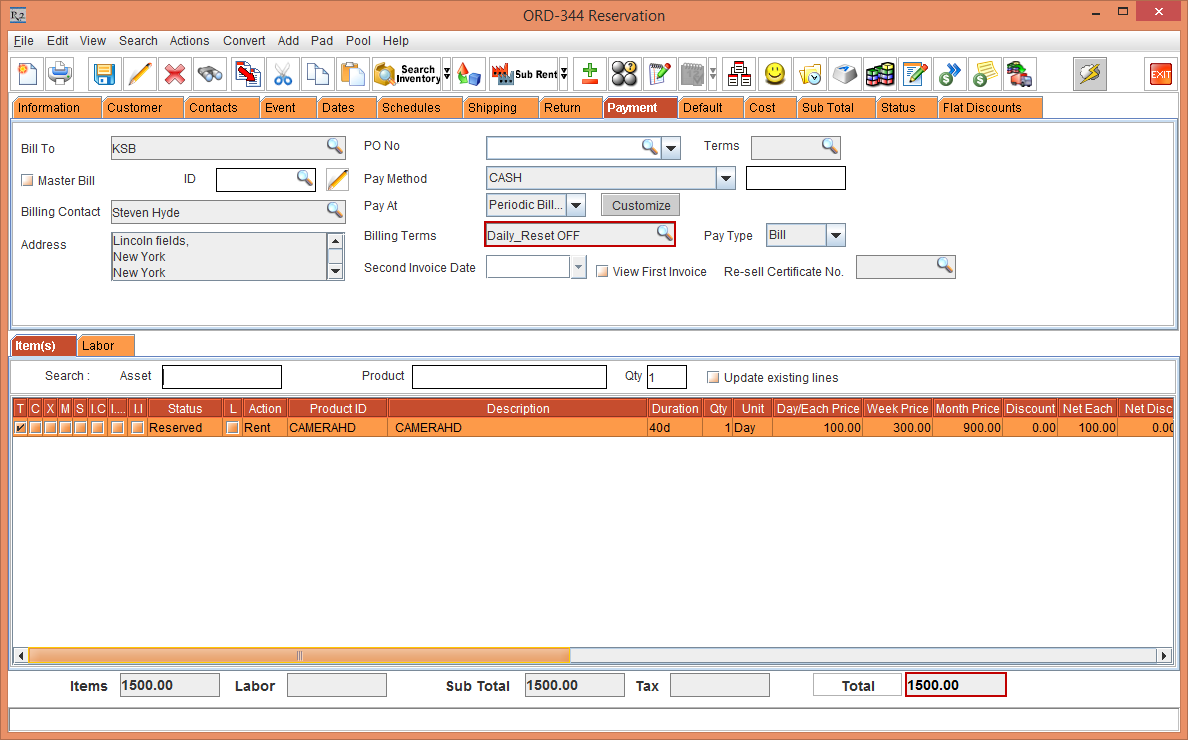
Observe the Order [ORD-344] is, as shown in the Figure 2.2.

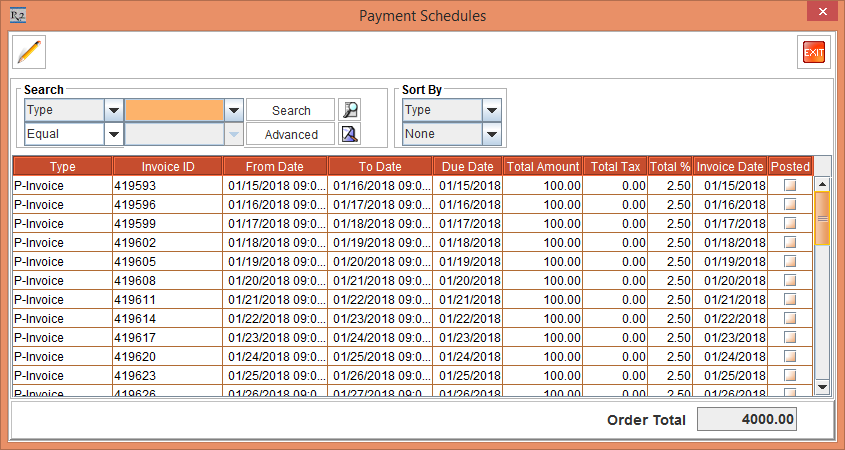
Select the View menu > Payment Schedules option. The Payment Schedules window is displayed. There will be 40 separate Invoices generated for 40 days separately as the Billing is Daily and Reset Billing check box is selected. This is, as shown in the Figure 2.3.
Exit the Payment Schedules window and close the Order.
Select the Day-Week-Month Pricing check box as explained above. And from the Configuration module > Pricing / Billing > Pricing Month By > select the 28 Days drop-down option
Create an Item [CAMERAHD] and receive some stock > define the Pricing as following: Day Price as 100, Week Price as 300 and Month Price as 900. This is, as shown in Figure 2.4.
Create a Rental Reservation Order [ORD-344] from 15-Jan-2018 for 40 Days. observe that the Day/Each Price, Week Price and Month Price are fetched from the Pricing definition provided in the Item.
Select the Payment tab > select Pay At as Periodic Billing > click the Billing Terms importable button. The Billing Terms window is displayed.
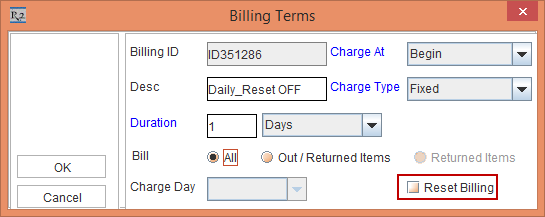
Tag the Billing Terms [ID414825] with the details, as shown in Figure 2.5 > click the OK button.
Observe the Order [ORD-344] is , as shown in the Figure 2.6
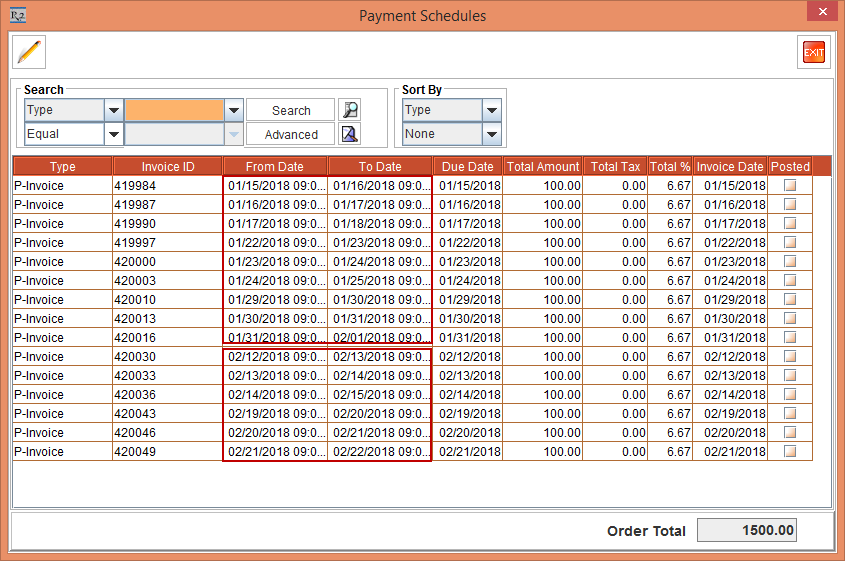
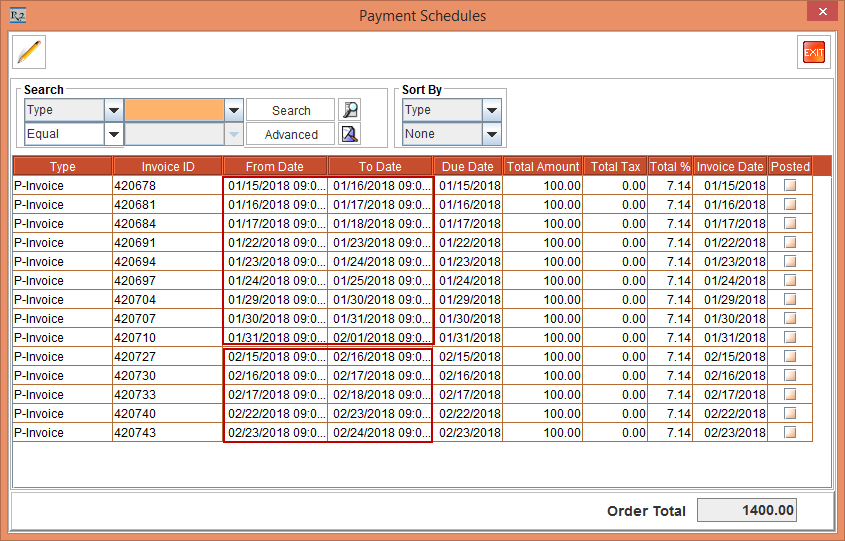
Select the View menu > Payment Schedules option. The Payment Schedules window is displayed. There will be 15 separate Invoices generated. Since the Week Price is 300 and Month Price is 900, 9 Invoices will be generated in the month of January and 6 Invoices will be generated in the month of February as the Billing is Daily and Reset Billing check box is not selected. This is, as shown in the Figure 2.7.
Exit the Payment Schedules window and close the Order.
From the Configuration module > Pricing / Billing > Pricing Month By > select the Calendar Month drop-down option.
Select the Day-Week-Month Pricing check box > save and exit the Configuration module.
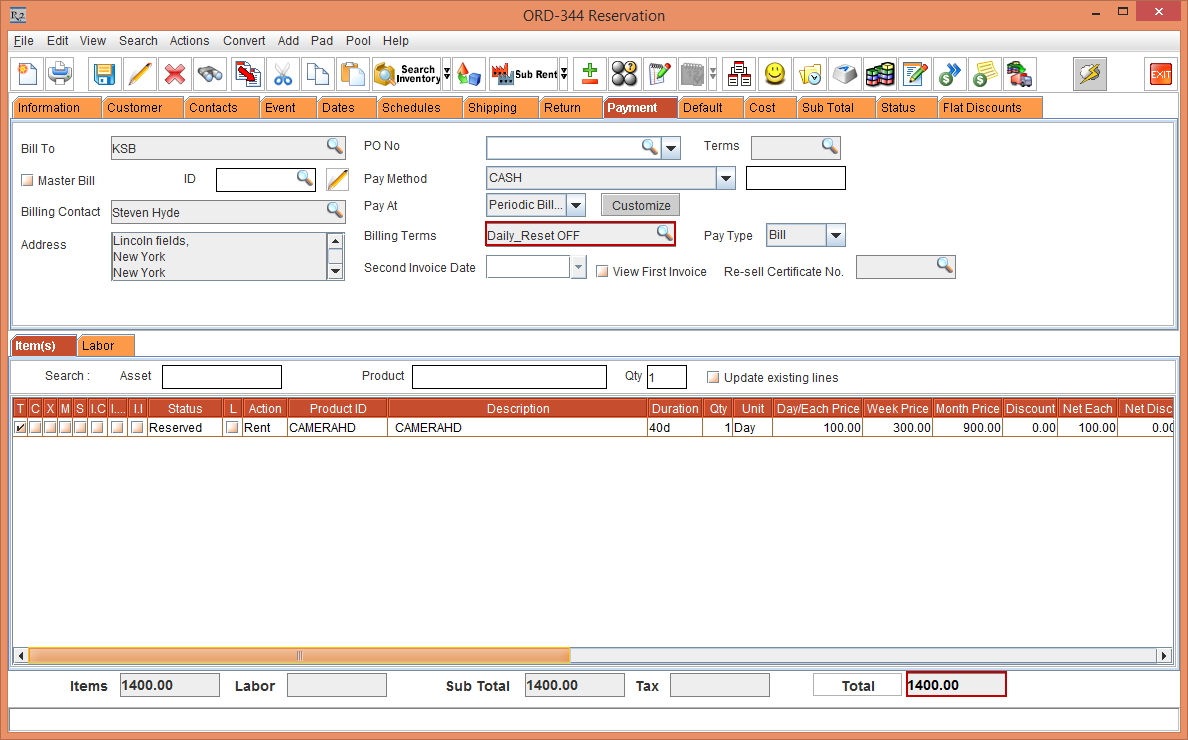
Select the Account module > Search Orders > open the Order [ORD-344] is, as shown in the Figure 2.8.
Since the Week Price is 300 and Month Price is 900, 9 Invoices will be generated in the month of January and 5 Invoices will be generated in the month of February. This is, as shown in the Figure 2.9.
Exit
the Payment Schedules window
and close the Order.
From the Configuration module, select the Day-Week-Month Pricing check box > save and exit.
Create an Item [CAMERAHD] and receive some stock > define the Pricing as following: Day Price as 100, Week Price as 300 and Month Price as 900. This is, as shown in the above Figure 2.4
Select the Payment tab > set the Pay At as Periodic Billing and tag Billing Terms as Weekly having Reset Billing selected.
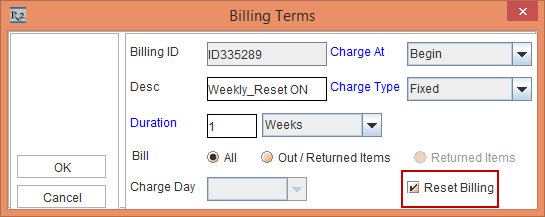
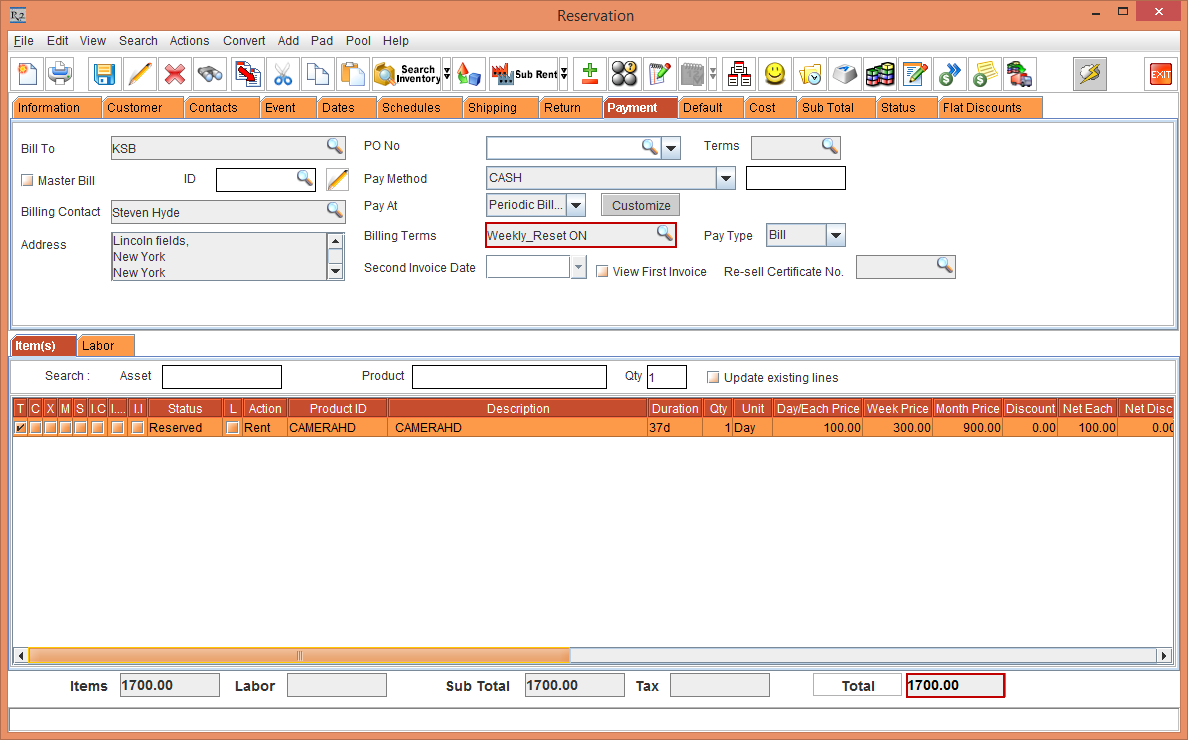
Observe the Order Amount being displayed as shown in Figure 2.11.
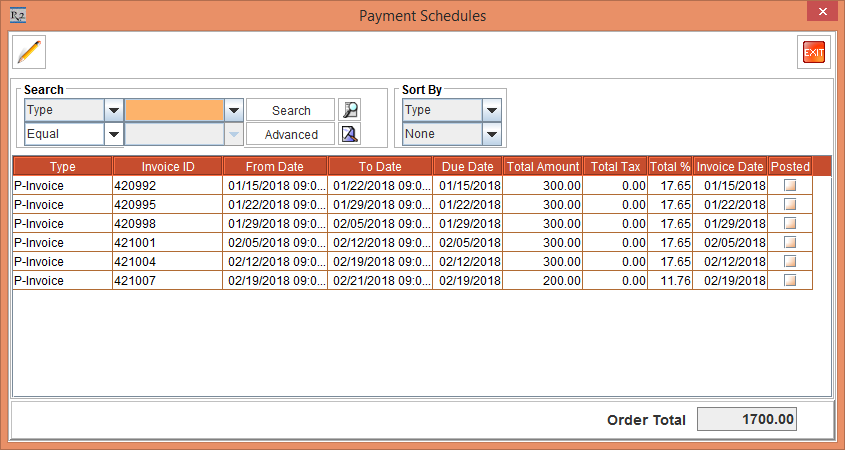
Select the View menu > Payment Schedules option. The Payment Schedules window is displayed. Observe 6 Invoices generated in Figure 2.12.
Exit the Payment Schedules window and close the Order.
Select the Configuration module > select Pricing Month By as Calendar Month > save and exit.
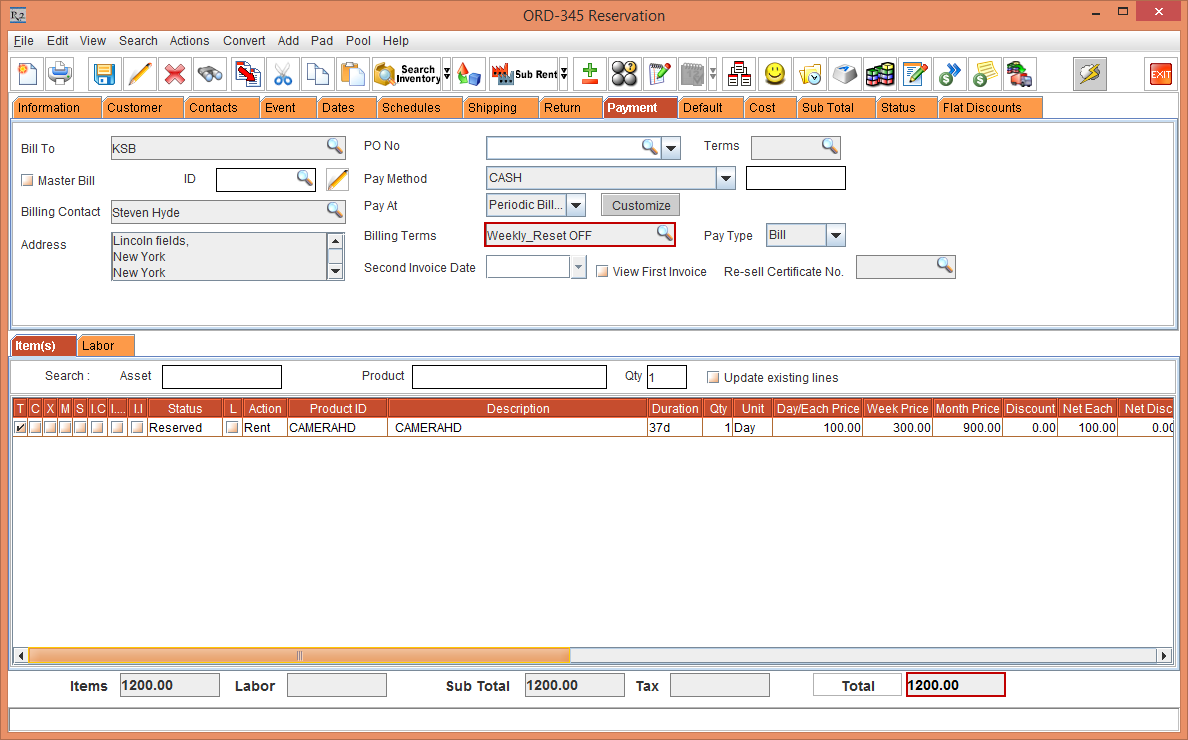
From the Order, select the Payment tab > set the Pay At as Periodic Billing and tag Billing Terms as Weekly and clear the Reset Billing check box, as shown in the Figure 2.13.
Observe the Order Amount as1200, as shown in the Figure 2.14.
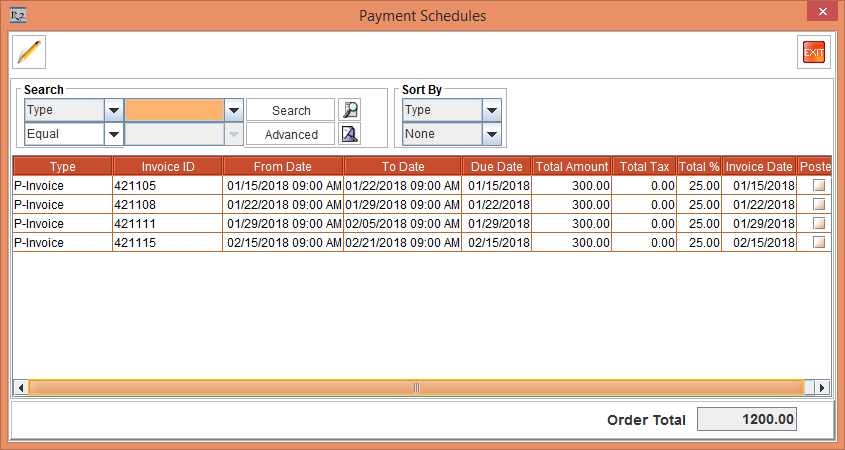
Select the View menu > Payment Schedules option. The Payment Schedules window is displayed. Observe the Invoices generated in Figure 2.15
Exit the Payment Schedules window and close the Order.
Select the Configuration module > select Pricing Month By as 28 Days > save and exit.
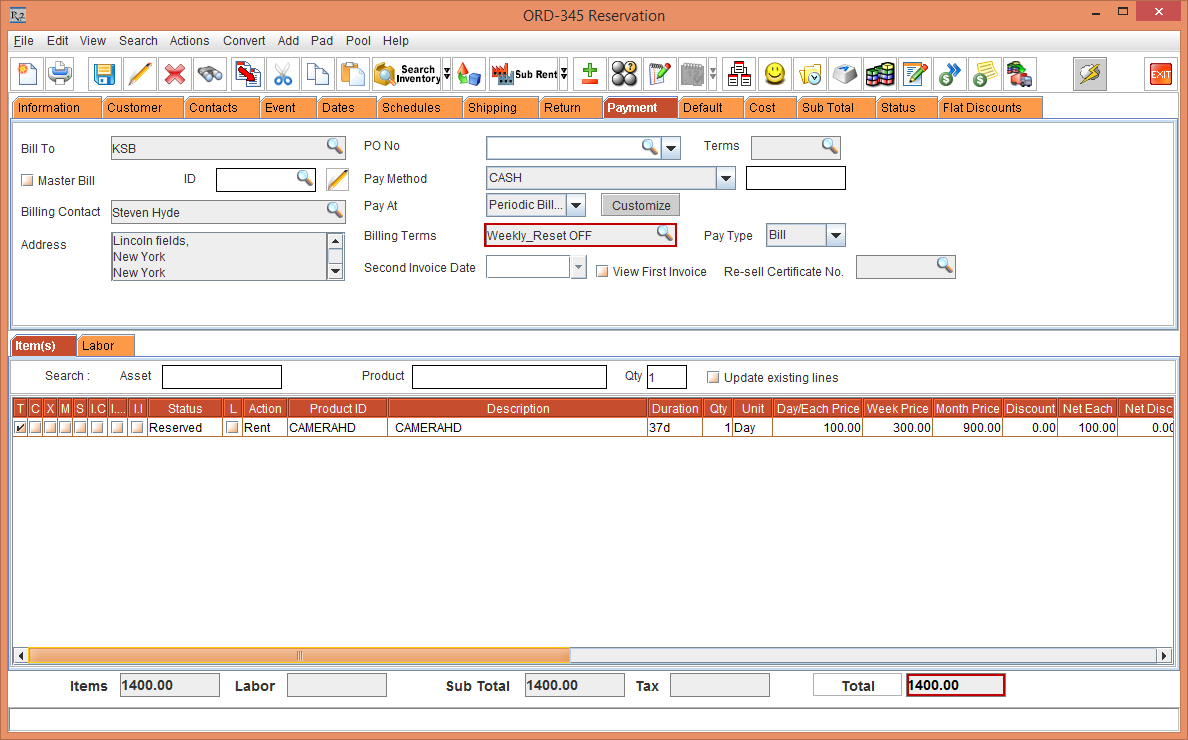
From the Order, select the Payment tab > set the Pay At as Periodic Billing and tag Billing Terms as Weekly and clear the Reset Billing check box, as shown in the Figure 2.16.
Observe the Order Amount as1400, as shown in the Figure 2.17.
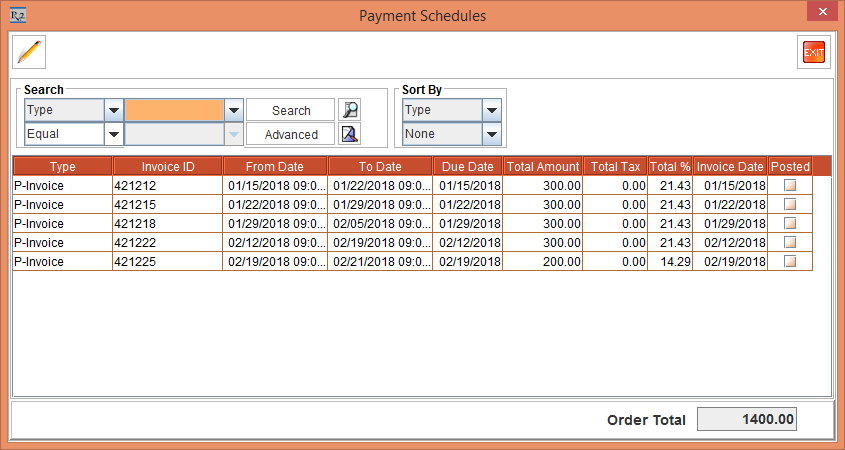
Select the View menu > Payment Schedules option. The Payment Schedules window is displayed. Observe 5 Invoices generated in Figure 2.18.
Exit the Payment Schedules window and close the Order.
From the Configuration module, select the Day-Week-Month Pricing check box > save and exit.
Create an Item [CAMERAHD] and receive some stock > define the Pricing as following: Day Price as 100, Week Price as 300 and Month Price as 900. This is, as shown in the above Figure 2.4
Create a Rental Reservation Order [ORD-346] from 15-Jan-2018 for 100 days.
Add the Item [CAMERAHD] to the Order [ORD-346]
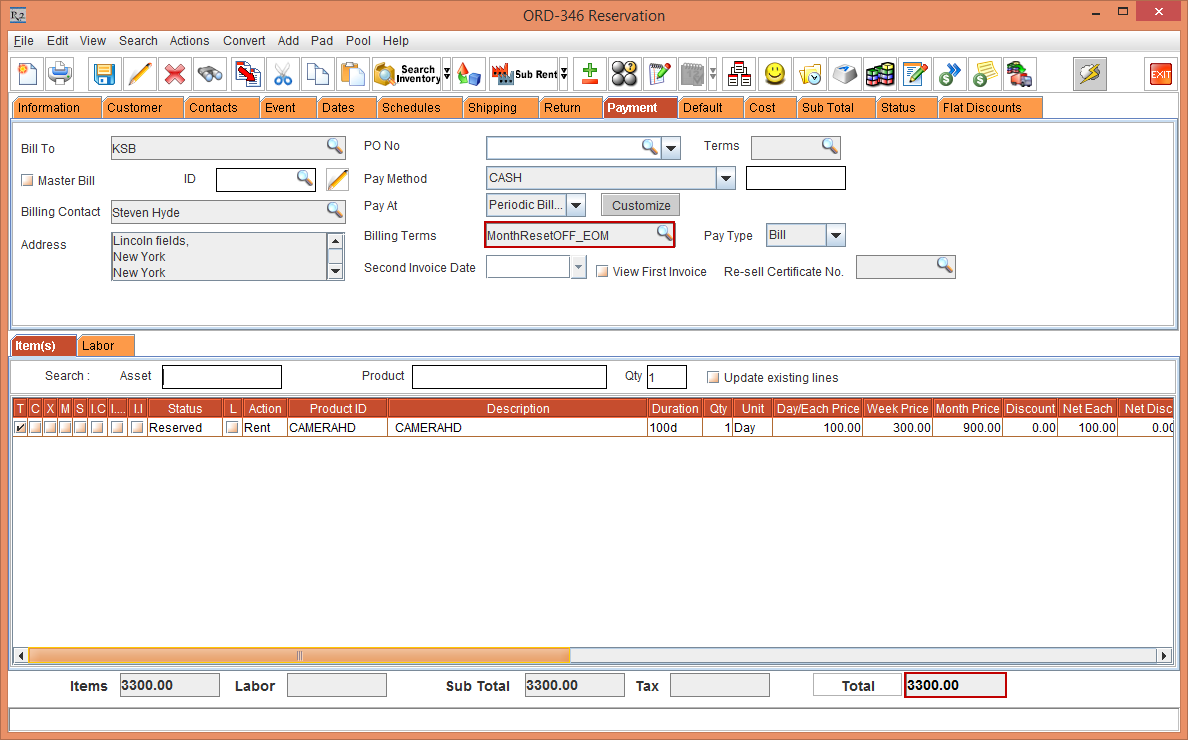
From the Order, select the Payment tab > set the Pay At as Periodic Billing and tag Billing Terms as Monthly > Charge Day as Day Of Month > select the Reset Billing check box.
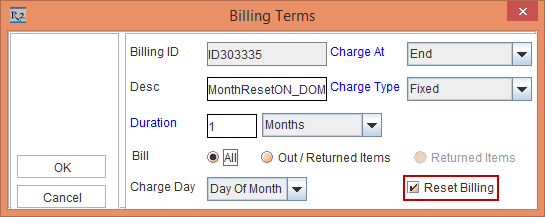
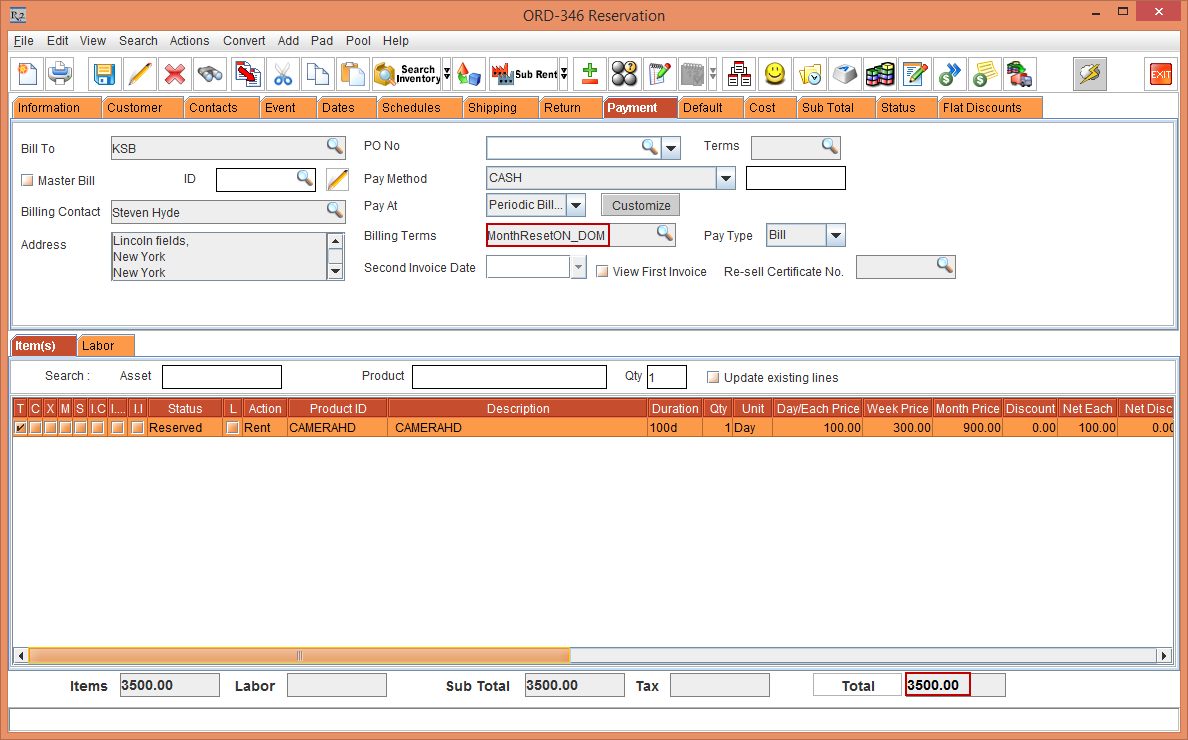
The Order Amount is 1500. This is displayed in the Figure 2.20.
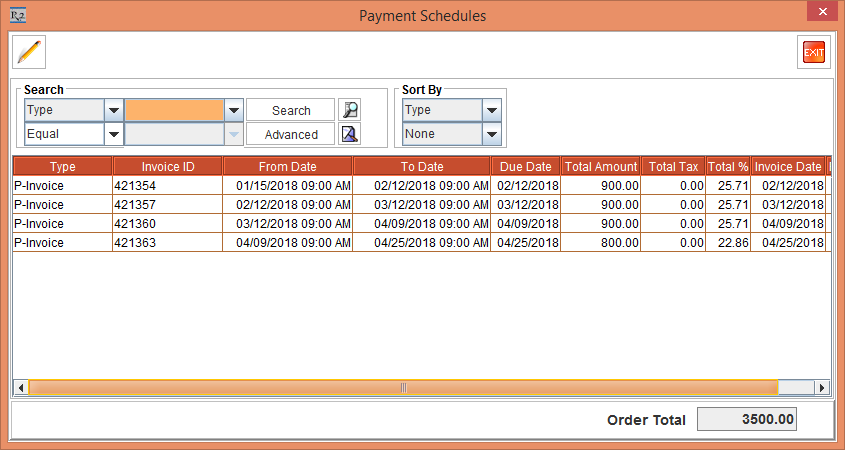
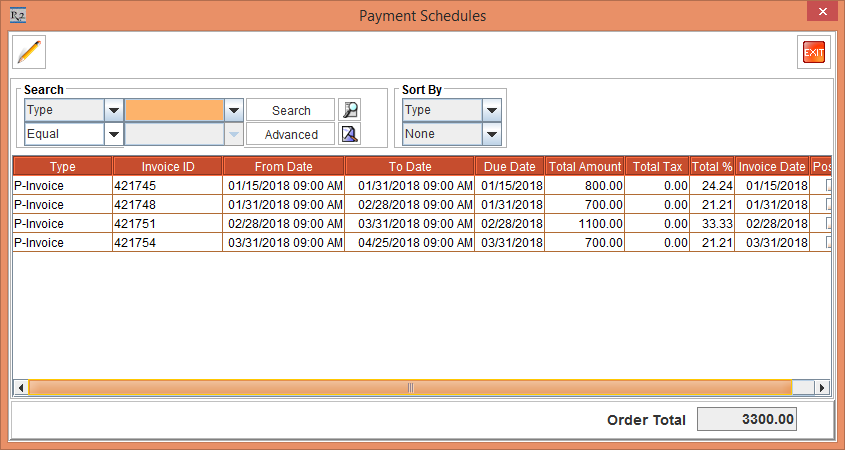
Select the View menu > Payment Schedules option. The Payment Schedules window is displayed. Observe 4 Invoices generated in Figure 2.18.
Exit the Payment Schedules window and close the Order.
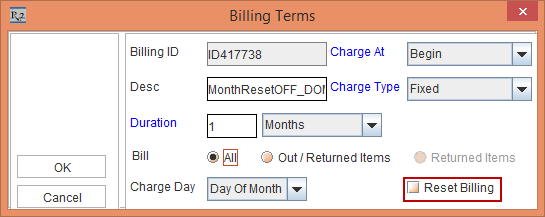
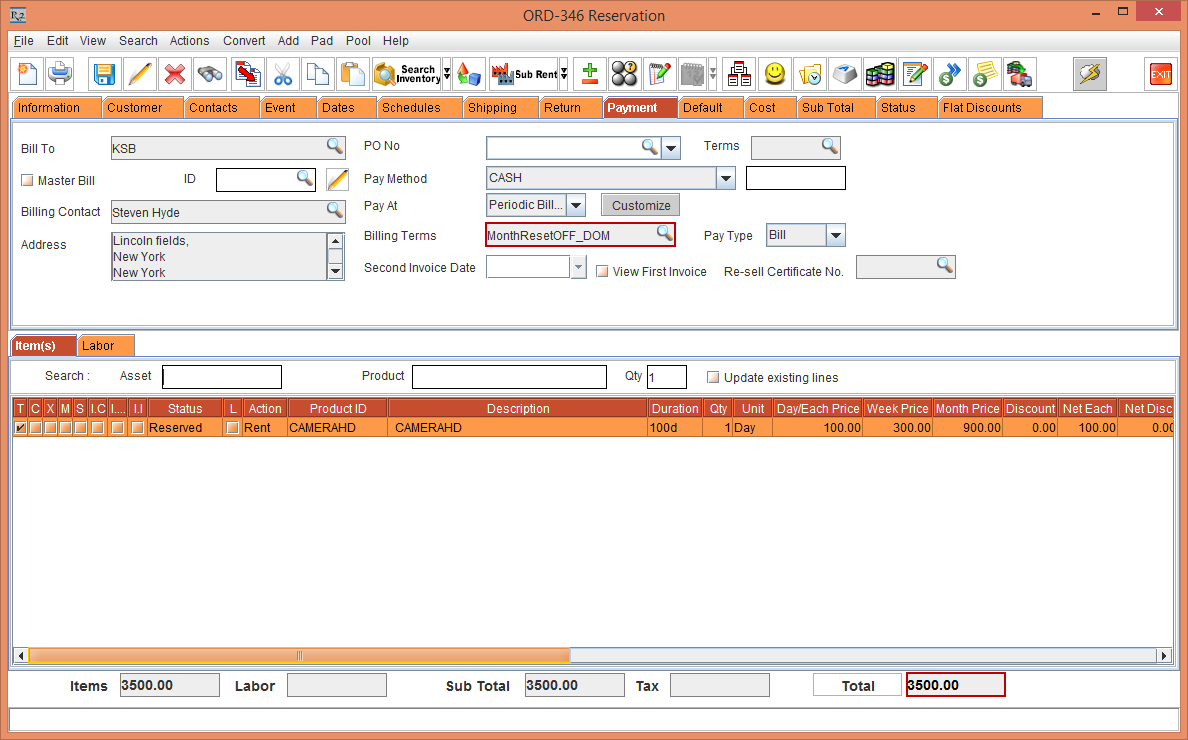
From the Order, select the Payment tab > set the Pay At as Periodic Billing and tag Billing Terms as Monthly > Charge Day as Day Of Month > and clear the Reset Billing check box.
Observe the Order Amount to be 3500 as shown below.
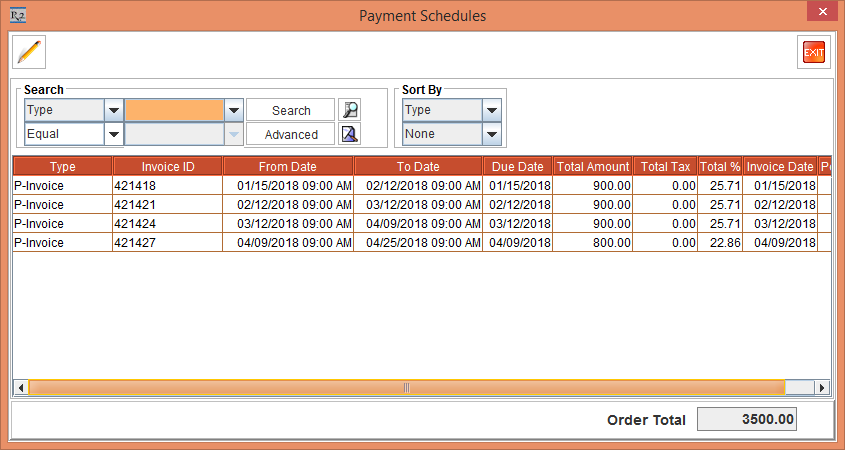
Select the View menu > Payment Schedules option. The Payment Schedules window is displayed. Observe 4 Invoices generated in Figure 2.24.
Exit the Payment Schedules window and close the Order.
Select the Configuration module > Pricing / Billing tab > select the Day-Week-Month Pricing check box > Pricing Month By as Calendar Month > save and exit.
Create an Item [CAMERAHD] and receive some stock > define the Pricing as following: Day Price as 100, Week Price as 300 and Month Price as 900. This is, as shown in the above Figure 2.4
From the Order [ORD-346] and add the Item [CAMERAHD] > select the Payment tab > set the Pay At as Periodic Billing and tag Billing Terms as Monthly > Charge Day as Day Of Month > and select the Reset Billing check box. Observe the Order Amount in the Figure 2.25.
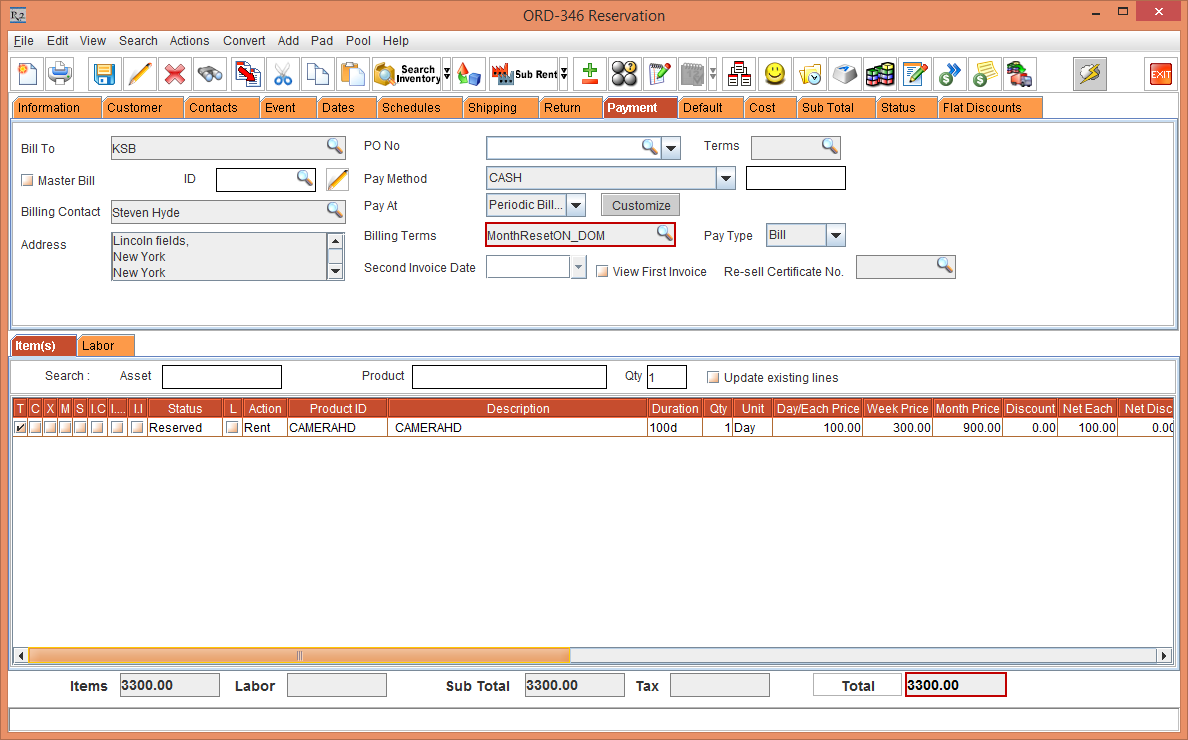
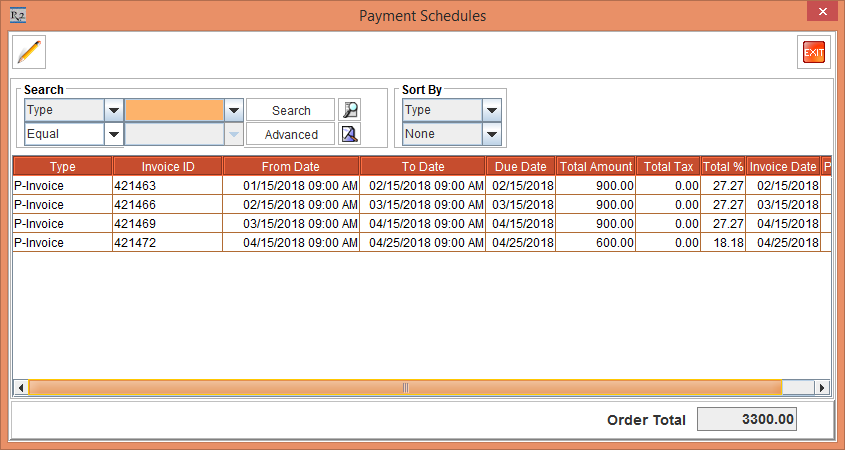
Select the View menu > Payment Schedules option. The Payment Schedules window is displayed. Observe 4 Invoices generated in Figure 2.26.
Exit the Payment Schedules window and close the Order.
Select the Configuration module > Pricing / Billing tab > select the Day-Week-Month Pricing check box > Pricing Month By as Calendar Month > save and exit.
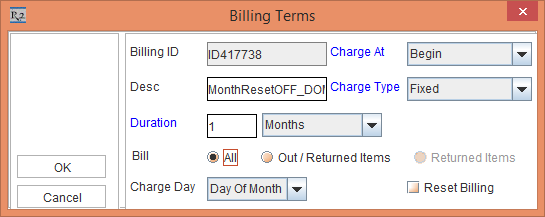
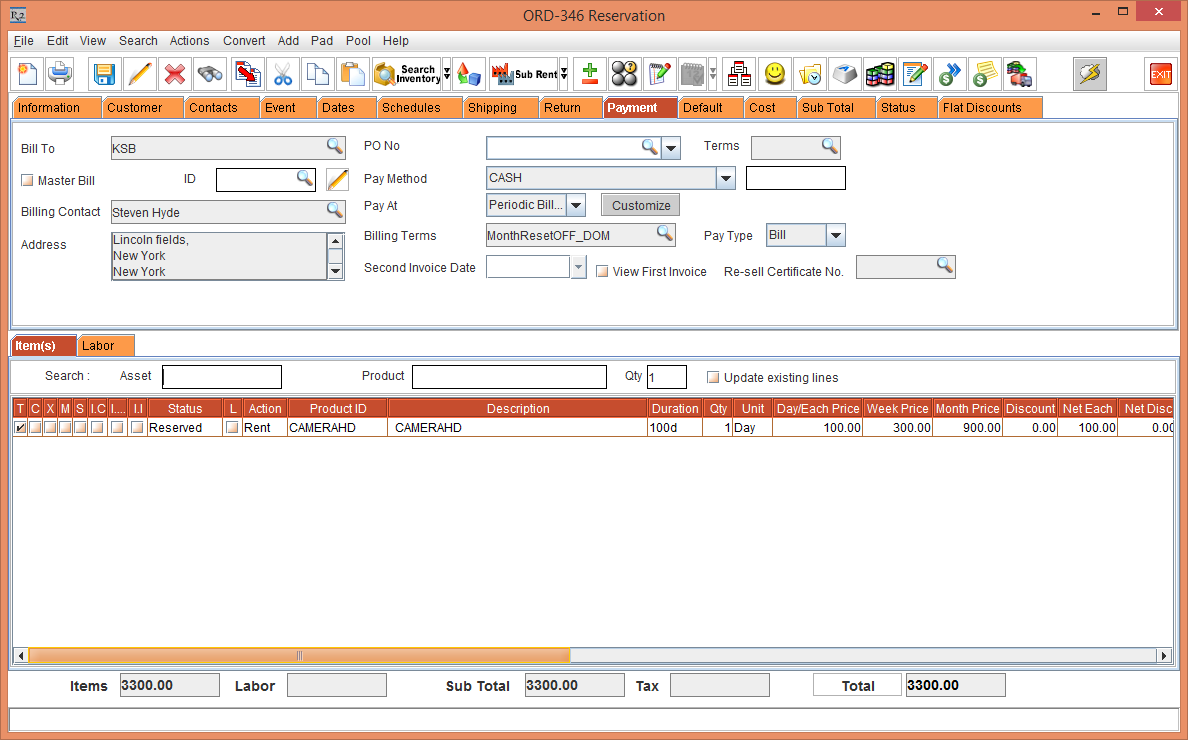
From the Order [ORD-346] > select the Payment tab > set the Pay At as Periodic Billing and tag Billing Terms as Monthly > Charge Day as Day Of Month > and clear the Reset Billing check box, as shown in the Figure 2.27. Observe the Order Amount in the Figure 2.28.
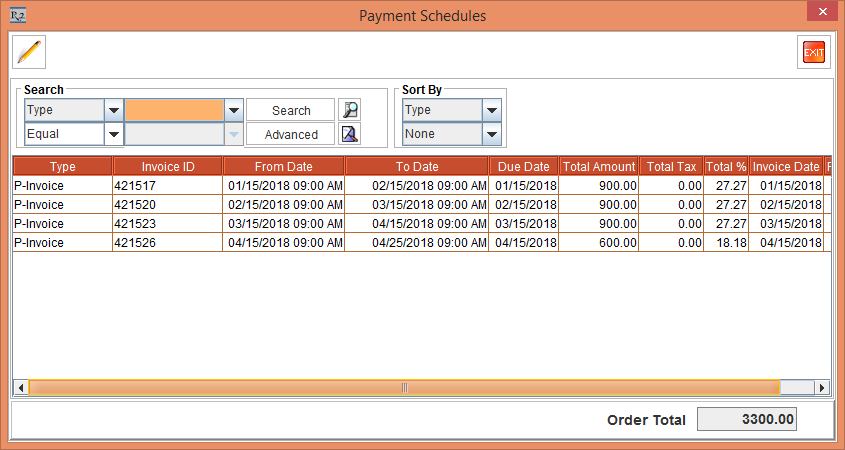
Select the View menu > Payment Schedules option. The Payment Schedules window is displayed. Observe 4 Invoices generated in Figure 2.29.
Exit the Payment Schedules window and close the Order.
Select the Configuration module > Pricing / Billing tab > select the Day-Week-Month Pricing check box > Pricing Month By as 28 Days > save and exit.
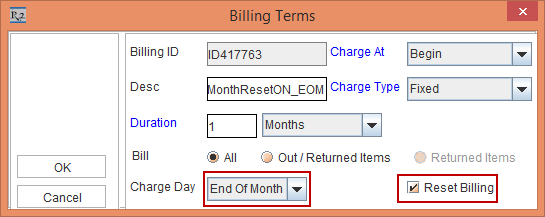
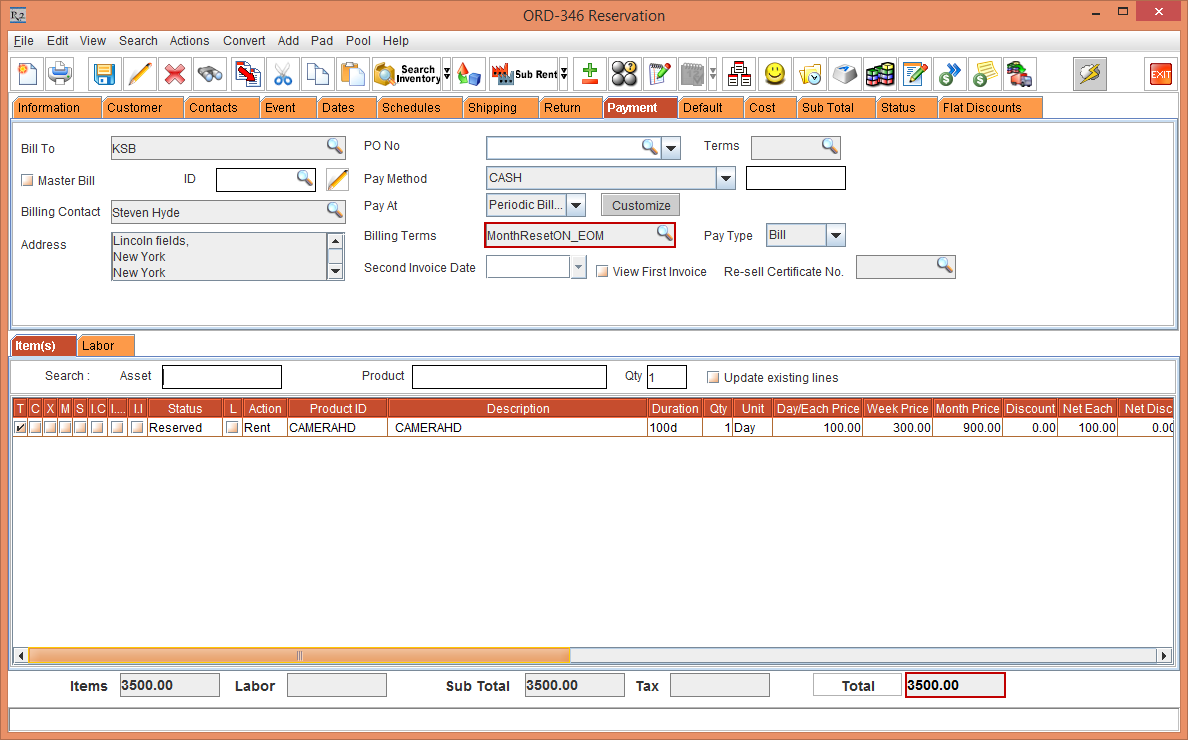
From the Order [ORD-346] > select the Payment tab > set the Pay At as Periodic Billing and tag Billing Terms as Monthly > Charge Day as End Of Month > select the Reset Billing check box, as shown in the Figure 2.30. Observe the Order Amount in the Figure 2.31.
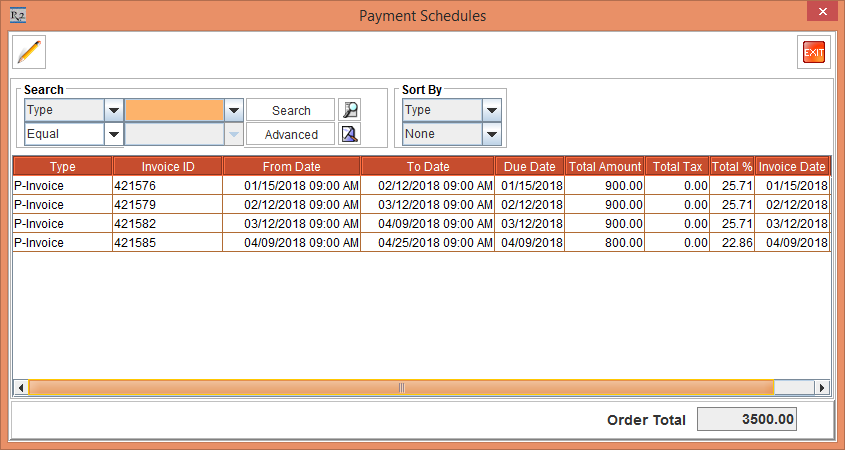
Select the View menu > Payment Schedules option. The Payment Schedules window is displayed. Observe 4 Invoices generated in Figure 2.29.
Exit the Payment Schedules window and close the Order.
Select the Configuration module > Pricing / Billing tab > select the Day-Week-Month Pricing check box > Pricing Month By as 28 Days > save and exit.
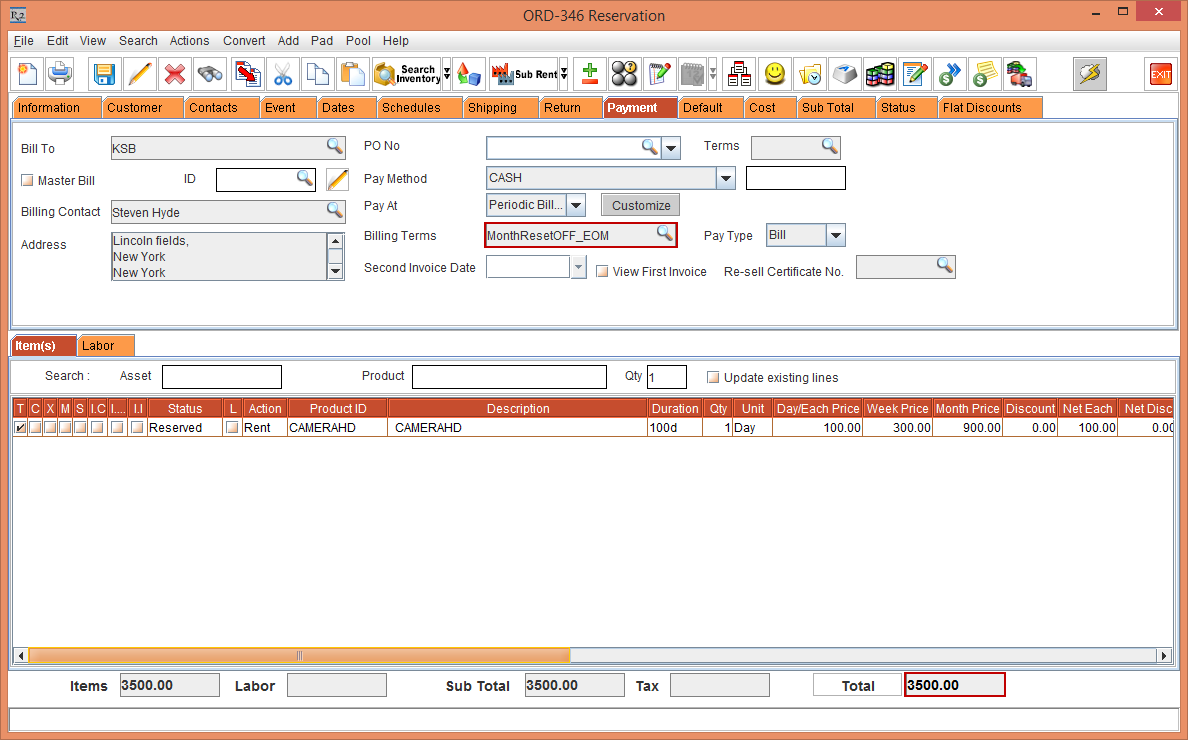
From the Order [ORD-346] > select the Payment tab > set the Pay At as Periodic Billing and tag Billing Terms as Monthly and clear the Reset Billing check box , as shown in the Figure 2.33. Observe the Order Amount in the Figure 2.34.

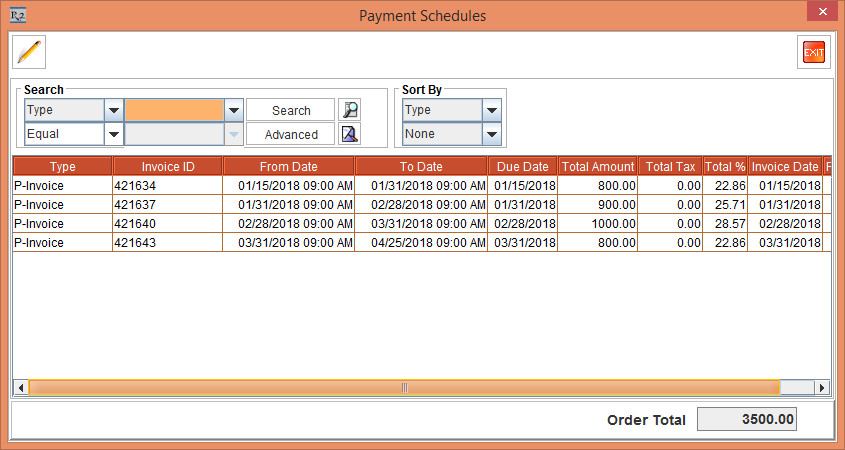
Select the View menu > Payment Schedules option. The Payment Schedules window is displayed. Observe 4 Invoices generated in Figure 2.35.
Exit the Payment Schedules window and close the Order.
Select the Configuration module > Pricing / Billing tab > select the Day-Week-Month Pricing check box > Pricing Month By as Calendar Month > save and exit.
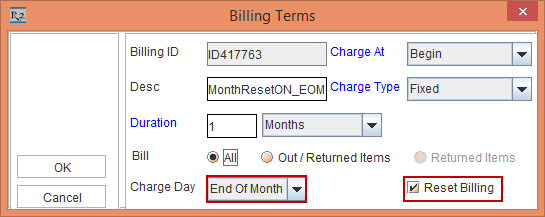
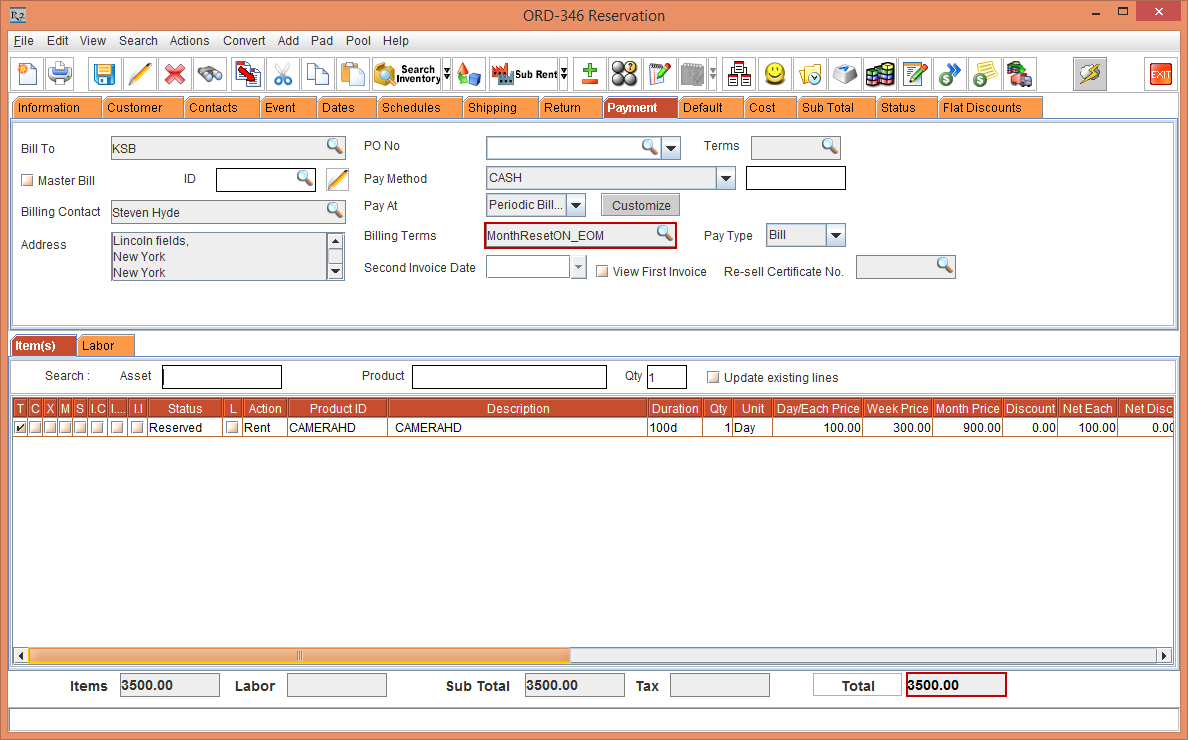
From the Order [ORD-346] > select the Payment tab > set the Pay At as Periodic Billing and tag Billing Terms as Monthly > Charge Day as End Of Month > select the Reset Billing check box, as shown in the Figure 2.36. Observe the Order Amount in the Figure 2.37.
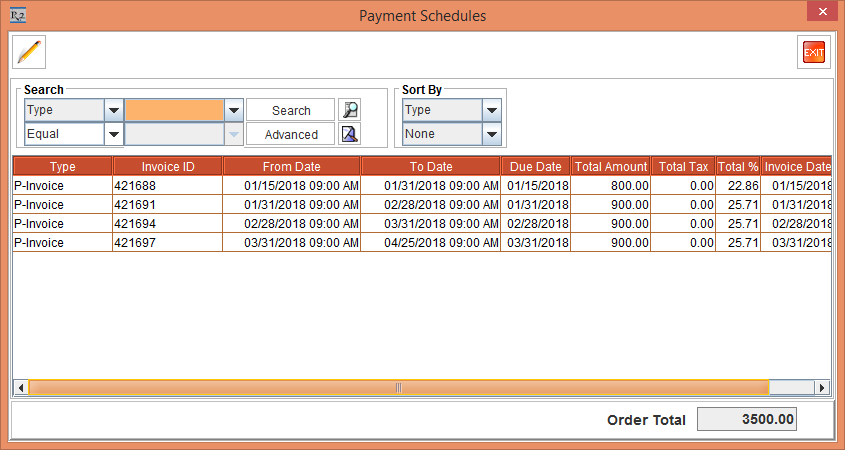
Select the View menu > Payment Schedules option. The Payment Schedules window is displayed. Observe 4 Invoices generated in Figure 2.38.
Exit
the Payment Schedules window
and close the Order.
Select the Configuration module > Pricing / Billing tab > select the Day-Week-Month Pricing check box > Pricing Month By as Calendar Month > save and exit.
From the Order [ORD-346] > select the Payment tab > set the Pay At as Periodic Billing and tag Billing Terms as Monthly > Charge Day as End Of Month > clear the Reset Billing check box, as shown in the Figure 2.39. Observe the Order Amount in the Figure 2.40.

Select the View menu > Payment Schedules option. The Payment Schedules window is displayed. Observe the 4 Invoices generated in Figure 2.38.
Exit the Payment Schedules window and close the Order.
Select the Configuration module > Pricing / Billing tab > select the Day-Week-Month Pricing check box > Pricing Month By as 28 Days or Calendar Month.
Clear the Allow Fractional Charge Duration On Order and Charge Based on Midnight check boxes > save and exit.
Create an Item [CAMERAHD] and receive some stock > define the Pricing as following: Day Price as 100, Week Price as 300 and Month Price as 900. This is, as shown in the above Figure 2.4
Create a Rental Reservation Order [ORD-347] from 15-Jan-2018 for 40 days.
Add the Item [CAMERAHD] to the Order [ORD-347].
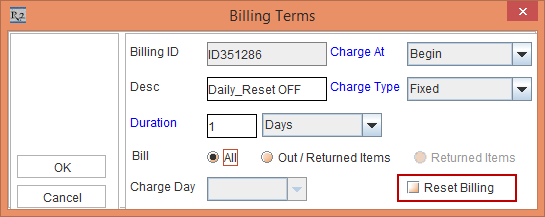
From the Order [ORD-347], select the Payment tab > set the Pay At as Periodic Billing and tag Billing Terms as Daily > select the Reset Billing check box.
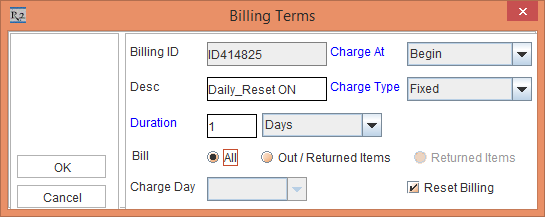
Click the OK button and tag the Billing Terms and observe the Order Amount, as shown in the Figure 3.1.
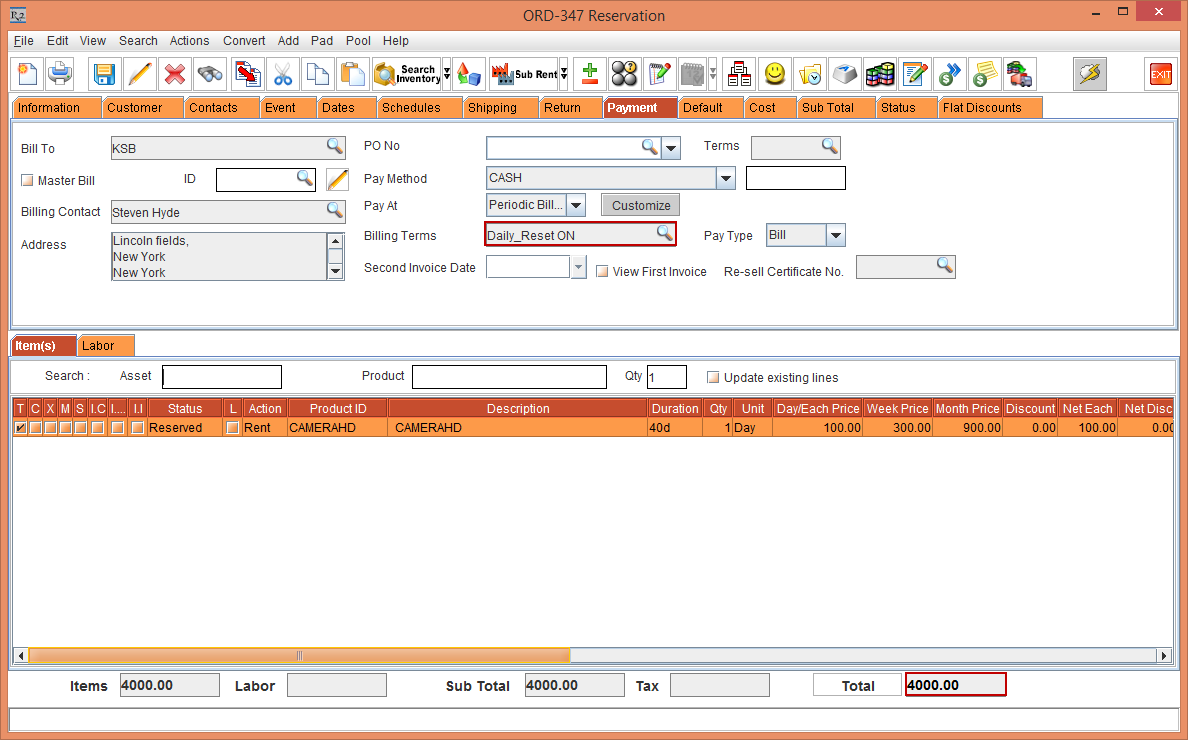
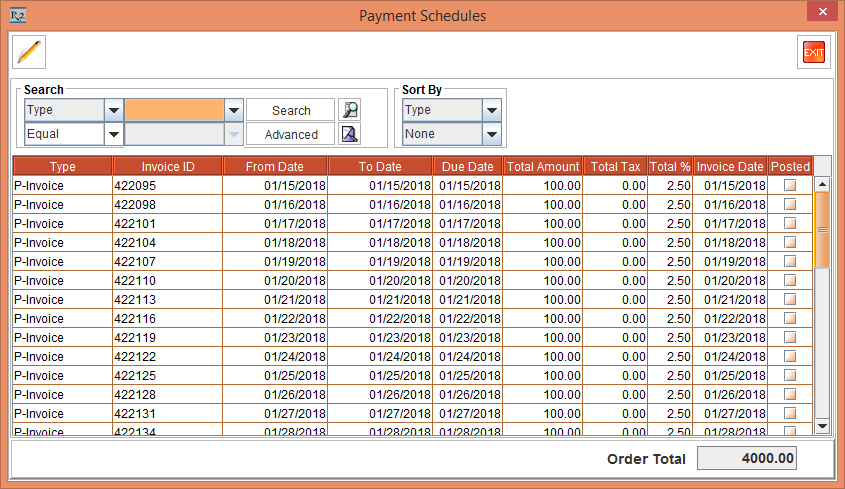
Select the View menu > Payment Schedules option. The Payment Schedules window is displayed. Observe the Invoices generated in Figure 3.2. There are 40 separate Invoices generated for 40 days separately as the Billing is Daily and Reset Billing check box is selected
Exit the Payment Schedules window and close the Order.
Select the Configuration module > Pricing / Billing tab > select the Day-Week-Month Pricing check box > Pricing Month By as Calendar Month > save and exit.
From the Order [ORD-347], select the Payment tab > set the Pay At as Periodic Billing and tag Billing Terms as Daily > clear the Reset Billing check box.
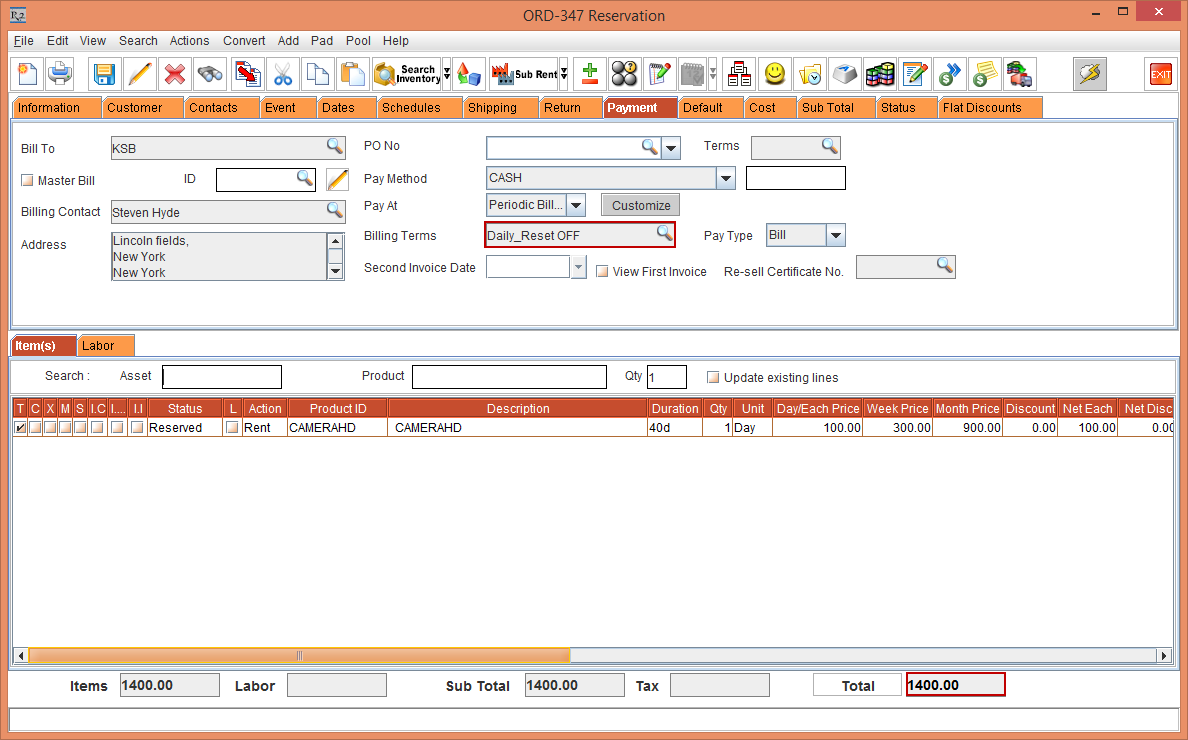
Click the OK button and tag the Billing Terms and observe the Order Amount, as shown in the Figure 3.4.
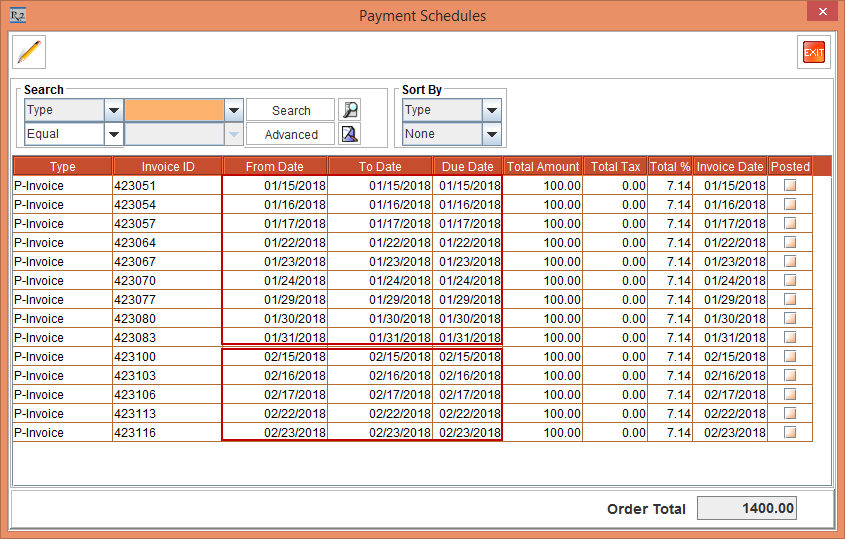
Select the View menu > Payment Schedules option. The Payment Schedules window is displayed. Observe the Invoices generated in Figure 3.5. There are 14 separate Invoices generated.
Exit the Payment Schedules window and close the Order.
Select the Configuration module > Pricing / Billing tab > select the Day-Week-Month Pricing check box > Pricing Month By as 28 Days > save and exit.
From the Order [ORD-347], select the Payment tab > set the Pay At as Periodic Billing and tag Billing Terms as Daily > clear the Reset Billing check box.
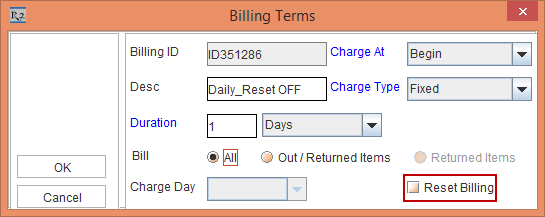
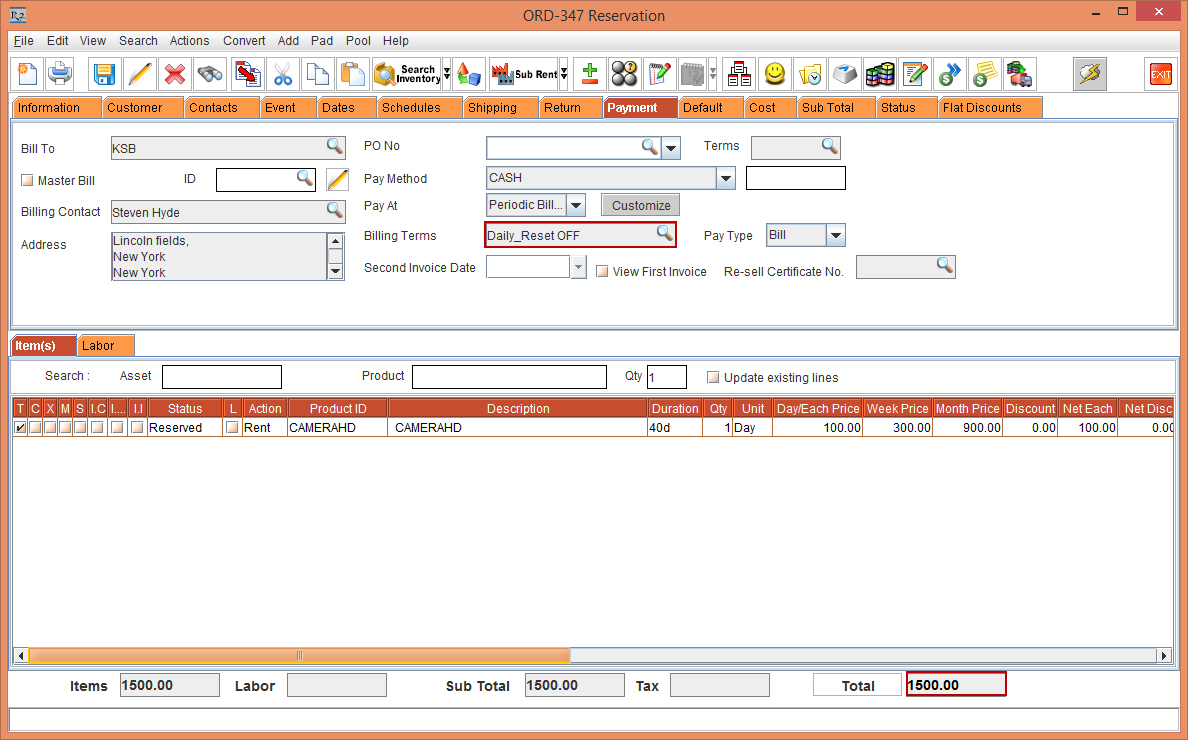
Click the OK button and tag the Billing Terms and observe the Order Amount, as shown in the Figure 3.7.
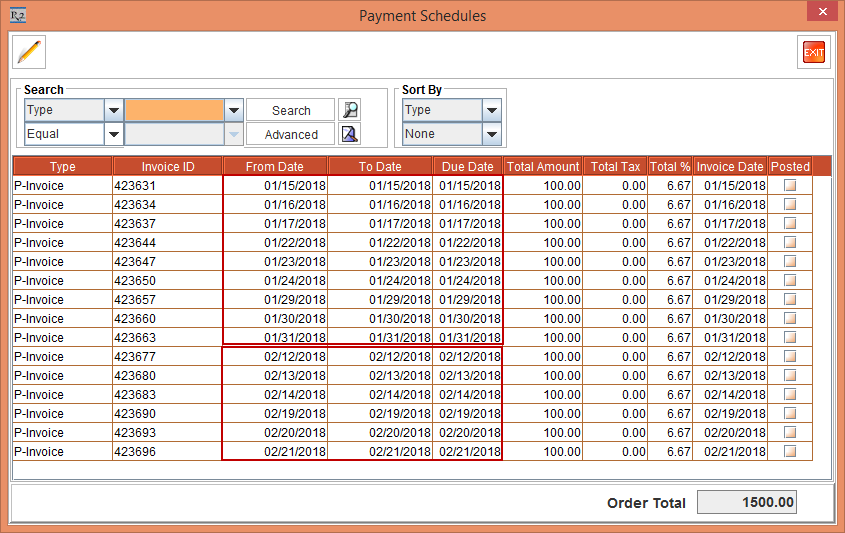
Select the View menu > Payment Schedules option. The Payment Schedules window is displayed. Observe the Invoices generated in Figure 3.8. There are 15 separate Invoices generated.
Exit the Payment Schedules window and close the Order.
Select the Configuration module > Pricing / Billing tab > select the Day-Week-Month Pricing check box > Pricing Month By as 28 Days or Calendar Month.
Clear the Allow Fractional Charge Duration On Order and Charge Based on Midnight check boxes > save and exit.
Create an Item [CAMERAHD] and receive some stock > define the Pricing as following: Day Price as 100, Week Price as 300 and Month Price as 900. This is, as shown in the above Figure 2.4
Create a Rental Reservation Order [ORD-347] from 15-Jan-2018 for 37 days.
Add the Item [CAMERAHD] to the Order [ORD-347].
From the Order [ORD-347], select the Payment tab > set the Pay At as Periodic Billing and tag Billing Terms as Weekly > select the Reset Billing check box.

Tag the Billing Terms and observe the Order Total in the Figure 3.10.

Select the View menu > Payment Schedules option. The Payment Schedules window is displayed. Observe the Invoices generated in Figure 3.11. There are 6 separate Invoices generated.

Exit the Payment Schedules window and close the Order.
Select the Configuration module > Pricing / Billing tab > select the Day-Week-Month Pricing check box > Pricing Month By as 28 Days.
Clear the Allow Fractional Charge Duration On Order and Charge Based on Midnight check boxes > save and exit.
From the Order [ORD-347], select the Payment tab > set the Pay At as Periodic Billing and tag Billing Terms as Weekly > clear the Reset Billing check box.

Tag the Billing Terms and observe the Order Total in the Figure 3.13.

Select the View menu > Payment Schedules option. The Payment Schedules window is displayed. Observe the Invoices generated in Figure 3.14. There are 6 separate Invoices generated.

Exit the Payment Schedules window and close the Order.
Select the Configuration module > Pricing / Billing tab > select the Day-Week-Month Pricing check box > Pricing Month By as Calendar Month.
Clear the Allow Fractional Charge Duration On Order and Charge Based on Midnight check boxes > save and exit.
From the Order [ORD-347], select the Payment tab > set the Pay At as Periodic Billing and tag Billing Terms as Weekly > clear the Reset Billing check box.

Tag the Billing Terms and observe the Order Total in the Figure 3.16.

Select the View menu > Payment Schedules option. The Payment Schedules window is displayed. Observe the Invoices generated in Figure 3.17. There are 4 separate Invoices generated.

Exit the Payment Schedules window and close the Order.
Select the Configuration module > Pricing / Billing tab > select the Day-Week-Month Pricing check box > Pricing Month By as Calendar Month.
Clear the Allow Fractional Charge Duration On Order and Charge Based on Midnight check boxes > save and exit.
Create an Item [CAMERAHD] and receive some stock > define the Pricing as following: Day Price as 100, Week Price as 300 and Month Price as 900. This is, as shown in the above Figure 2.4
Create a Rental Reservation Order [ORD-349] from 15-Jan-2018 for 37 days.
Add the Item [CAMERAHD] to the Order [ORD-349].
From the Order [ORD-349], select the Payment tab > set the Pay At as Periodic Billing and tag Billing Terms as Monthly > Charge Day as Day Of Month > select the Reset Billing check box.

Tag the Billing Terms and observe the Order Total in the Figure 3.19.

Select the View menu > Payment Schedules option. The Payment Schedules window is displayed. Observe the Invoices generated in Figure 3.20. There are 4 separate Invoices generated.

Exit the Payment Schedules window and close the Order.
Select the Configuration module > Pricing / Billing tab > select the Day-Week-Month Pricing check box > Pricing Month By as Calendar Month.
Clear the Allow Fractional Charge Duration On Order and Charge Based on Midnight check boxes > save and exit.
From the Order [ORD-349], select the Payment tab > set the Pay At as Periodic Billing and tag Billing Terms as Monthly > Charge Day as Day Of Month > clear the Reset Billing check box.

Tag the Billing Terms and observe the Order Total in the Figure 3.22.

Select the View menu > Payment Schedules option. The Payment Schedules window is displayed. Observe the Invoices generated in Figure 3.23. There are 4 separate Invoices generated.

Exit the Payment Schedules window and close the Order.
Select the Configuration module > Pricing / Billing tab > select the Day-Week-Month Pricing check box > Pricing Month By as 28 Days.
Clear the Allow Fractional Charge Duration On Order and Charge Based on Midnight check boxes > save and exit.
From the Order [ORD-349], select the Payment tab > set the Pay At as Periodic Billing and tag Billing Terms as Monthly > Charge Day as Day Of Month > select the Reset Billing check box.

Tag the Biling Terms and observe the Order Total in the Figure 3.25

Select the View menu > Payment Schedules option. The Payment Schedules window is displayed. Observe the Invoices generated in Figure 3.26. There are 4 separate Invoices generated.

Exit the Payment Schedules window and close the Order.
Select the Configuration module > Pricing / Billing tab > select the Day-Week-Month Pricing check box > Pricing Month By as 28 Days.
Clear the Allow Fractional Charge Duration On Order and Charge Based on Midnight check boxes > save and exit.
From the Order [ORD-349], select the Payment tab > set the Pay At as Periodic Billing and tag Billing Terms as Monthly > Charge Day as Day Of Month > clear the Reset Billing check box.

Tag the Billing Terms and observe the Order Total in the Figure 3.28.

Select the View menu > Payment Schedules option. The Payment Schedules window is displayed. Observe the Invoices generated in Figure 3.29. There are 4 separate Invoices generated.

Exit the Payment Schedules window and close the Order.
Select the Configuration module > Pricing / Billing tab > select the Day-Week-Month Pricing check box > Pricing Month By as 28 Days.
Clear the Allow Fractional Charge Duration On Order and Charge Based on Midnight check boxes > save and exit.
From the Order [ORD-349], select the Payment tab > set the Pay At as Periodic Billing and tag Billing Terms as Monthly > Charge Day as End Of Month > select the Reset Billing check box.

Tag the Billing Terms and observe the Order Total in the Figure 3.31.

Select the View menu > Payment Schedules option. The Payment Schedules window is displayed. Observe the Invoices generated in Figure 3.32. There are 4 separate Invoices generated.

Exit the Payment Schedules window and close the Order.
Select the Configuration module > Pricing / Billing tab > select the Day-Week-Month Pricing check box > Pricing Month By as 28 Days.
Clear the Allow Fractional Charge Duration On Order and Charge Based on Midnight check boxes > save and exit.
From the Order [ORD-349], select the Payment tab > set the Pay At as Periodic Billing and tag Billing Terms as Monthly > Charge Day as End Of Month > clear the Reset Billing check box.

Tag the Billing Terms and observe the Order Total in the Figure 3.34.

Select the View menu > Payment Schedules option. The Payment Schedules window is displayed. Observe the Invoices generated in Figure 3.35. There are 4 separate Invoices generated.

Exit the Payment Schedules window and close the Order.
Select the Configuration module > Pricing / Billing tab > select the Day-Week-Month Pricing check box > Pricing Month By as Calendar Month.
Clear the Allow Fractional Charge Duration On Order and Charge Based on Midnight check boxes > save and exit.
From the Order [ORD-349], select the Payment tab > set the Pay At as Periodic Billing and tag Billing Terms as Monthly > Charge Day as End Of Month > select the Reset Billing check box.

Tag the Billing Terms and observe the Order Total in the Figure 3.37.

Select the View menu > Payment Schedules option. The Payment Schedules window is displayed. Observe the Invoices generated in Figure 3.38. There are 4 separate Invoices generated.

Exit the Payment Schedules window and close the Order.
Select the Configuration module > Pricing / Billing tab > select the Day-Week-Month Pricing check box > Pricing Month By as Calendar Month.
Clear the Allow Fractional Charge Duration On Order and Charge Based on Midnight check boxes > save and exit.
From the Order [ORD-349], select the Payment tab > set the Pay At as Periodic Billing and tag Billing Terms as Monthly > Charge Day as End Of Month > clear the Reset Billing check box.

Tag the Billing Terms and observe the Order Total in the Figure 3.40.

Select the View menu > Payment Schedules option. The Payment Schedules window is displayed. Observe the Invoices generated in Figure 3.41. There are 4 separate Invoices generated.

Exit the Payment Schedules window and close the Order.
The following workflows explain the Charge Based On Mid Night option in detail.
Select the Configuration module > Pricing / Billing tab > select the Day-Week-Month Pricing check box > Pricing Month By as 28 days or Calendar Month.
In the Configuration module > Pricing / Billing tab > clear the Allow Fractional Charge Duration On order check box and select the Charge Based On Mid Night check box.
Create an Item [CAMERAHD] and receive some stock > define the Pricing as following: Day Price as 100, Week Price as 300 and Month Price as 900. This is, as shown in the above Figure 2.4
Create a Rental Reservation Order [ORD-350] from 15-Jan-2018 for 40 days.
Add the Item [CAMERAHD] to the Order [ORD-350].
From the Order [ORD-350], select the Payment tab > set the Pay At as Periodic Billing and tag Billing Terms as Daily > select the Reset Billing check box.

Tag the Billing Terms and observe the Order Total in the Figure 4.1.

Select the View menu > Payment Schedules option. The Payment Schedules window is displayed. Observe the Invoices generated in Figure 4.2. There are 40 separate Invoices generated.

Exit the Payment Schedules window and close the Order.
Select the Configuration module > Pricing / Billing tab > select the Day-Week-Month Pricing check box > Pricing Month By as Calendar Month.
In the Configuration module > Pricing / Billing tab > clear the Allow Fractional Charge Duration On order check box and select the Charge Based On Mid Night check box.
From the Order [ORD-350], select the Payment tab > set the Pay At as Periodic Billing and tag Billing Terms as Daily > clear the Reset Billing check box.

Tag the Billing Terms and observe the Order Total in the Figure 4.4.

Select the View menu > Payment Schedules option. The Payment Schedules window is displayed. Observe the Invoices generated in Figure 4.5. There are 14 separate Invoices generated.

Exit the Payment Schedules window and close the Order.
Select the Configuration module > Pricing / Billing tab > select the Day-Week-Month Pricing check box > Pricing Month By as 28 Days.
In the Configuration module > Pricing / Billing tab > clear the Allow Fractional Charge Duration On order check box and select the Charge Based On Mid Night check box.
From the Order [ORD-350], select the Payment tab > set the Pay At as Periodic Billing and tag Billing Terms as Daily > clear the Reset Billing check box.

Tag the Billing Terms and observe the Order Total in the Figure 4.7.

Select the View menu > Payment Schedules option. The Payment Schedules window is displayed. Observe the Invoices generated in Figure 4.8. There are 14 separate Invoices generated.

Exit the Payment Schedules window and close the Order.
Select the Configuration module > Pricing / Billing tab > select the Day-Week-Month Pricing check box > Pricing Month By as 28 days or Calendar Month.
In the Configuration module > Pricing / Billing tab > clear the Allow Fractional Charge Duration On order check box and select the Charge Based On Mid Night check box.
Create an Item [CAMERAHD] and receive some stock > define the Pricing as following: Day Price as 100, Week Price as 300 and Month Price as 900. This is, as shown in the above Figure 2.4
Create a Rental Reservation Order [ORD-350] from 15-Jan-2018 for 37 days.
Add the Item [CAMERAHD] to the Order [ORD-350].
From the Order [ORD-350], select the Payment tab > set the Pay At as Periodic Billing and tag Billing Terms as Weekly > select the Reset Billing check box.

Tag the Billing Terms and observe the Order Total in the Figure 4.10.

Select the View menu > Payment Schedules option. The Payment Schedules window is displayed. Observe the Invoices generated in Figure 4.11. There are 6 separate Invoices generated.

Exit the Payment Schedules window and close the Order.
Select the Configuration module > Pricing / Billing tab > select the Day-Week-Month Pricing check box > Pricing Month By as 28 days.
In the Configuration module > Pricing / Billing tab > clear the Allow Fractional Charge Duration On order check box and select the Charge Based On Mid Night check box.
From the Order [ORD-350], select the Payment tab > set the Pay At as Periodic Billing and tag Billing Terms as Weekly > clear the Reset Billing check box.

Tag the Billing Terms and observe the Order Total in the Figure 4.13.

Select the View menu > Payment Schedules option. The Payment Schedules window is displayed. Observe the Invoices generated in Figure 4.14. There are 5 separate Invoices generated.

Exit the Payment Schedules window and close the Order.
Select the Configuration module > Pricing / Billing tab > select the Day-Week-Month Pricing check box > Pricing Month By as Calendar Month.
In the Configuration module > Pricing / Billing tab > clear the Allow Fractional Charge Duration On order check box and select the Charge Based On Mid Night check box.
From the Order [ORD-350], select the Payment tab > set the Pay At as Periodic Billing and tag Billing Terms as Weekly > clear the Reset Billing check box.
Tag the Billing Terms and observe the Order Total in the Figure 4.16.

Select the View menu > Payment Schedules option. The Payment Schedules window is displayed. Observe the Invoices generated in Figure 4.17. There are 4 separate Invoices generated.

Exit the Payment Schedules window and close the Order.
Select the Configuration module > Pricing / Billing tab > select the Day-Week-Month Pricing check box > Pricing Month By as Calendar Month.
In the Configuration module > Pricing / Billing tab > clear the Allow Fractional Charge Duration On order check box and select the Charge Based On Mid Night check box.
Create an Rental Reservation Order [ORD-351] for 100 Days starting from 15-Jan-2018.
Add the Item [CAMERAHD] to the Order [ORD-350].
From the Order [ORD-351], select the Payment tab > set the Pay At as Periodic Billing and tag Billing Terms as Monthly > Charge Day as Day Of Month > select the Reset Billing check box.
Tag the Billing Terms as shown in the Figure 4.18.

Observe the Order Total, as shown in the Figure 4.19.

Select the View menu > Payment Schedules option. The Payment Schedules window is displayed. Observe the Invoices generated in Figure 4.20. There are 4 separate Invoices generated.

Exit the Payment Schedules window and close the Order.
Select the Configuration module > Pricing / Billing tab > select the Day-Week-Month Pricing check box > Pricing Month By as Calendar Month.
From the Order [ORD-351], select the Payment tab > set the Pay At as Periodic Billing and tag Billing Terms as Monthly > Charge Day as Day Of Month > clear the Reset Billing check box.
Tag the Billing Terms as shown in the Figure 4.21.

Observe the Order Total, as shown in the Figure 4.22.

Select the View menu > Payment Schedules option. The Payment Schedules window is displayed. Observe the Invoices generated in Figure 4.23. There are 4 separate Invoices generated.

Exit the Payment Schedules window and close the Order.
Select the Configuration module > Pricing / Billing tab > select the Day-Week-Month Pricing check box > Pricing Month By as 28 Days.
From the Order [ORD-351], select the Payment tab > set the Pay At as Periodic Billing and tag Billing Terms as Monthly > Charge Day as Day Of Month > select the Reset Billing check box.
Tag the Billing Terms as shown in the Figure 4.24.

Observe the Order Total, as shown in the Figure 4.25.

Select the View menu > Payment Schedules option. The Payment Schedules window is displayed. Observe the Invoices generated in Figure 4.26. There are 4 separate Invoices generated.

Exit the Payment Schedules window and close the Order.
Select the Configuration module > Pricing / Billing tab > select the Day-Week-Month Pricing check box > Pricing Month By as 28 Days.
From the Order [ORD-351], select the Payment tab > set the Pay At as Periodic Billing and tag Billing Terms as Monthly > Charge Day as Day Of Month > clear the Reset Billing check box.
Tag the Billing Terms as shown in the Figure 4.27.

Observe the Order Total, as shown in the Figure 4.28.

Select the View menu > Payment Schedules option. The Payment Schedules window is displayed. Observe the Invoices generated in Figure 4.29. There are 4 separate Invoices generated.

Exit the Payment Schedules window and close the Order.
Select the Configuration module > Pricing / Billing tab > select the Day-Week-Month Pricing check box > Pricing Month By as Calendar Month.
From the Order [ORD-351], select the Payment tab > set the Pay At as Periodic Billing and tag Billing Terms as Monthly > Charge Day as End Of Month > select the Reset Billing check box.
Tag the Billing Terms as shown in the Figure 4.30.

Observe the Order Total, as shown in the Figure 4.31.

Select the View menu > Payment Schedules option. The Payment Schedules window is displayed. Observe the Invoices generated in Figure 4.32. There are 4 separate Invoices generated.

Exit the Payment Schedules window and close the Order.
Select the Configuration module > Pricing / Billing tab > select the Day-Week-Month Pricing check box > Pricing Month By as Calendar Month.
From the Order [ORD-351], select the Payment tab > set the Pay At as Periodic Billing and tag Billing Terms as Monthly > Charge Day as End Of Month > clear the Reset Billing check box.
Tag the Billing Terms as shown in the Figure 4.33.

Observe the Order Total, as shown in the Figure 4.34.

Select the View menu > Payment Schedules option. The Payment Schedules window is displayed. Observe the Invoices generated in Figure 4.35. There are 4 separate Invoices generated.

Exit the Payment Schedules window and close the Order.
Select the Configuration module > Pricing / Billing tab > select the Day-Week-Month Pricing check box > Pricing Month By as 28Days.
From the Order [ORD-351], select the Payment tab > set the Pay At as Periodic Billing and tag Billing Terms as Monthly > Charge Day as End Of Month > select the Reset Billing check box.
Tag the Billing Terms as shown in the Figure 4.36.

Observe the Order Total, as shown in the Figure 4.37.

Select the View menu > Payment Schedules option. The Payment Schedules window is displayed. Observe the Invoices generated in Figure 4.38. There are 4 separate Invoices generated.

Exit the Payment Schedules window and close the Order.
Select the Configuration module > Pricing / Billing tab > select the Day-Week-Month Pricing check box > Pricing Month By as 28Days.
From the Order [ORD-351], select the Payment tab > set the Pay At as Periodic Billing and tag Billing Terms as Monthly > Charge Day as End Of Month > clear the Reset Billing check box.
Tag the Billing Terms as shown in the Figure 4.39.

Observe the Order Total, as shown in the Figure 4.40.

Select the View menu > Payment Schedules option. The Payment Schedules window is displayed. Observe the Invoices generated in Figure 4.41. There are 4 separate Invoices generated.

Exit the Payment Schedules window and close the Order.
NOTE:
Invoice generation with auto extend charge duration
Dark Days Discount
Net Each
Meter Charges
Other Charges on Order
Different types of Orders
Discounting
Kits and Non-Serial Kits and Misc/Freight, Parts, Labor
Line Locking
Update Line Details
Different Configuration Settings (All Pricing/ Cost/ Invoicing/ Charging Related Options)
Pad Items
No-Charge
Credit Limit
Changing Price Group In Default Tab
Discount Setup In Maintenance
Master Billing
Payments
All Pricing Related Options
Update Dates (Charge Dates) Through Different Options
Splitting Scenarios
Copy From Order
Copy Paste
Duplicate Order
Ship Items From Order
Invoice Dates Differences in Different Combination of Configuration and Different Billing Types
Invoicing and all types of billing (IR Invoice / CR-DB Memo)
Main Order-Suborder Combination
Costing
Multi-Currency
Flat Pricing
Flat Discount
Equipment Usage View
Import Items
Deposit Invoice
E-Pool
Total cost in Order Grid
Update Replacement Cost
Add Items Through Fill Order
Standalone Invoice
Posting in different formats (SAP-F2 Failing)
Reporting
Printing
Revenue Distribution for Kit Child
eR2
Import Payments
Grid Price
Min Price
R C Price
Event Pricing
Employee Discount Approval
Difference Amount
Pricing Analysis
NOTE: Changes are still pending in the document.